Overview:
Customer debit notes in N3 AI Accounting are used to document additional charges that need to be billed to customers—such as service fees, penalties, or billing corrections. These notes help ensure that the customer's balance reflects all legitimate charges, supporting accurate receivable management and financial reporting. This guide provides a clear, step-by-step process for recording customer debit notes correctly and efficiently.
Scenario:
You discover that a customer was undercharged on a previous invoice due to a missed service fee. To correct the customer’s outstanding balance, you need to issue a debit note in N3 AI. This transaction will reflect an additional amount the customer must pay and ensure your receivables and revenue are properly recorded.
Procedure:
Step 1: Navigate to Customer Debit Note Screen
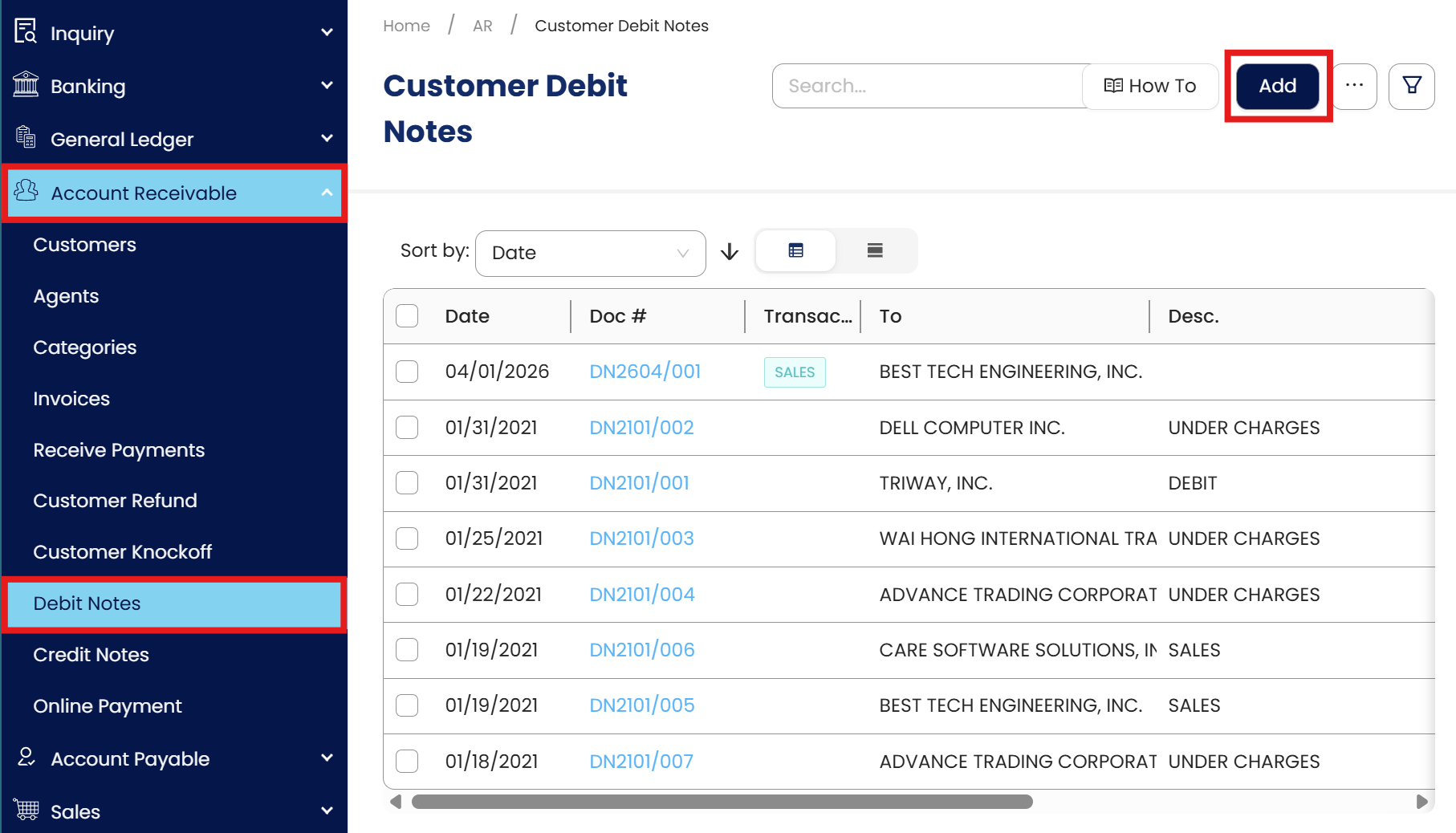
Navigate to Accounts Receivable > Debit Notes.
Click Add to create a new customer debit note.
Step 2: Fill Out the Debit Note Header
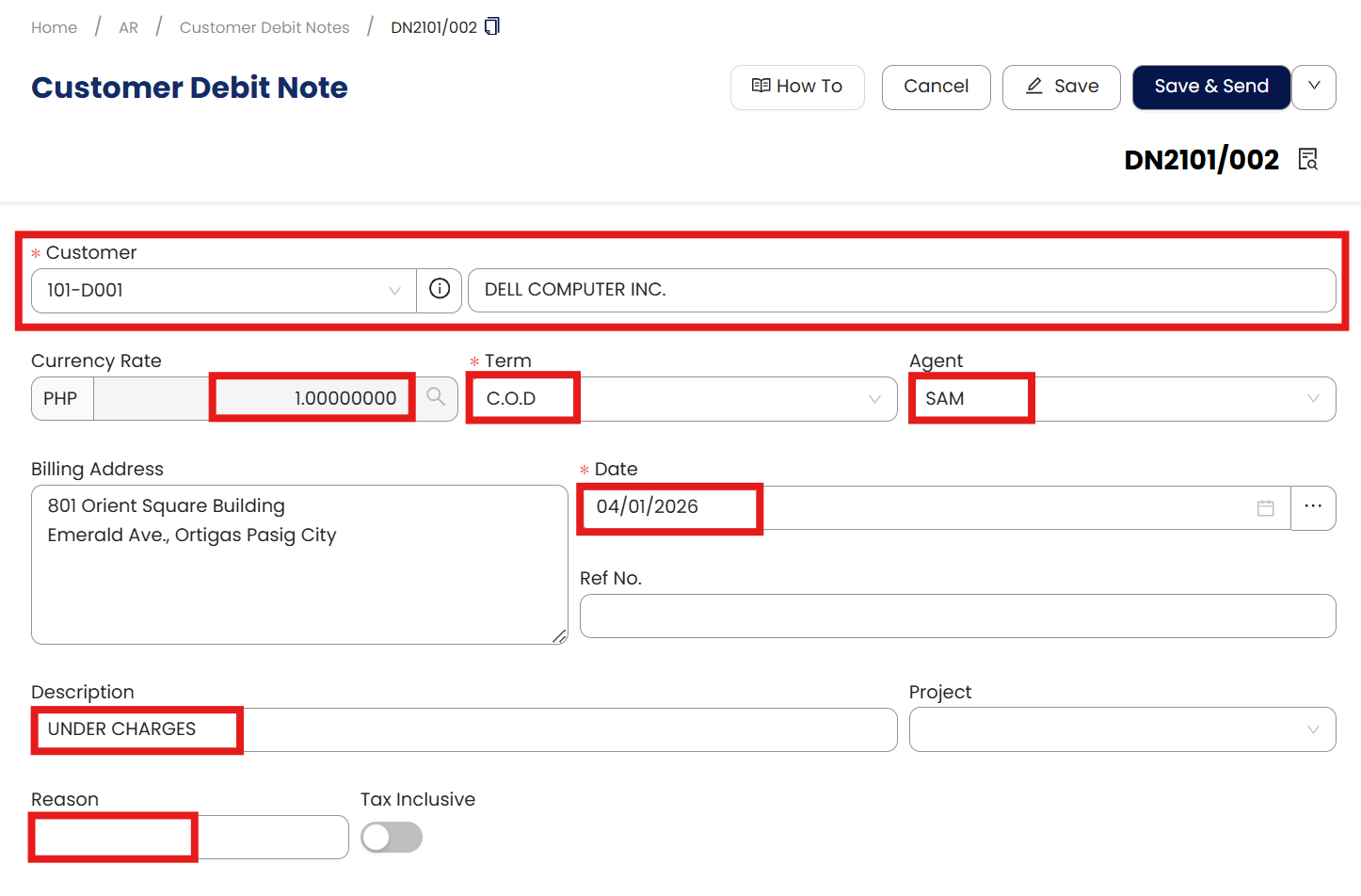
Complete the following fields:
Customer Code – Select the customer who will be charged.
Date – Set the transaction date (defaults to today).
Tax Date - Enter the applicable tax date (typically the same as the transaction date).
Currency - Default is 1 for PHP. If using a foreign currency, manually enter the correct exchange rate.
Agent – Automatically pulled from the customer profile; select manually if blank.
Ref No. – Enter any internal reference or related document number.
Global Description - Provide a brief description (e.g., “Underbilling Adjustment”).
Project - Optional; select if the transaction is linked to a specific project.
Reasons - Indicate the reason for the charges
Tax Inclusive - Tick this box only if your price already includes VAT. Leave it unticked if not.
Step 3: Enter Customer Debit Notes Line Details
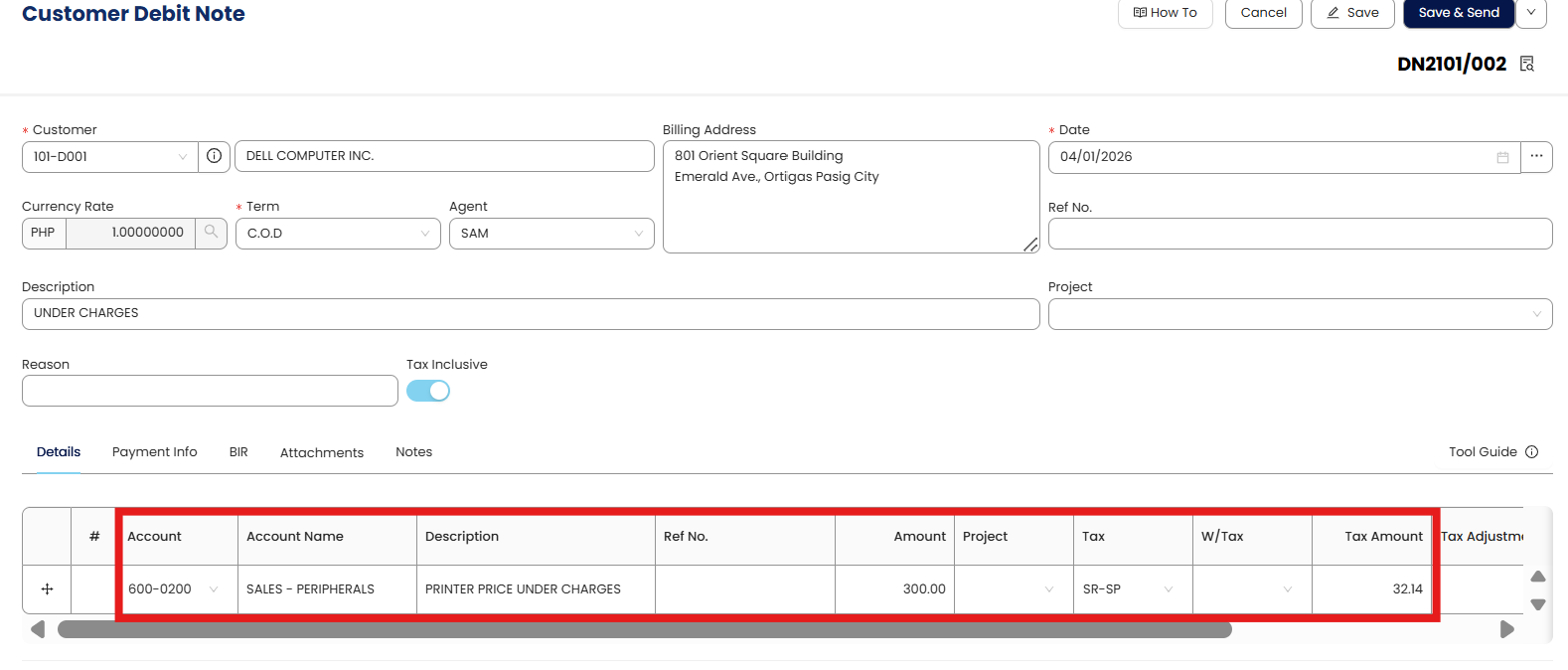
Add the breakdown of charges:
Account – Select the appropriate revenue or adjustment account.
Account Name – Automatically filled based on the account code.
Description – Auto-fills from the global description but can be edited for each line.
Ref No. - Optional; use for cross-referencing related documents.
Amount – Input the charge amount.
Tax – Choose a tax code (e.g., Vatable 12%) if applicable.
WTax – Select a withholding tax rate if necessary (optional).
Once all line items are entered, click Save.
Step 4: Confirm the Transaction
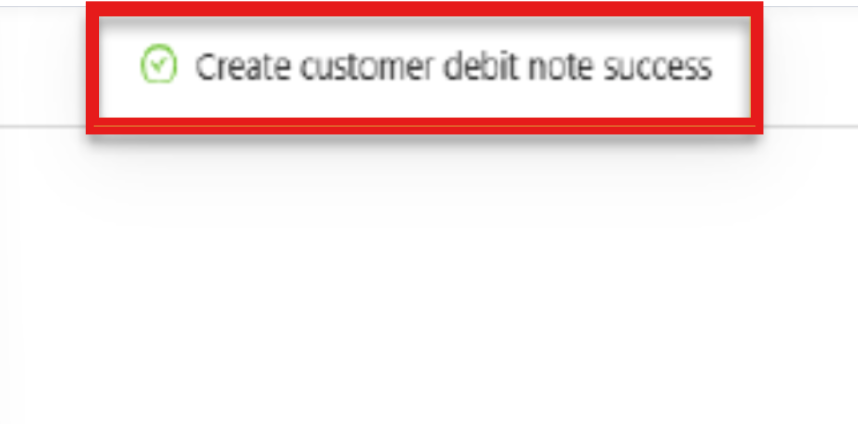
A confirmation prompt will appear:
“Create customer debit note success.”
=
Procedures: Edit and Deletion
Editing a Customer Debit Note
Navigate to AR > Debit Notes
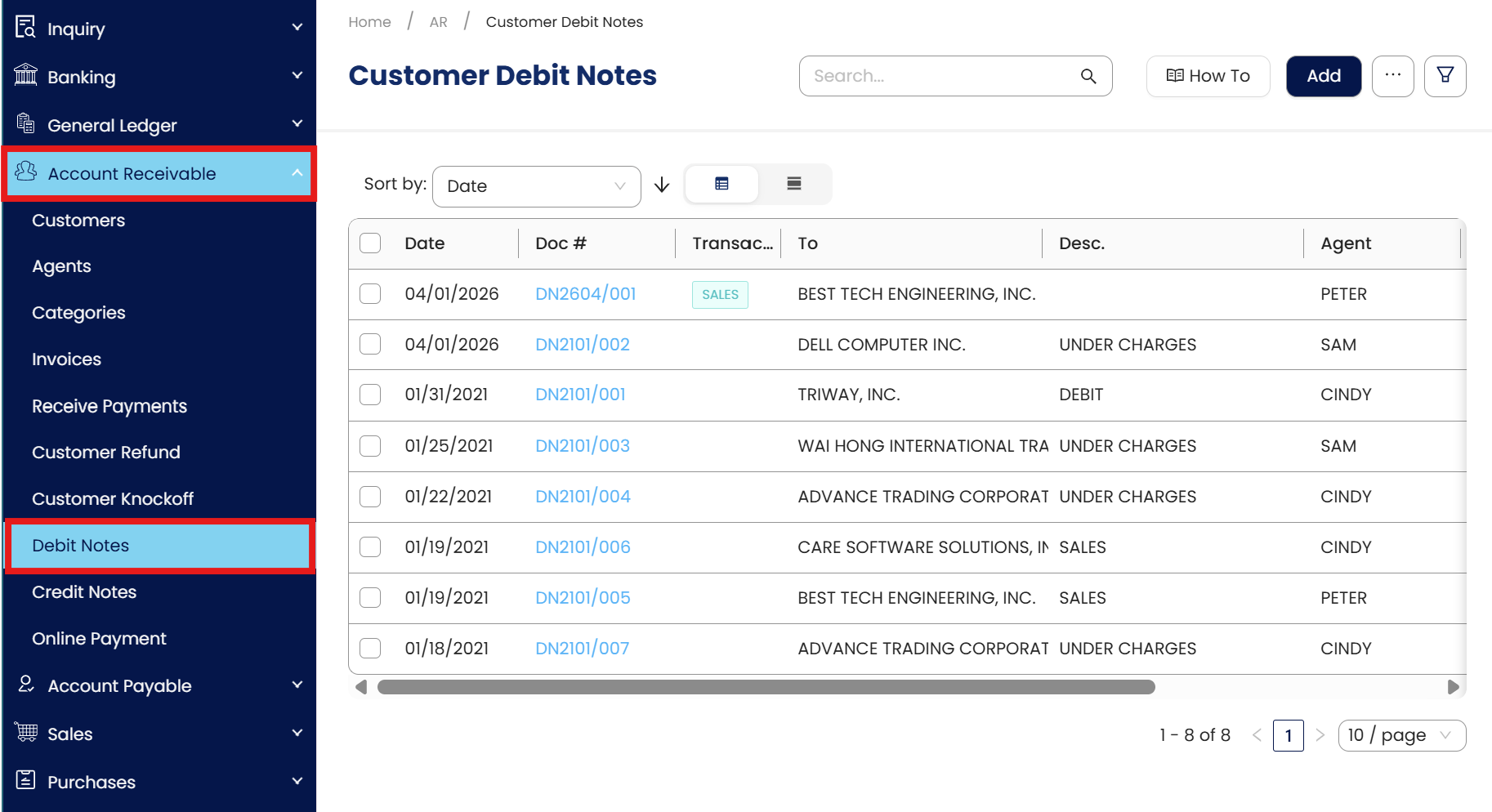
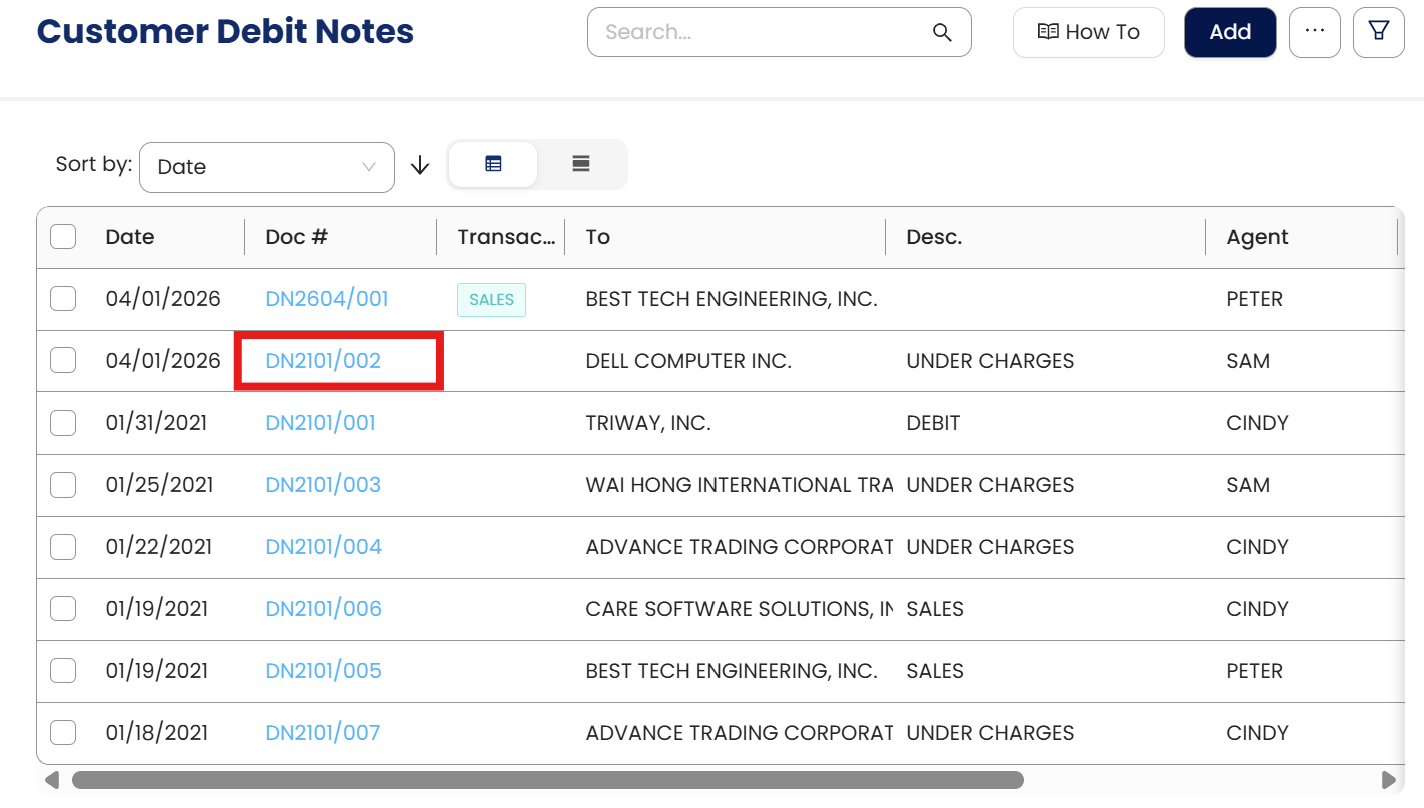
Locate the Customer Debit Note you wish to modify,
Open by clicking the blue highlight. Then Click the Edit icon.

Apply the necessary changes to the items, quantities, or terms. Then Save.

Deleting a Customer Debit Note
Navigate to AR > Debit Notes,
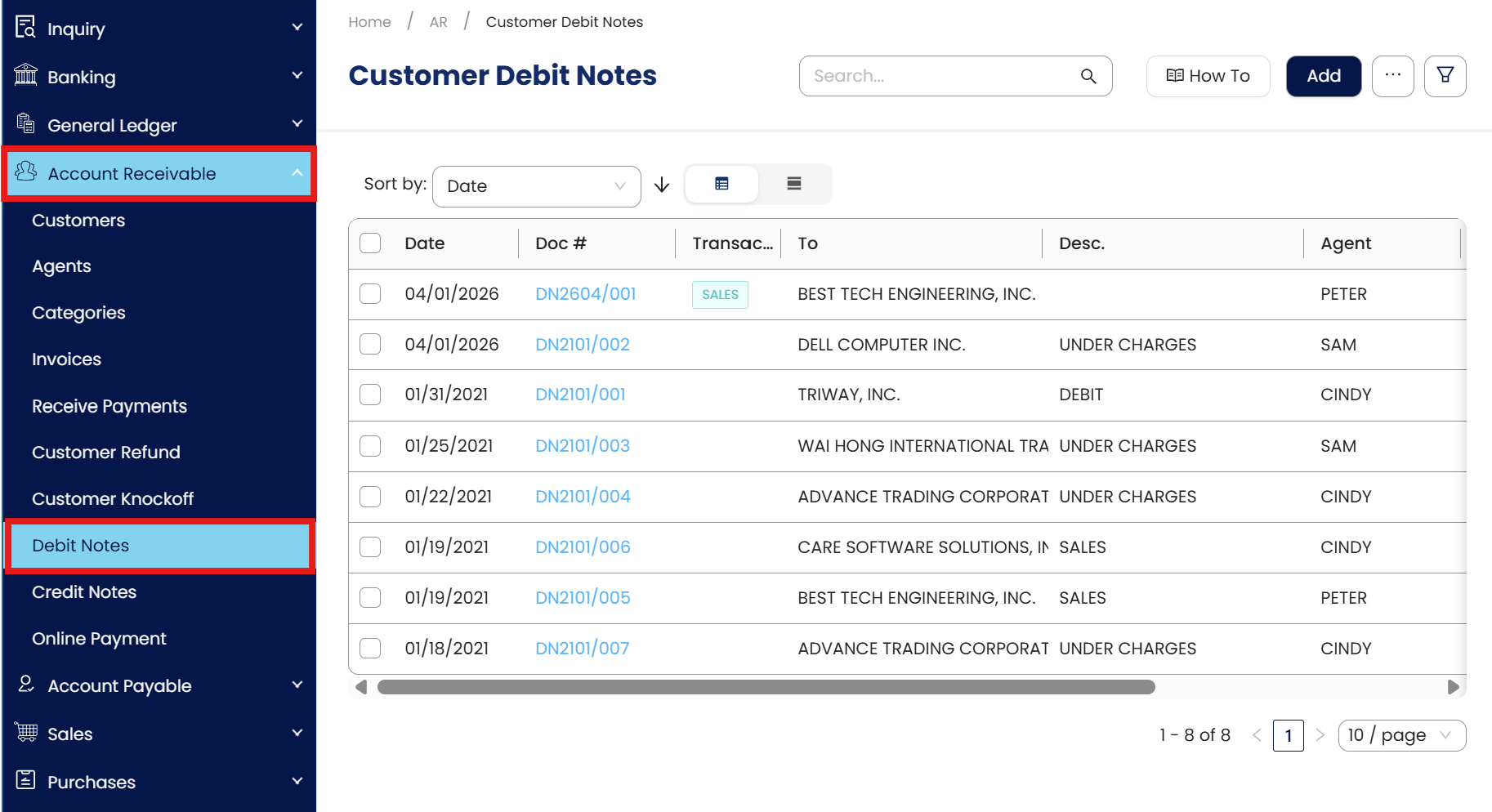
Locate the Customer Debit Note you wish to delete,
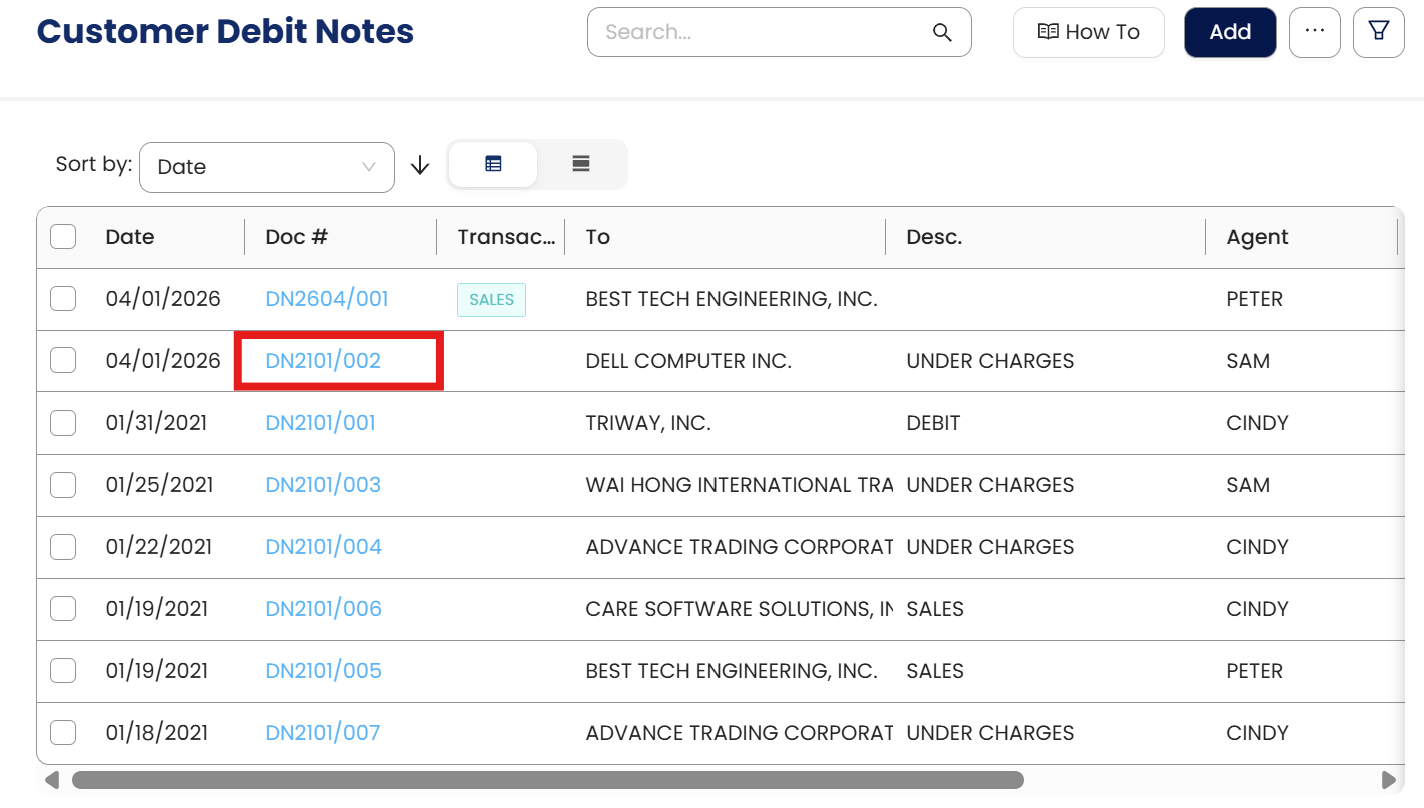
Open by clicking the blue highlight. Then Click the Delete icon from the dropdown.
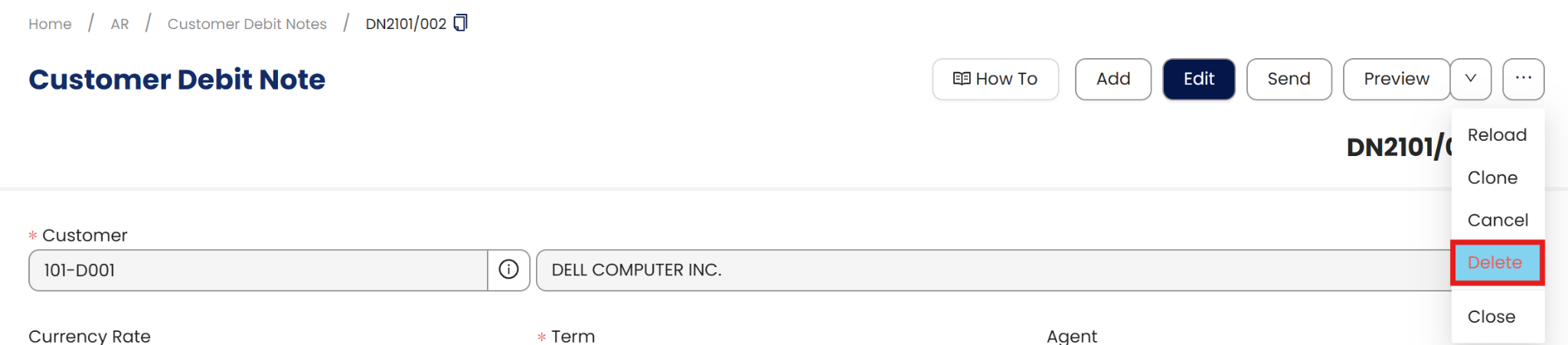
A confirmation prompt will appear; click Yes to confirm.
Application:
Your customer “Delta Enterprises” was previously invoiced PHP 100,000 but was later found to have underpaid due to a missing service charge of PHP 5,000.
Steps to record the adjustment:
Go to Customer Debit Note and click Add.
Select Delta Enterprises as the customer.
Date: July 15, 2025
Global Description: Underbilling Adjustment
Add a line with:
Account Code: Service Revenue – Adjustments
Description: Missed service fee for May
Amount: PHP 5,000
Tax Code: Vatable (12%)
Save the transaction.
This adds the PHP 5,000 charge to Delta Enterprises’ account, keeping your records accurate and enabling you to reprint customer statements including the adjustment.
Important Note:
Editing and Deleting Transactions: According to regulatory guidelines, modifications or deletions of recorded transactions in the system may be strictly prohibited once Computerized Accounting System (CAS) approved. It's vital to adhere to your company's internal policy regarding these functionalities. It is generally advisable to disable or limit the ability to edit/delete to maintain compliance with regulations.
System Scope: QNE AI Cloud Accounting / N3 AI Accounting
Was this article helpful?
That’s Great!
Thank you for your feedback
Sorry! We couldn't be helpful
Thank you for your feedback
Feedback sent
We appreciate your effort and will try to fix the article