Overview:
A Sales Debit Note is used to record an additional charge to a customer after a sales transaction has already been issued. It is typically created by finance or sales administrators when an invoice needs to be adjusted without canceling the original transaction. This may occur when an amount was undercharged, when additional services were provided, or when pricing adjustments are required after invoicing.
Creating a Sales Debit Note ensures that the correct amount is billed to the customer while maintaining accurate accounting records. The transaction increases the customer’s outstanding balance and automatically posts the adjustment to the appropriate General Ledger (GL) accounts.
Scenario:
A company issued a Sales Invoice to a customer for the delivery of goods. After the invoice was sent, the finance team discovered that the delivery charges were not included in the original invoice.
Instead of canceling and reissuing the invoice, the company creates a Sales Debit Note to bill the customer for the missing delivery cost. This ensures the company recovers the additional charge while keeping the original invoice and audit trail intact.
Procedure:
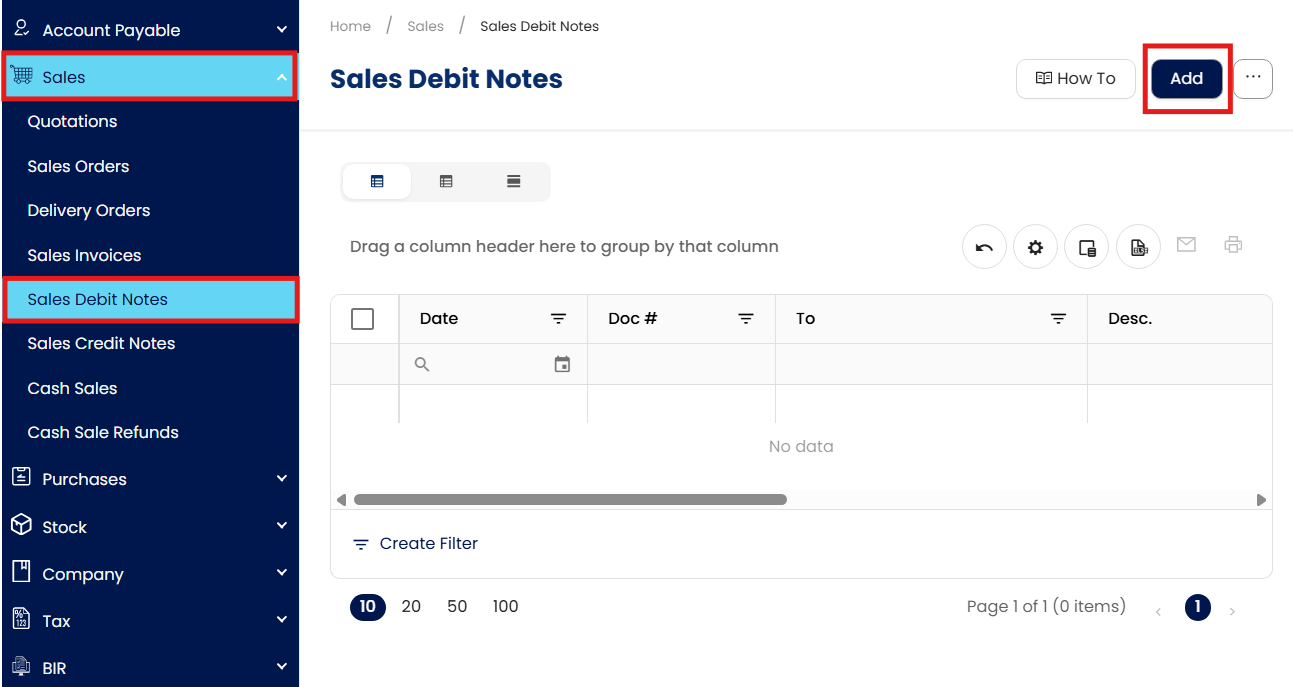
Navigate to Sales > Sales Debit Notes, then Click Add to create a new Sales Debit Note.
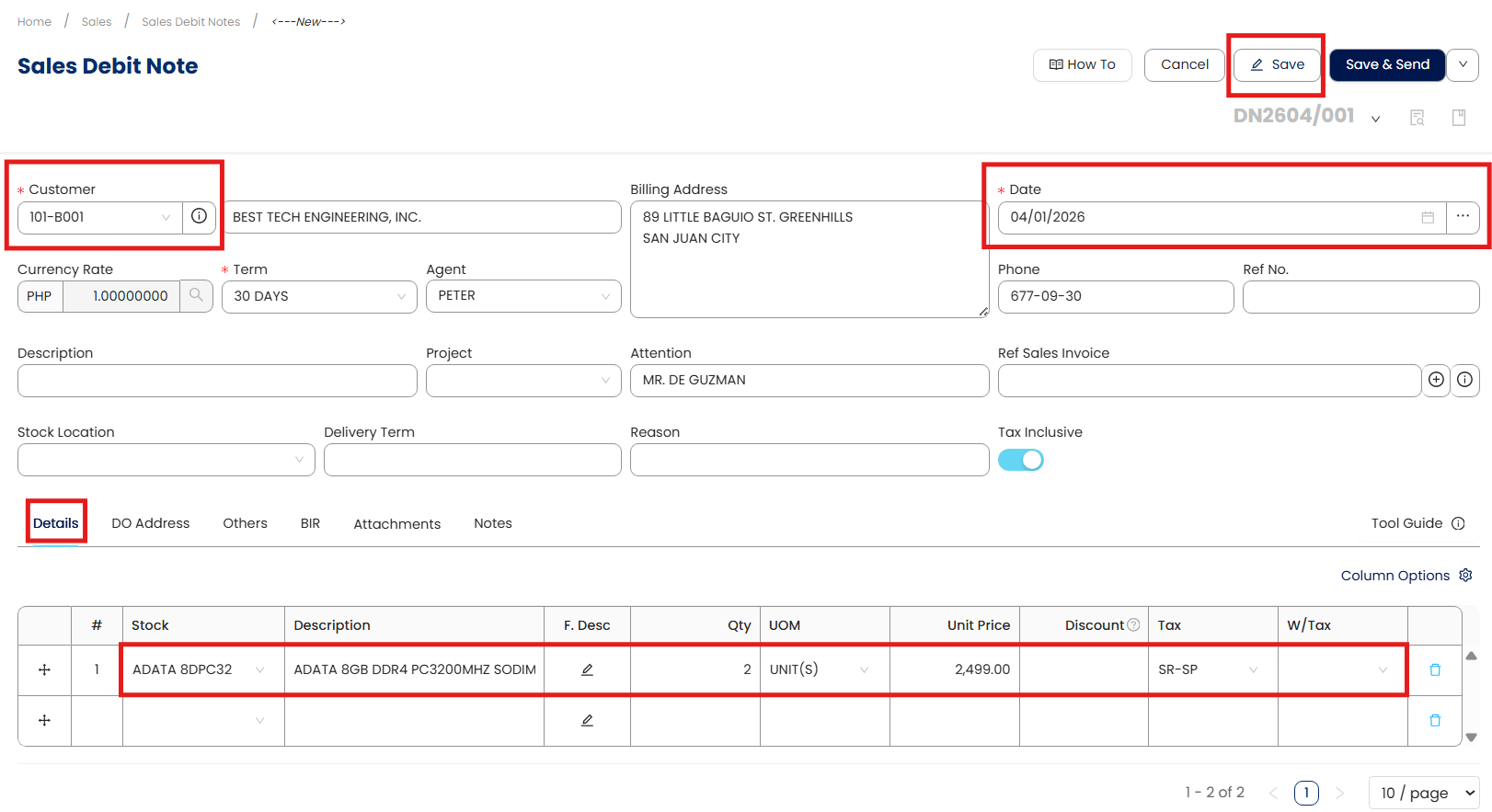
Enter the Sales Debit Note details and save the transaction.
In the Form Header, enter the required information such as Customer, Document Date, and other relevant transaction details.
In the Line-Item section, select the stock item or service item to be charged.
Enter the Quantity, Unit Price, and applicable Tax Code.
Verify that the item details, totals, and tax calculations are correct.
Click Save to record the Sales Debit Note.
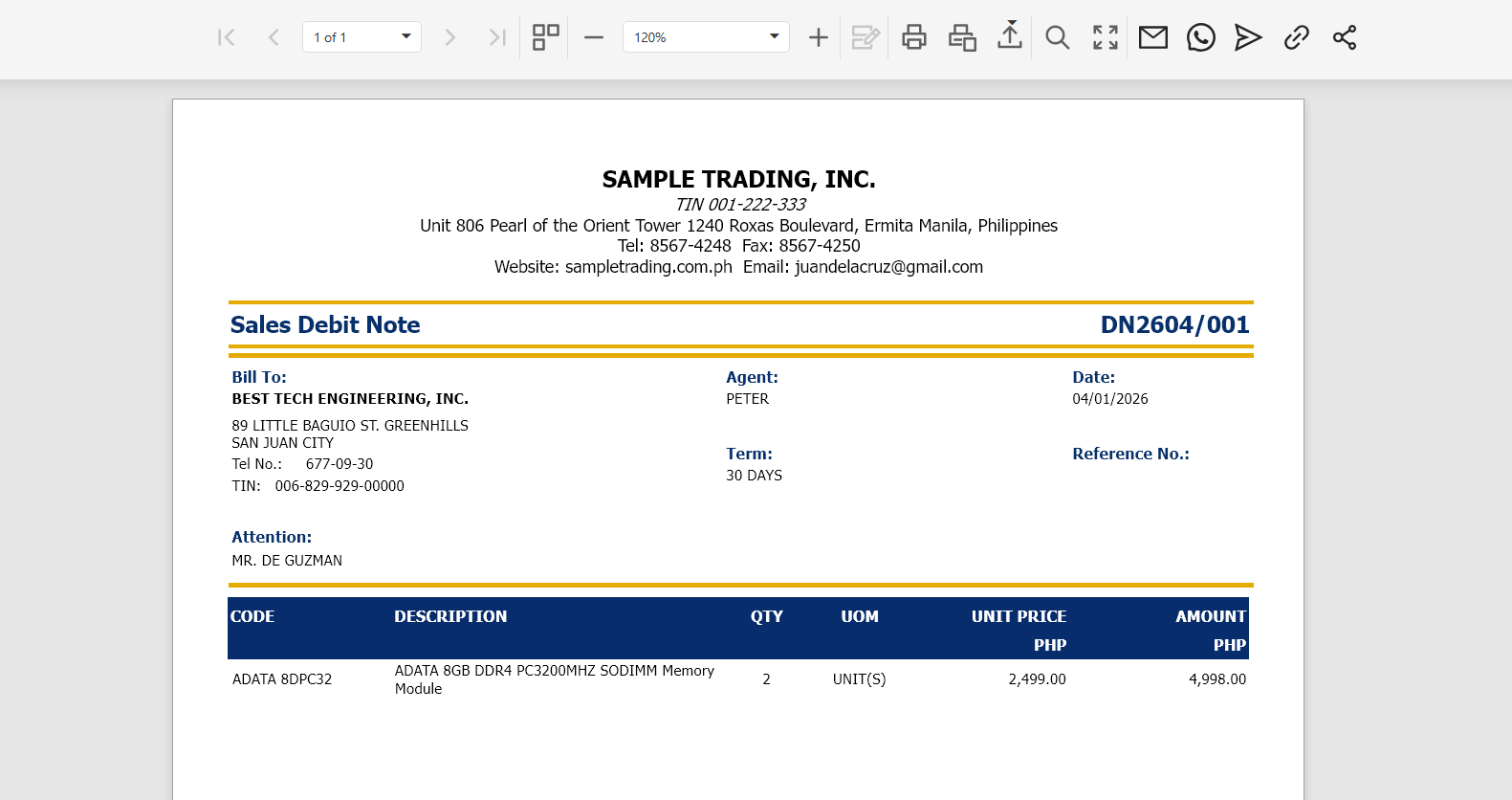
After saving the transaction, click Preview to view the Sales Debit Note Voucher Form, which can be printed or exported for documentation and audit purposes.

Output:
The system generates a Sales Debit Note Voucher Form, which can be printed, exported to PDF, or shared with the customer as supporting documentation.
Procedure 2: Editing a Sales Debit Note
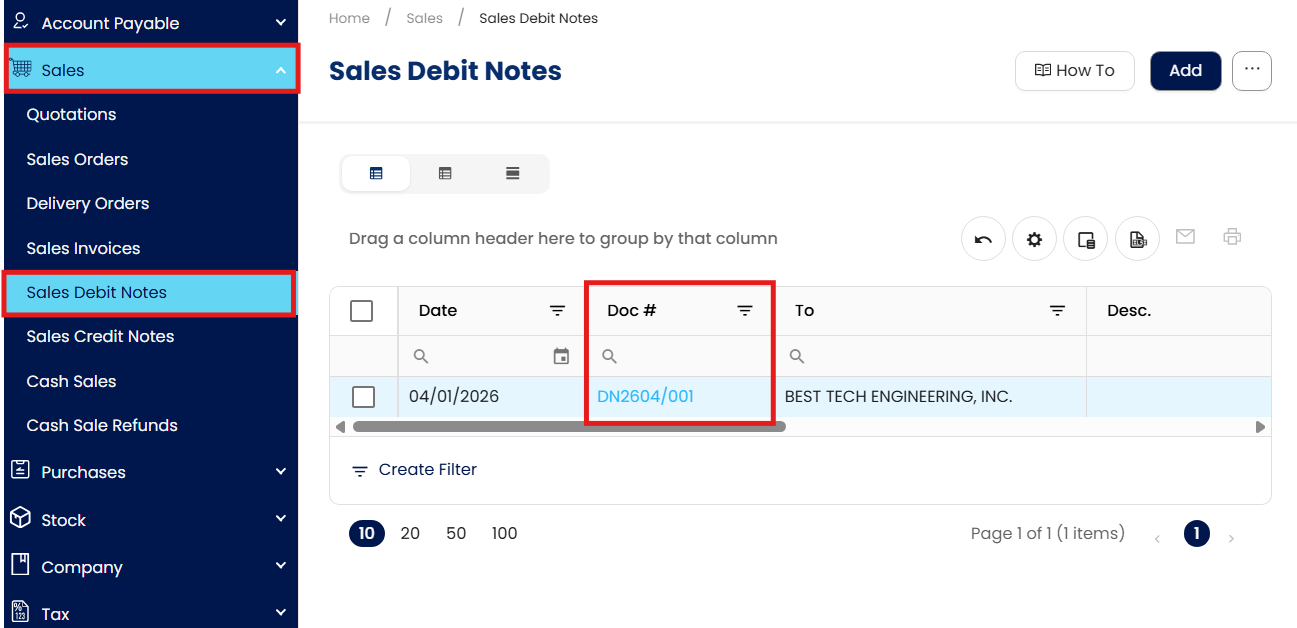
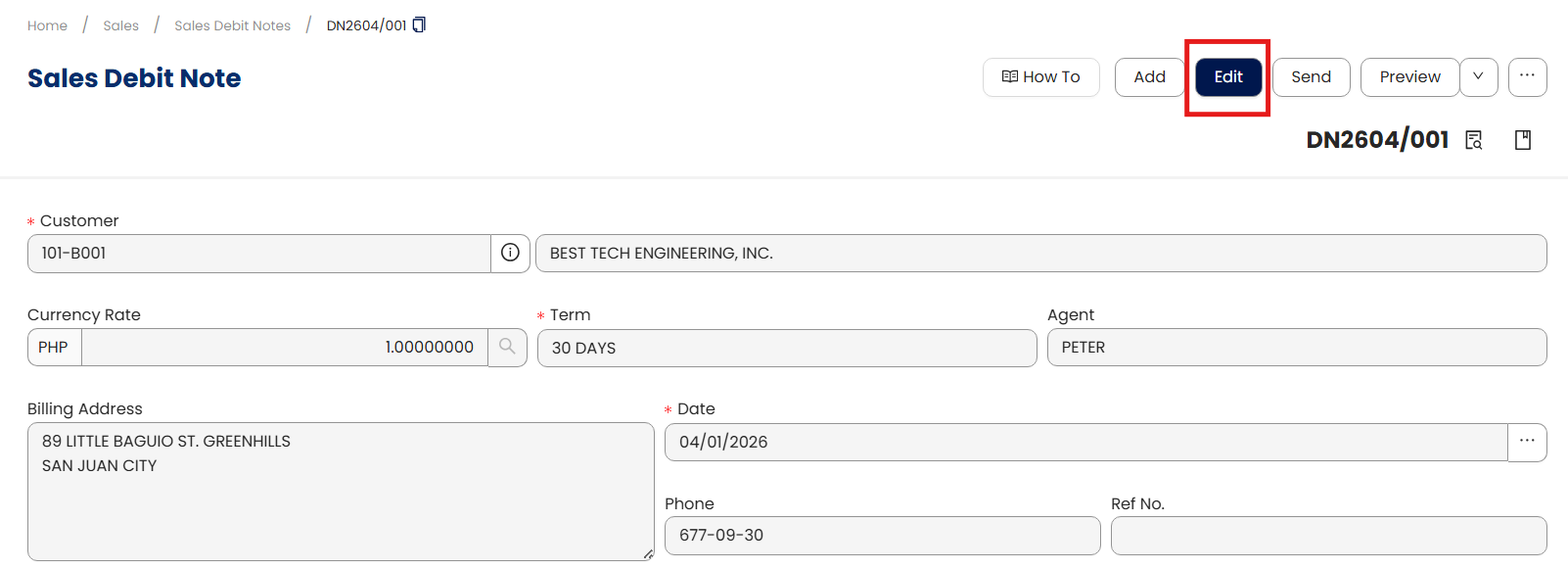
Go to Sales > Sales Debit Notes, then select the Doc # of the Sales Debit Note that you want to update.
Click Edit and apply necessary changes.
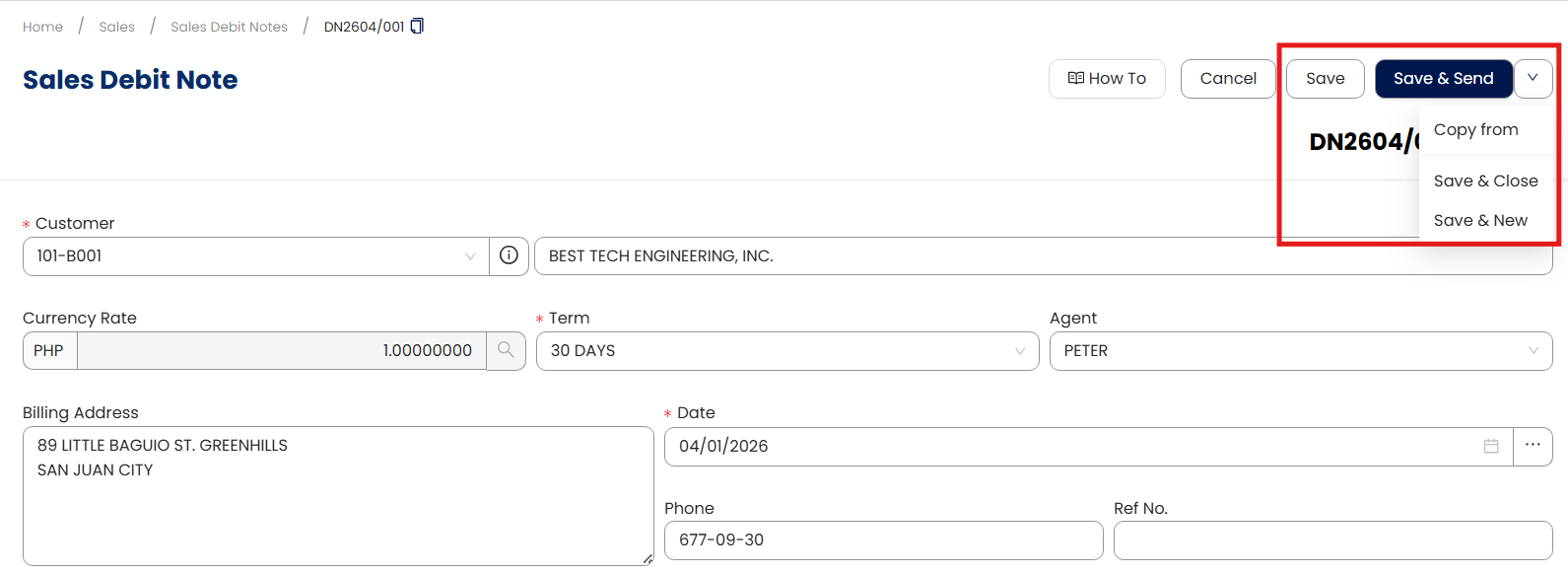
Once done, click Save, Save & New, or Save & Close to update the item.
Procedure 3: Deleting a Sales Debit Note
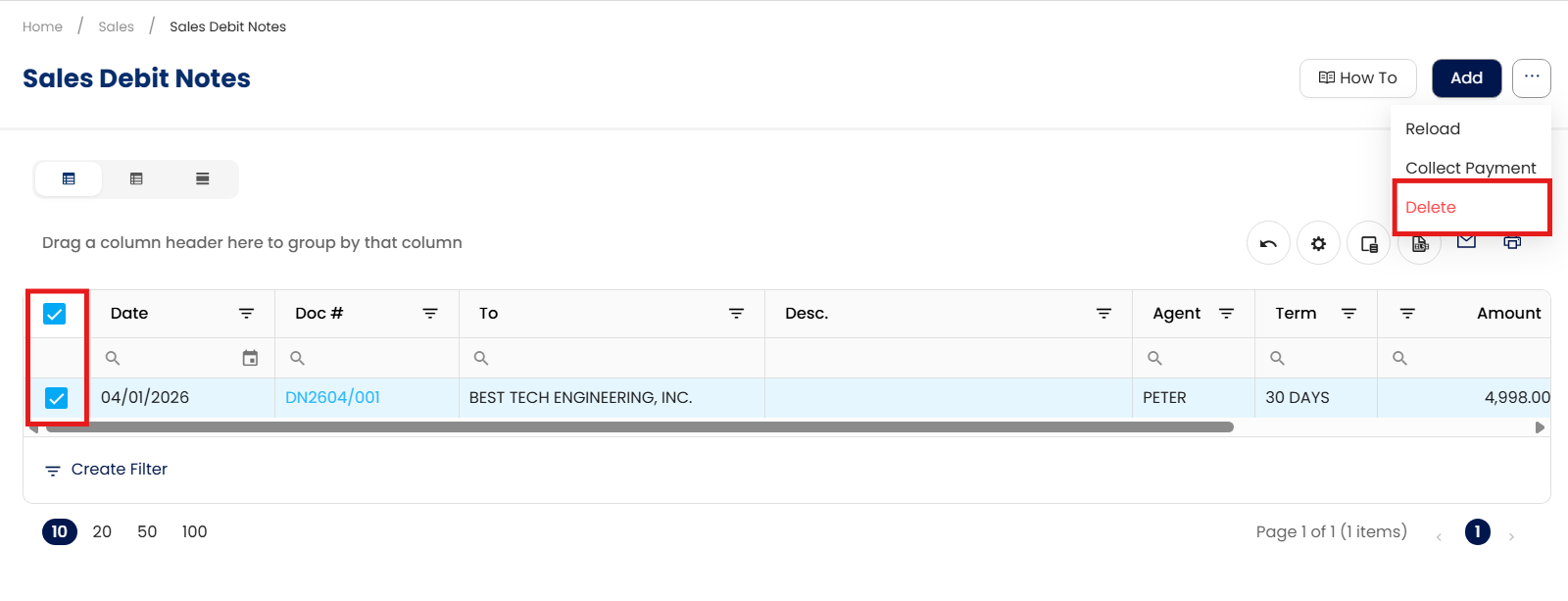
In the Sales Debit Notes List View, tick the checkbox beside the item you wish to delete. Hover your cursor over the three dots beside "Add," then click Delete.
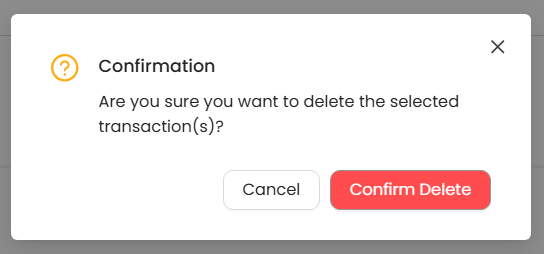
When the confirmation message appears, click Confirm Delete.
Application:
Sales Debit Notes can be used in several business situations, including:
Correcting undercharged invoices when the original sales transaction did not include the full amount billed to the customer.
Billing additional services, fees, or adjustments that were identified after the original invoice was issued.
Correcting pricing discrepancies caused by incorrect item pricing, discount calculations, or omitted charges.
Applying post-sale billing adjustments required by contract terms, service agreements, or updated pricing conditions.
Maintaining accurate financial records by documenting post-sale billing adjustments without canceling or modifying previously issued invoices.
Important Note:
Editing and Deleting Transactions: According to regulatory guidelines, modifications or deletions of recorded transactions in the system may be strictly prohibited once Computerized Accounting System (CAS) approved. It's vital to adhere to your company's internal policy regarding these functionalities. It is generally advisable to disable or limit the ability to edit/delete to maintain compliance with regulations.
System Scope: QNE AI Cloud Accounting / N3 AI Accounting
Was this article helpful?
That’s Great!
Thank you for your feedback
Sorry! We couldn't be helpful
Thank you for your feedback
Feedback sent
We appreciate your effort and will try to fix the article