Overview:
Chart of Accounts is the listing of all accounts that the organization used for their general ledger. N3 AI Accounting has the flexibility to tailor fit the chart of accounts structure that is best suited in the needs as well as adding new accounts.
Procedure:
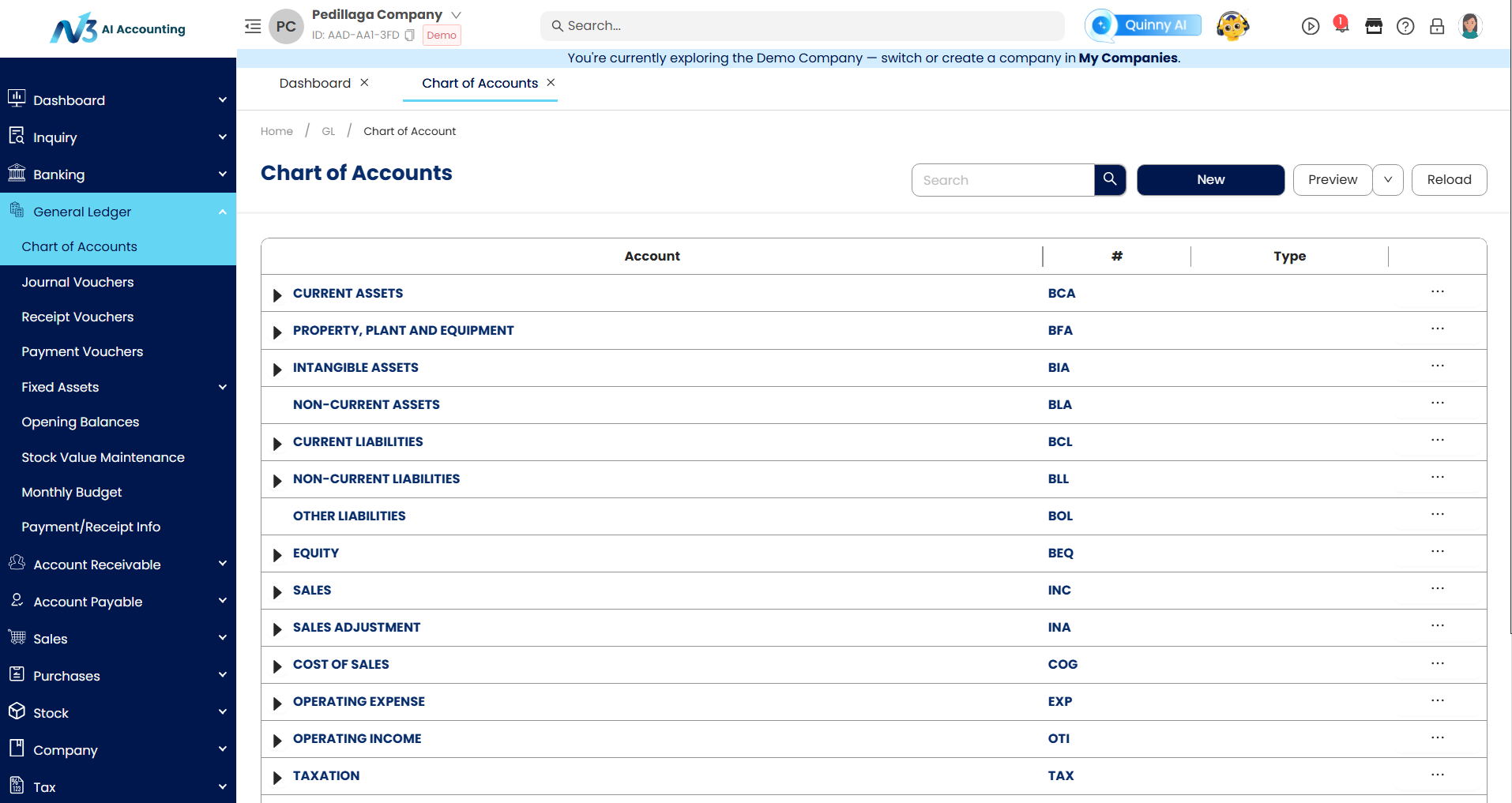
In the Navigation Pane, go to General Ledger > Chart of Accounts. Listed are the N3 Chart of Accounts defined default structures based on the standard accounting.
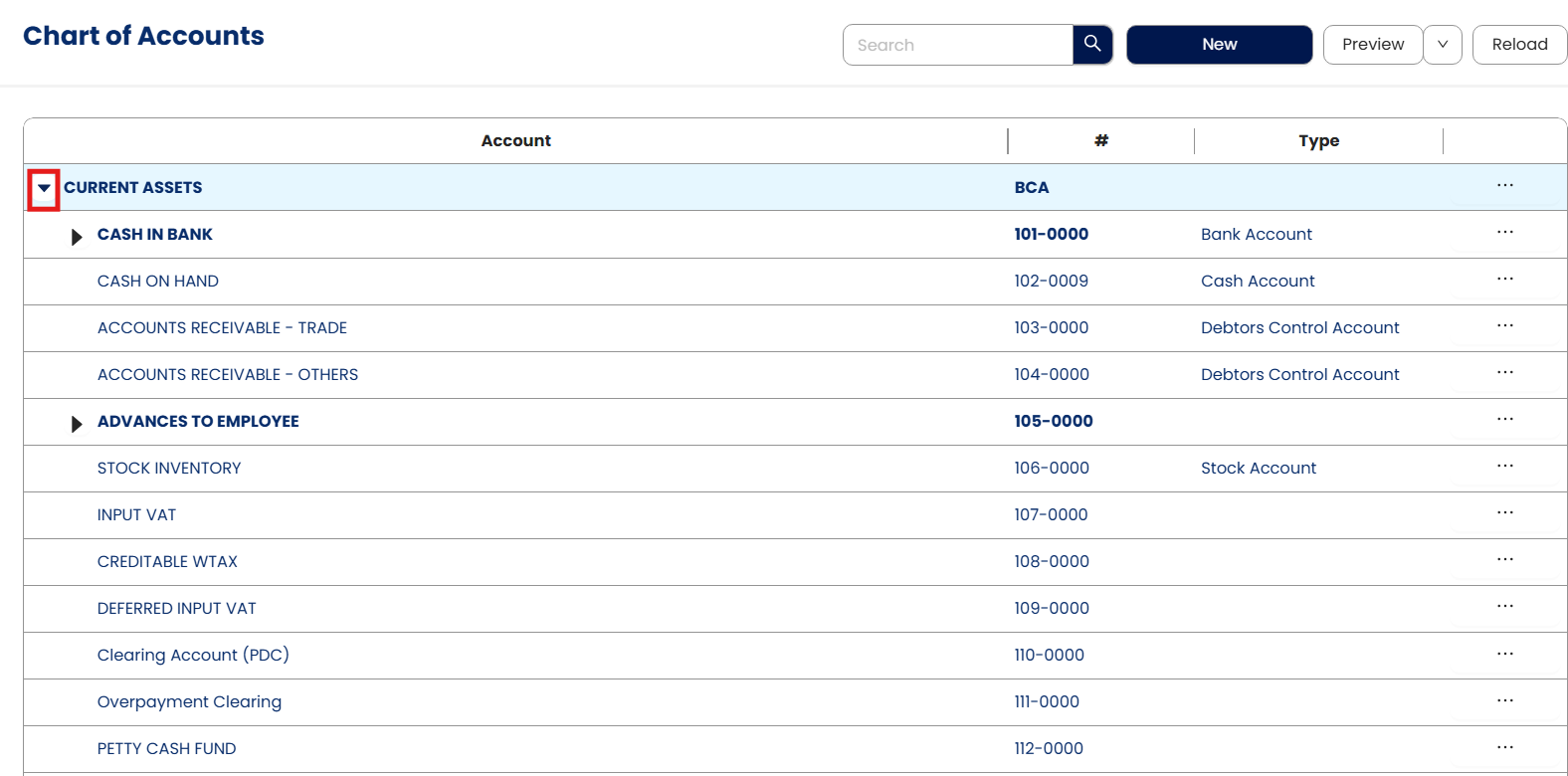
In order to view sub-ledger accounts, click the arrow icon beside the account.
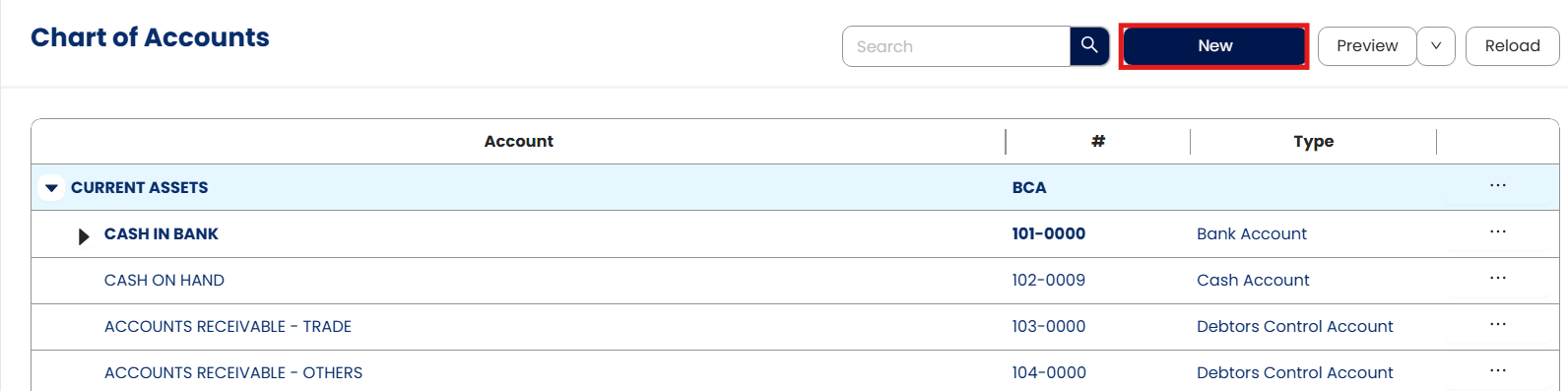
How to Create an Account
In Chart of Account, click New
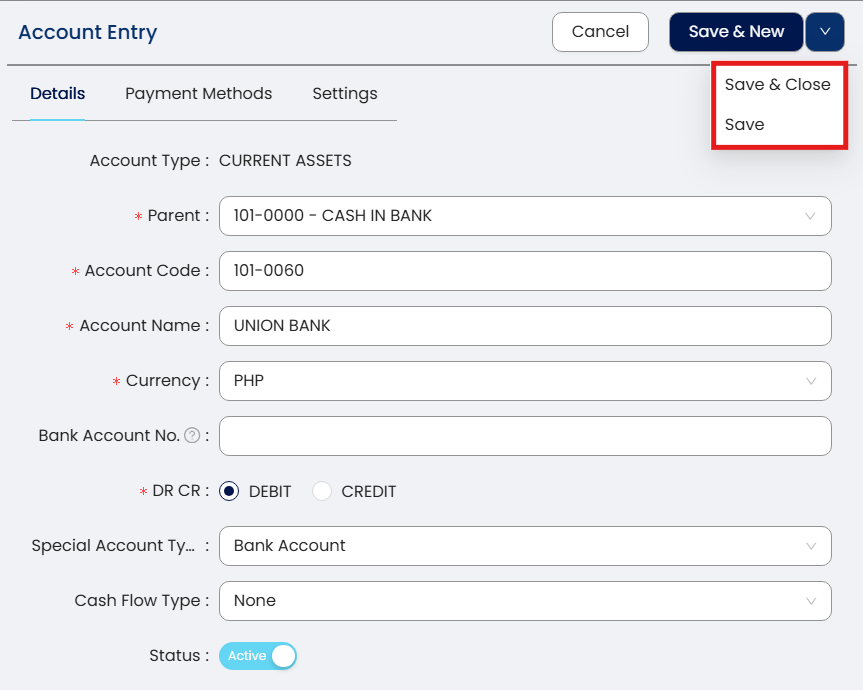
Using New Form, Supply the fields with data:
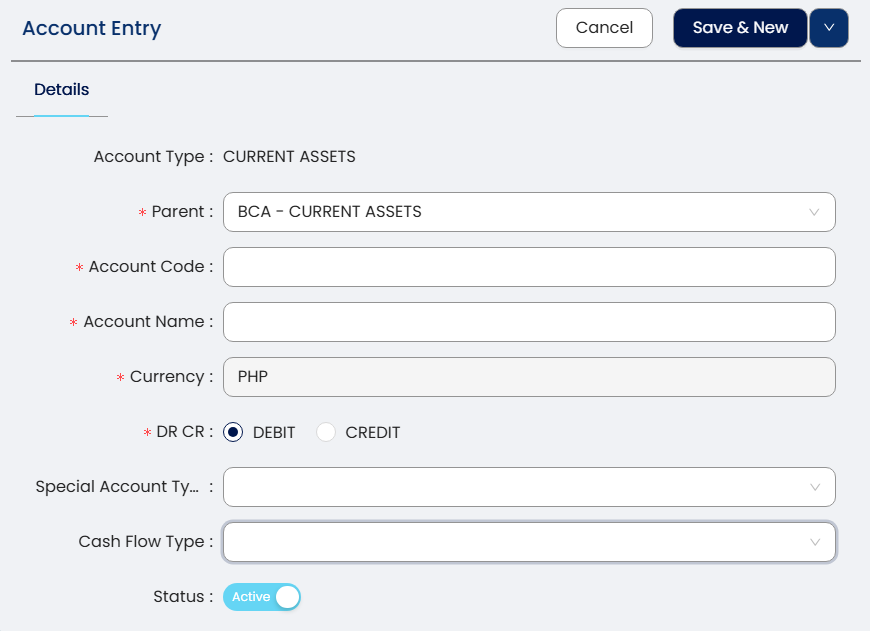
Parent – Mother account of created sub-accounts.
Account Code – This is a compulsory field and should be a unique code.
Account Name – This is a compulsory field.
DR CR – If the account is for Debit or Credit Posting
Special Account Type – For normal accounts, you may select 'None' and for other accounts used for banks, debtors, creditors, etc., please select the corresponding special account type. Below are the types for your reference.
Cash Flow Type – This field determines how transactions in this account are categorized in the Statement of Cash Flows report.
Current Assets
Bank Accounts
Cash Account
Debtors Control Account - Customer Posting Account
Purchase Tax
Stock Account
Deposit Account
Property, Plant and Equipment
Accumulated Depreciation Accounts
Current Liabilities
Bank Overdraft Account
Creditors Control Account – Supplier Posting Account
Sales Tax
Deposit Account
Equity
Accumulated Profit & Loss
Cost of Sales
Closing Stock Account
Manufacturing Account
Opening Stock Accounts
Once done, click Save or Save & Close
How to Edit an Account
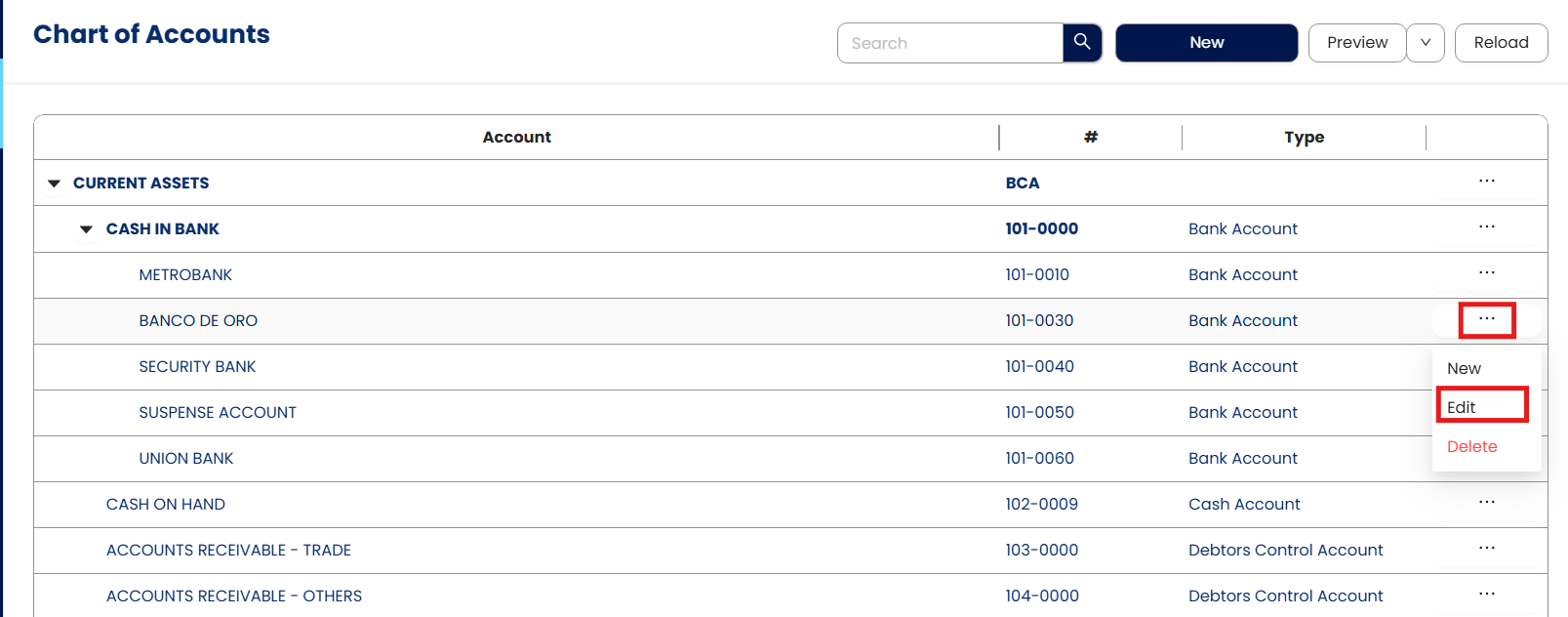
In Chart of Accounts screen, select an account then click tipple dot […] > Edit
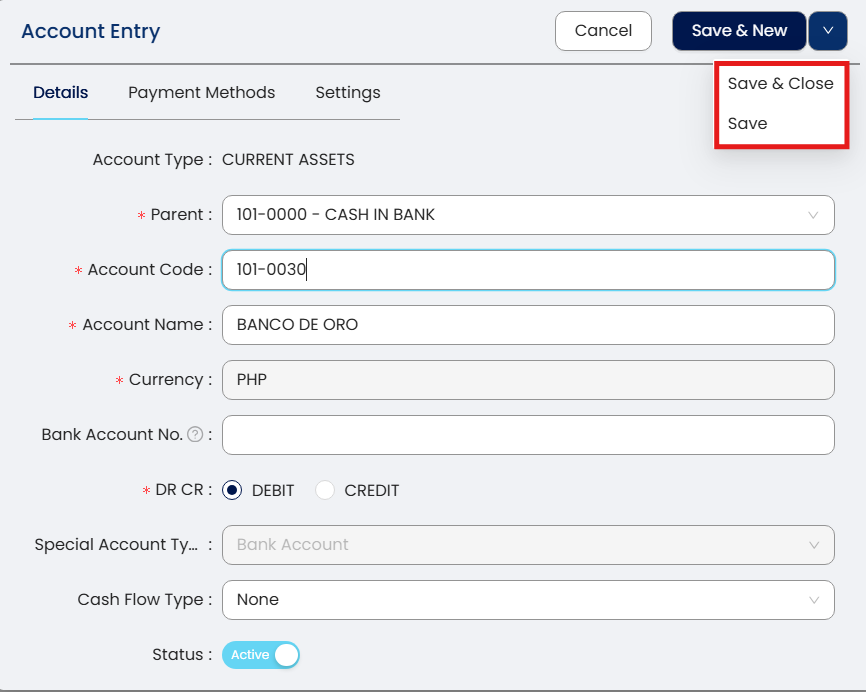
Then apply necessary changes. Once done, click Save or Save & Close
How to Delete an Account
In Chart of Account screen, select an account then click tipple dot […] > Delete.
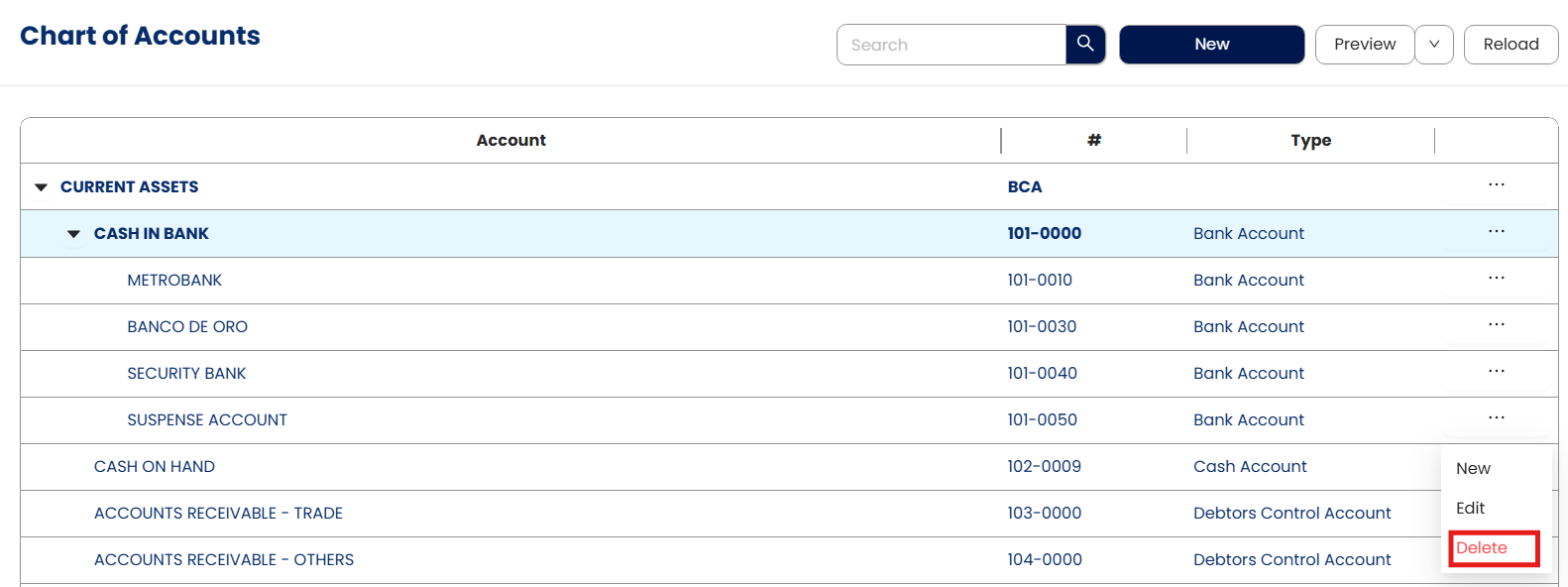
Delete Account confirmation prompted. Click Delete
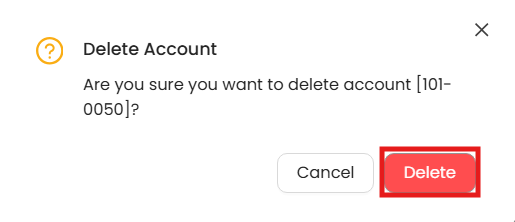
Note: GL Account deletion is allowed as long as it is not used in any transactions and/or not associated with any Customer or Supplier.
Application:
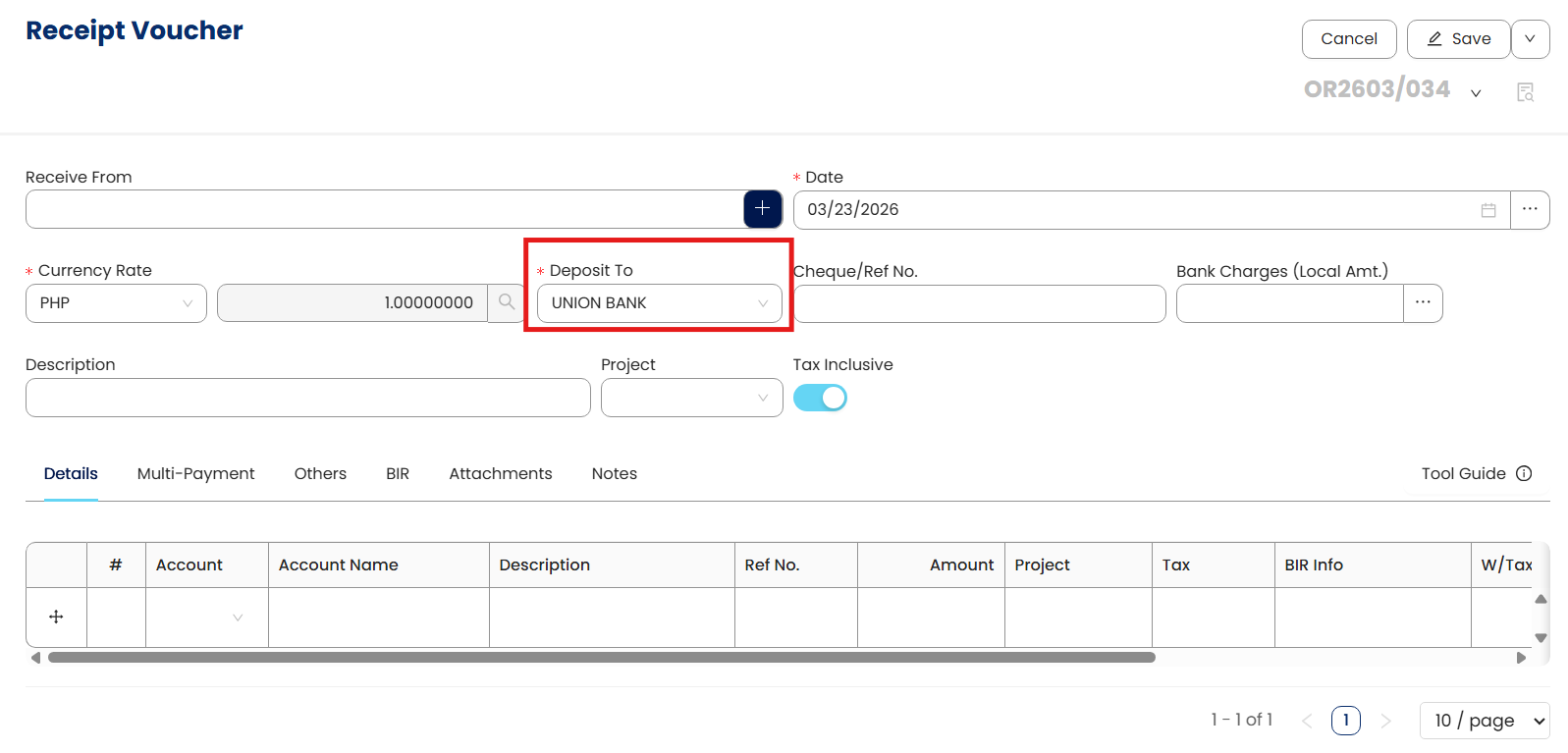
Created Account is now able to use in Transaction Forms
System Scope: QNE AI Cloud Accounting / N3 AI Accounting
Was this article helpful?
That’s Great!
Thank you for your feedback
Sorry! We couldn't be helpful
Thank you for your feedback
Feedback sent
We appreciate your effort and will try to fix the article