How to Transact Customer Refund
Overview:
Issuing customer refunds accurately is essential for maintaining trust, ensuring financial integrity, and complying with internal accounting procedures. In N3 AI Accounting, customer refunds—particularly those related to advance payments—must be recorded properly to reflect the correct customer balance and bank movement. This guide outlines the steps for processing a customer refund transaction in a clear and efficient manner.
Scenario:
A customer made an advance payment for goods or services but later requested a refund, either due to a change in order or cancellation. You need to process this refund and link it to the original payment to maintain an accurate audit trail and update your general ledger accordingly.
Procedure:
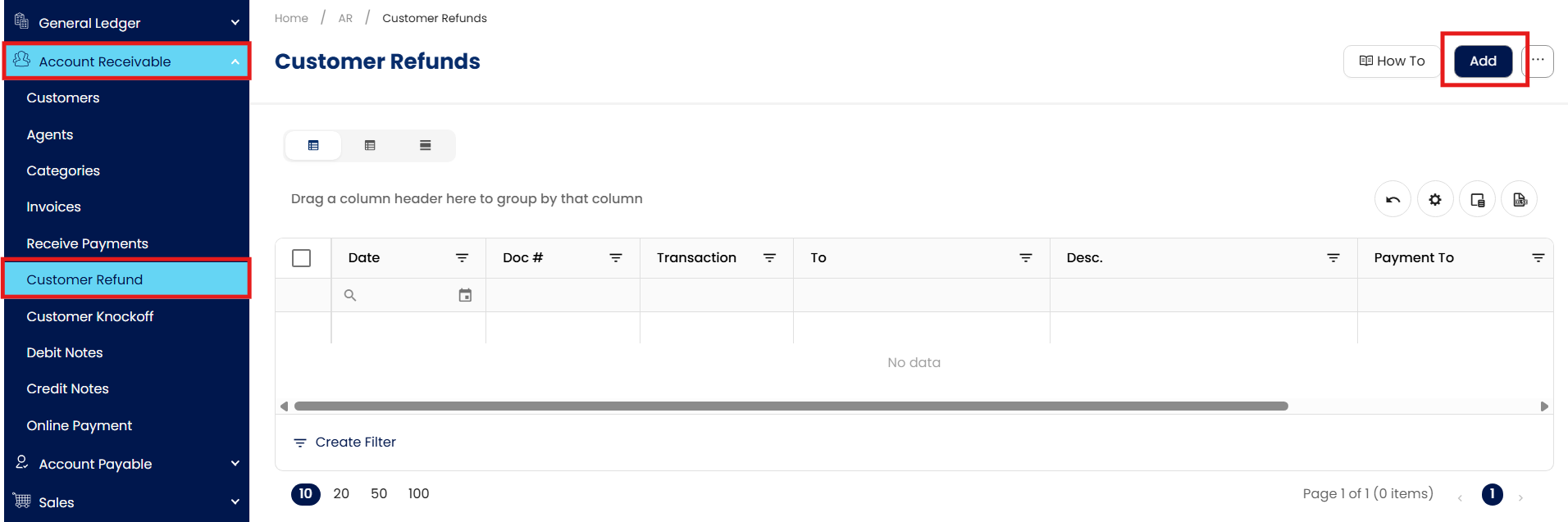
Navigate to Customer Refund Screen
Navigate to Accounts Receivable > Customer Refund.
Click Add to initiate a new refund transaction.
Complete the Customer Refund Header
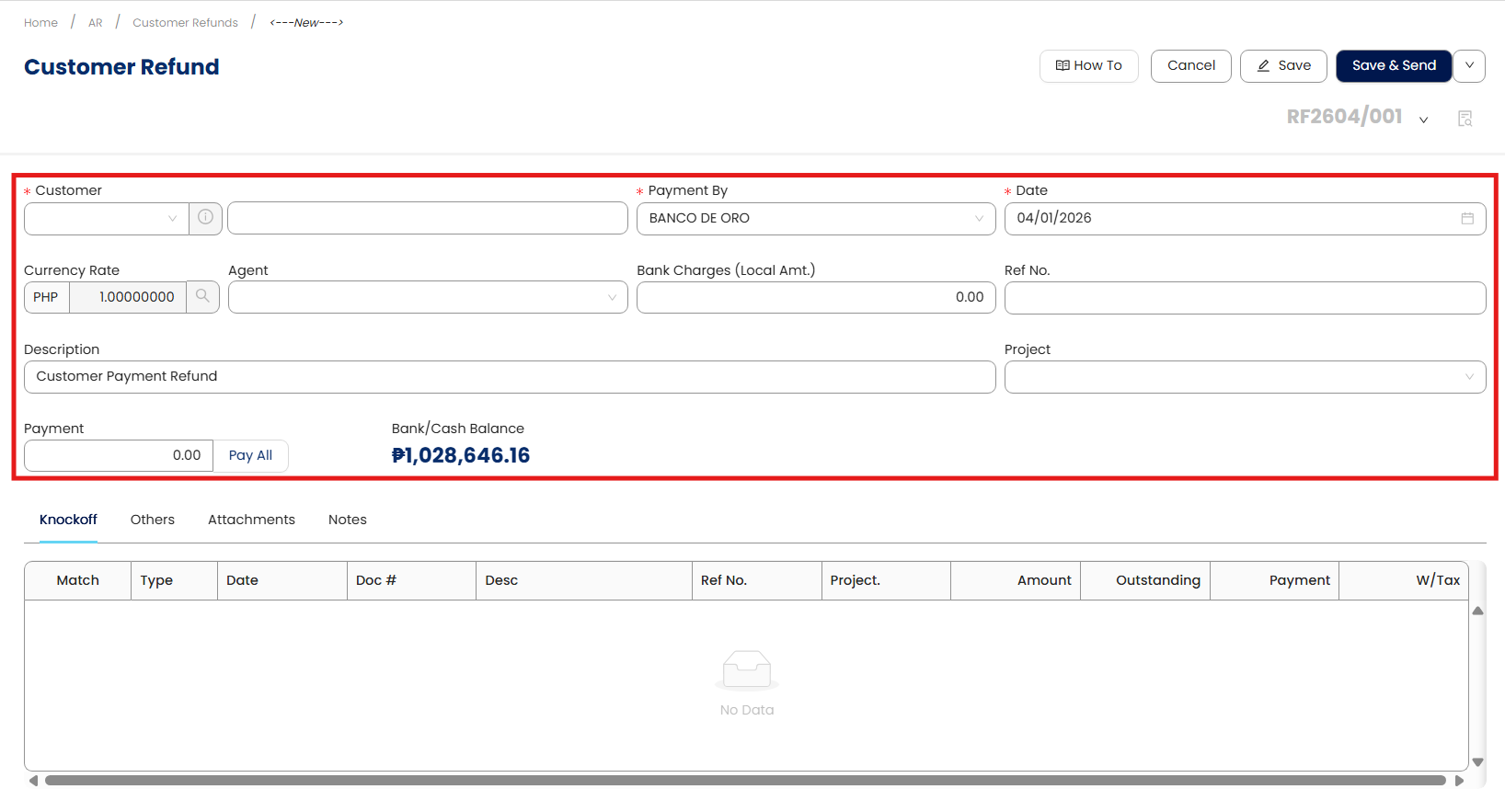
Fill out the Customer Refund form with the following details:
Customer Code – Select the customer requesting the refund..
Deposit To - Choose the appropriate account for the refund transaction.
Date – Automatically set to today; adjust if the payment was received earlier.
Currency - Default is 1 for PHP. If using a foreign currency, manually enter the correct exchange rate.
Agent – Auto-fills from the customer profile; select manually if blank.
Bank Charges - Enter any applicable deductions (optional).
Ref No. – Add the related document number or reference number for tracking.
Global Description - Provide a general note or reason for the refund (e.g., “Advance payment refund”).
Project - Link to a specific project if applicable (optional).
Payment - Enter the refund amount to be processed.
Match the Refund to the Original Payment.
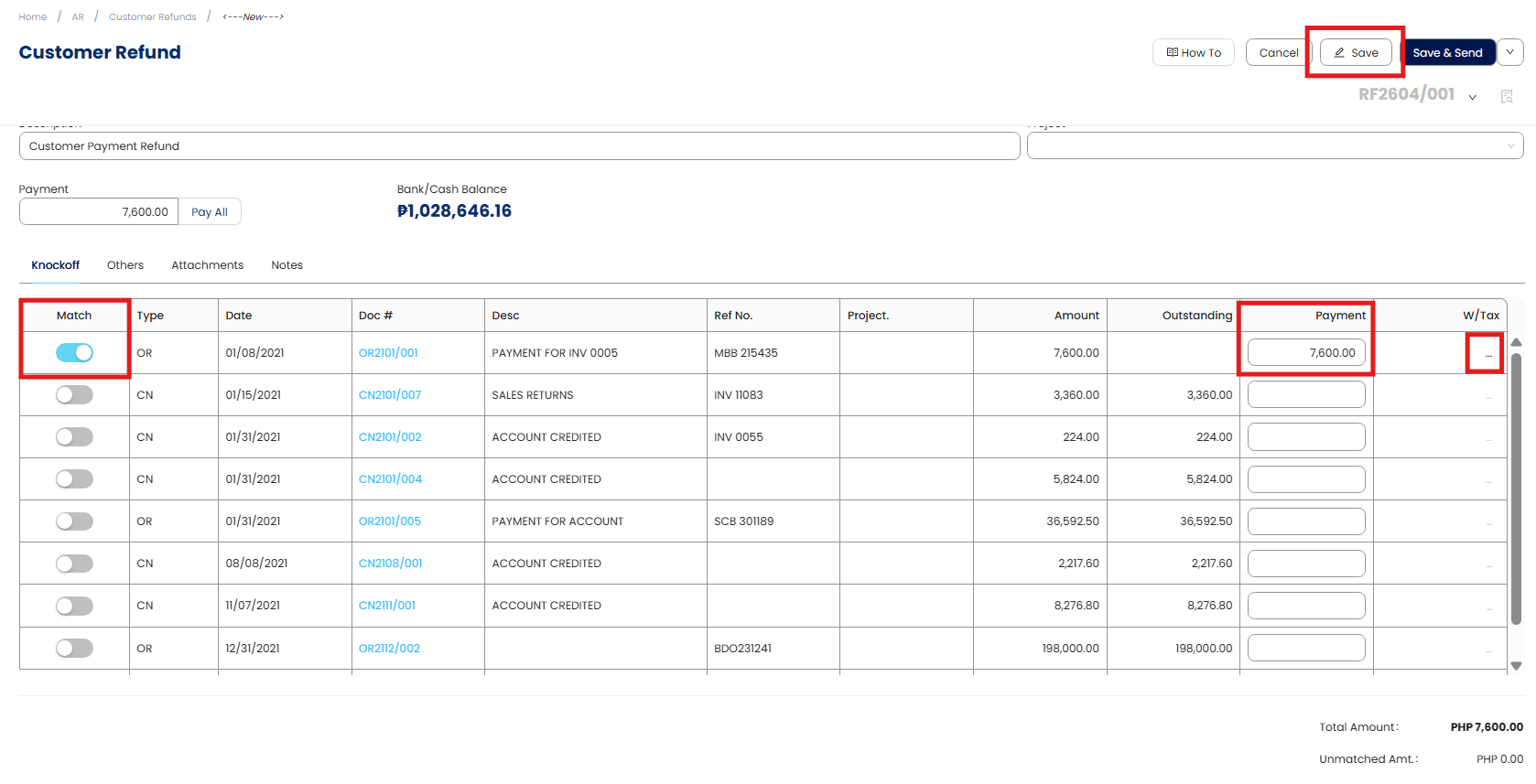
A list of received payments (official receipts) for the selected customer will appear.
Tick the checkbox under the Match column for the transaction being refunded.
The Payment field will auto-populate based on the available balance, but you can manually adjust it if the refund is partial or spans multiple receipts.
WTax – If required, click the ellipsis (⋯) to select the correct withholding tax rate.
Once all line items are entered, click Save.
Confirm the Refund Transaction
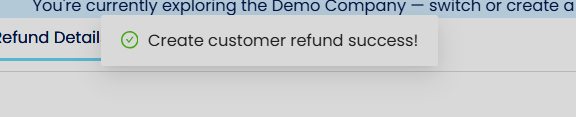
Upon saving, a confirmation message will appear: “Create customer refund success!”
Procedure 2: Editing a Customer Refund
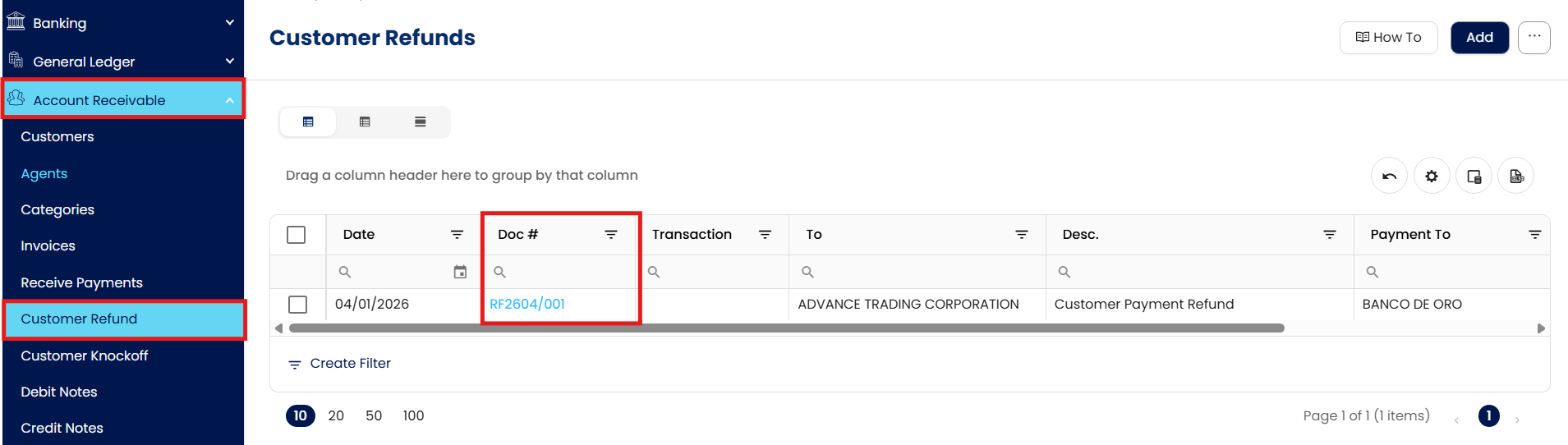
Go to Account Receivable > Customer Refund, then select the Doc # of the Customer Refund that you want to update.
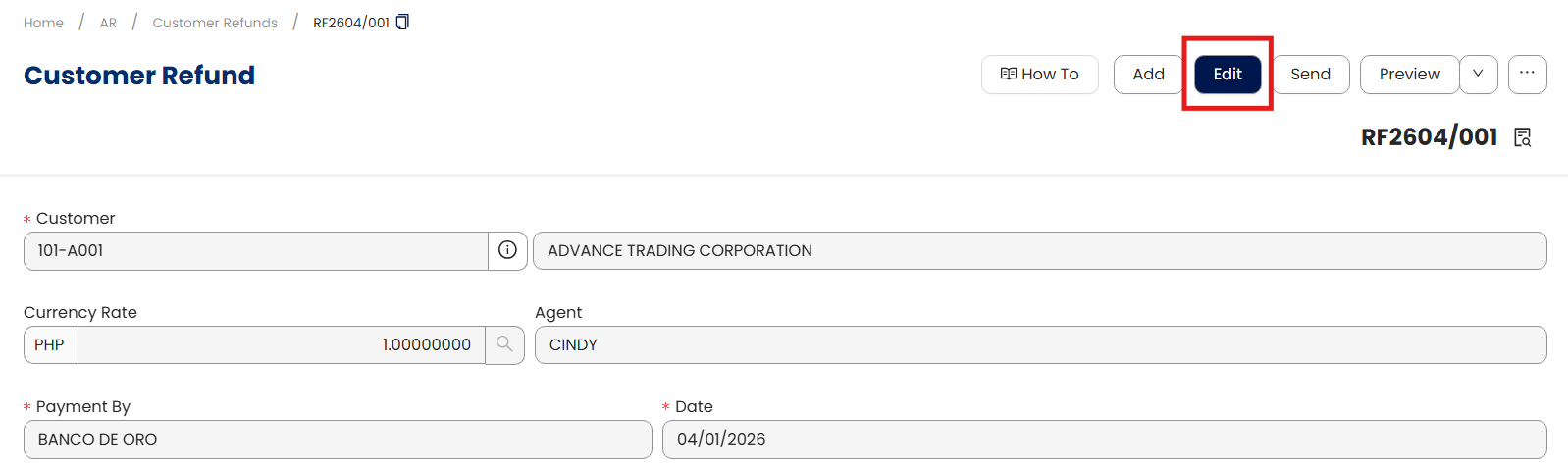
Click Edit and apply necessary changes.
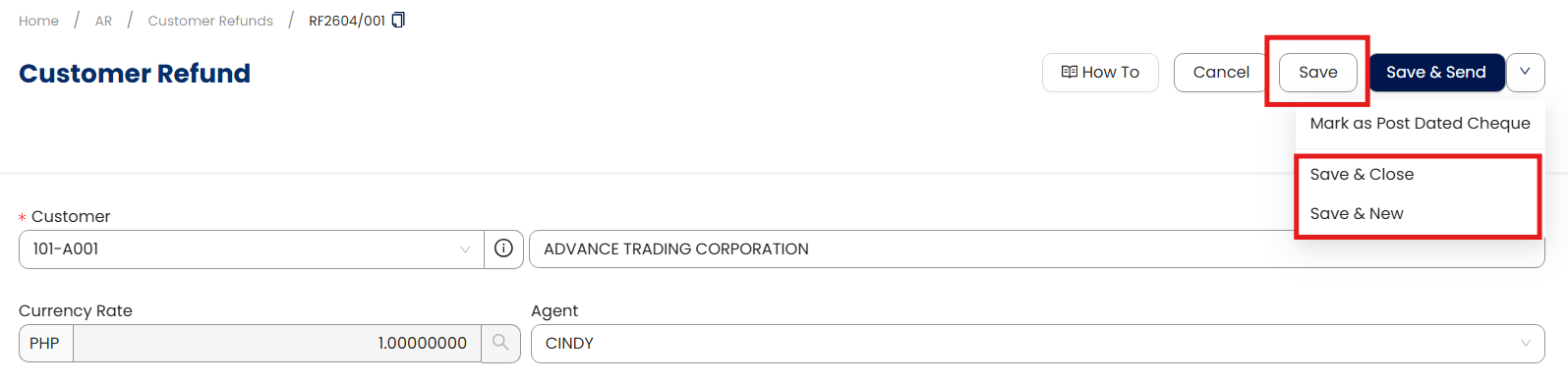
Once done, click Save, Save & New, or Save & Close to update the item.
Procedure 3: Deleting a Customer Refund
In the Customer Refund List View, tick the checkbox beside the item you wish to delete. Hover your cursor over the three dots beside "Add," then click Delete.
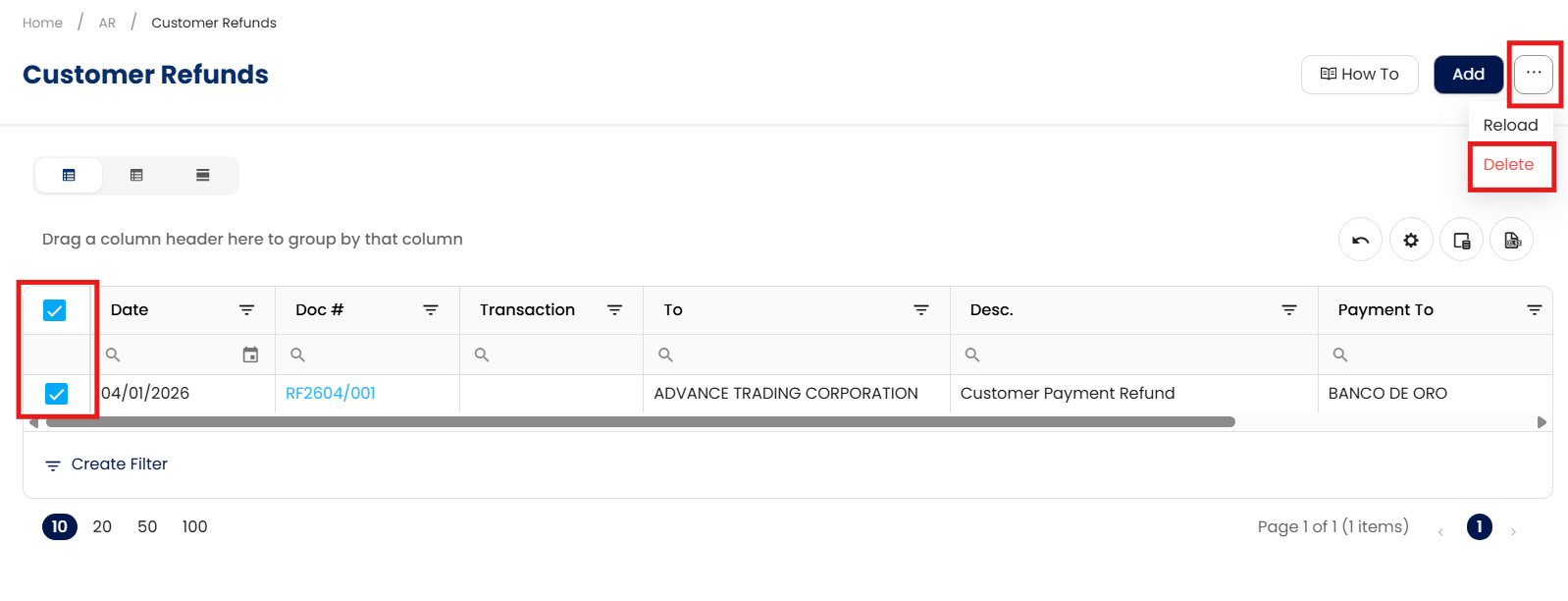
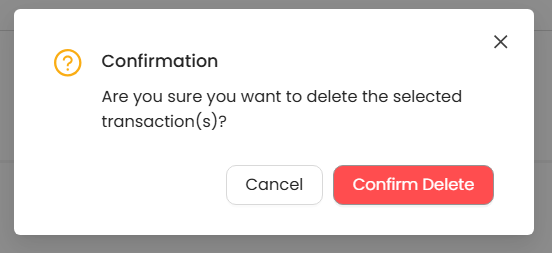
When the confirmation message appears, click Confirm Delete.
Application:
This procedure is used when refunding advance payments, such as:
Example:
Customer “Smart Tech Solutions” made an advance payment of ₱25,000 but later canceled the order and requested a refund.
Steps:
Navigate to Customer Refund and click Add.
Select Smart Tech Solutions as the customer.
Deposit To: BDO – Disbursement Account
Date: July 10, 2025
Payment: ₱25,000
Match the original official receipt (OR) linked to the advance payment.
Click Save.
The refund is now recorded, and the customer ledger is updated to reflect the transaction.
Important Note:
Editing and Deleting Transactions: According to regulatory guidelines, modifications or deletions of recorded transactions in the system may be strictly prohibited once Computerized Accounting System (CAS) approved. It's vital to adhere to your company's internal policy regarding these functionalities. It is generally advisable to disable or limit the ability to edit/delete to maintain compliance with regulations.
System Scope: QNE AI Cloud Accounting / N3 AI Accounting
Was this article helpful?
That’s Great!
Thank you for your feedback
Sorry! We couldn't be helpful
Thank you for your feedback
Feedback sent
We appreciate your effort and will try to fix the article