Overview:
This guide outlines the process for recording a supplier refund after making an advance payment. Properly documenting the refund ensures accurate financial records and correct adjustments in the accounting system.
Scenario:
A company has made an advance payment to a supplier and needs to record the refund transaction. The process involves entering the refund details correctly and ensuring the proper offset of the payment.
Solution:
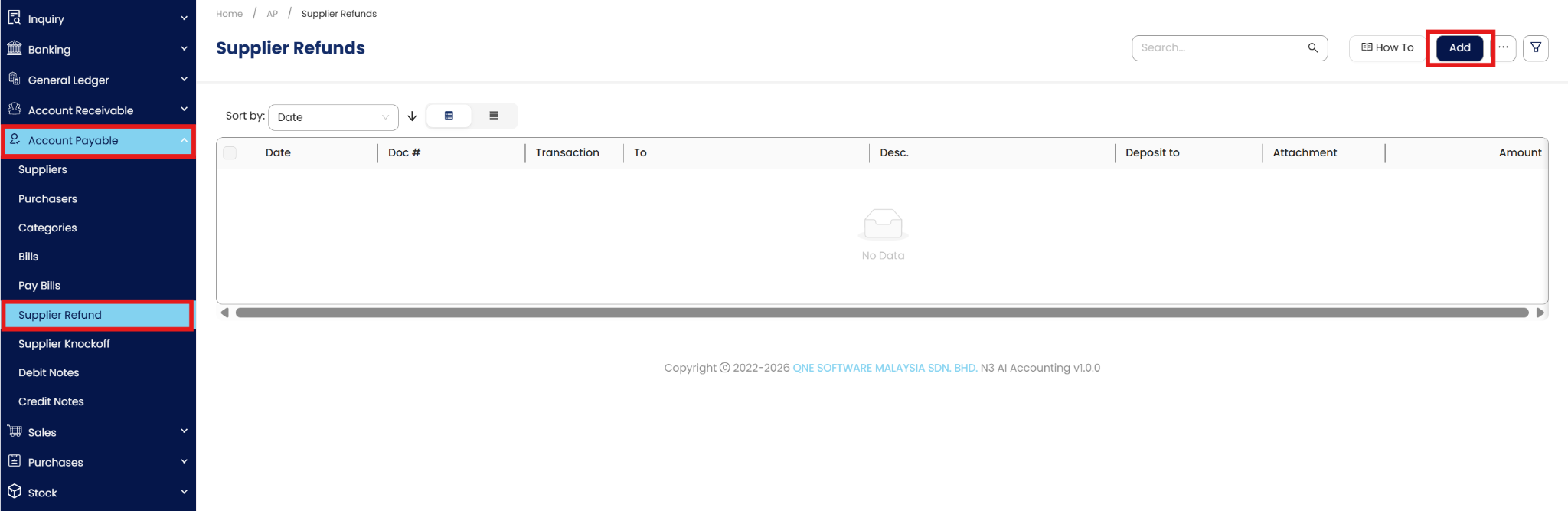
Navigate to Supplier Refund Module:
Go to Accounts Payable > Supplier Refund in the system.
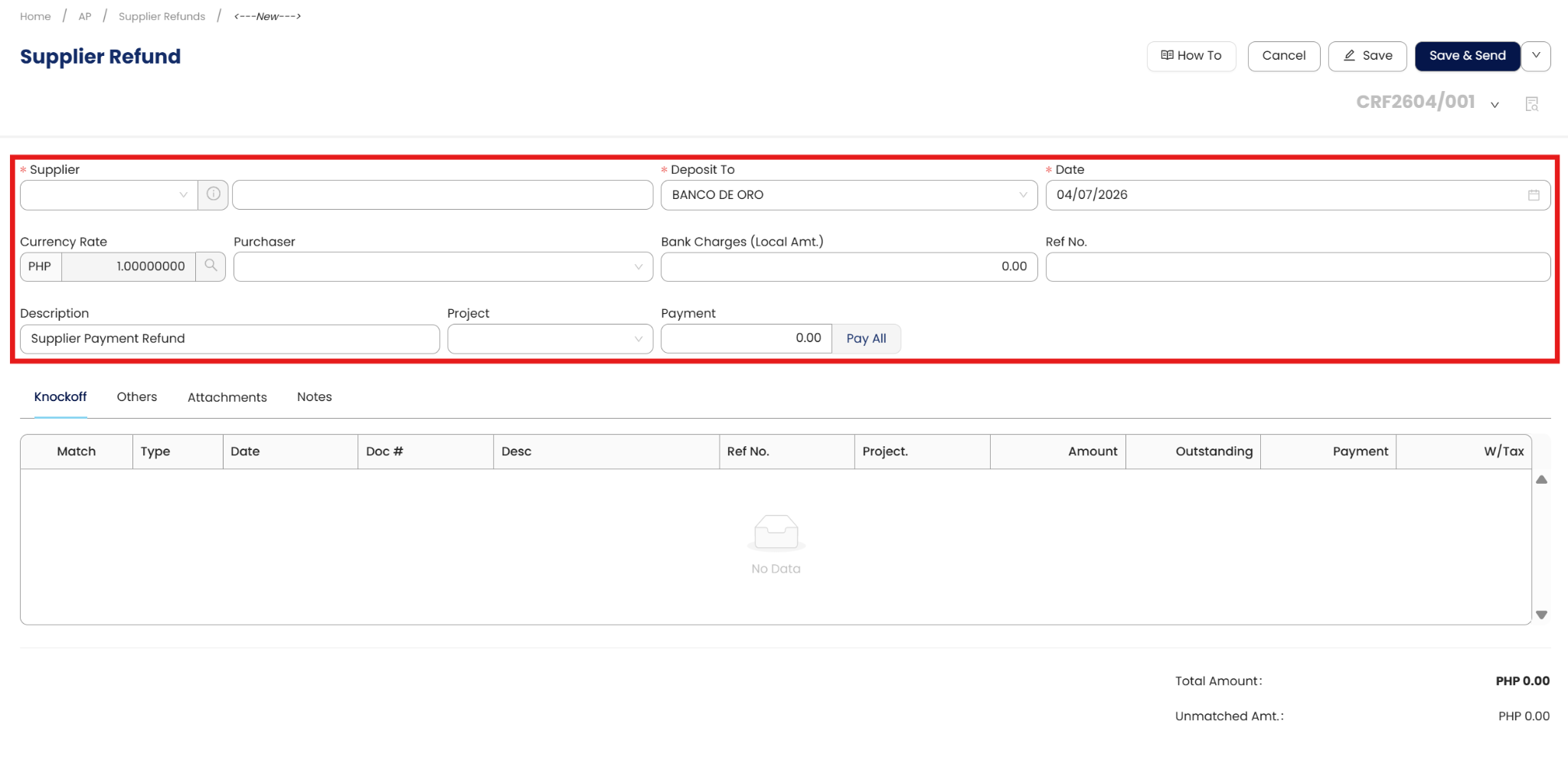
Fill out the necessary fields in the Supplier Refund form:
Supplier Name: Select the supplier issuing the refund.
General Ledger (GL) Accounts: Choose the appropriate GL account for the refund transaction.
Refund Amount: Enter the refund amount to be recorded.
Bill Number: Input the corresponding bill reference for record-keeping.
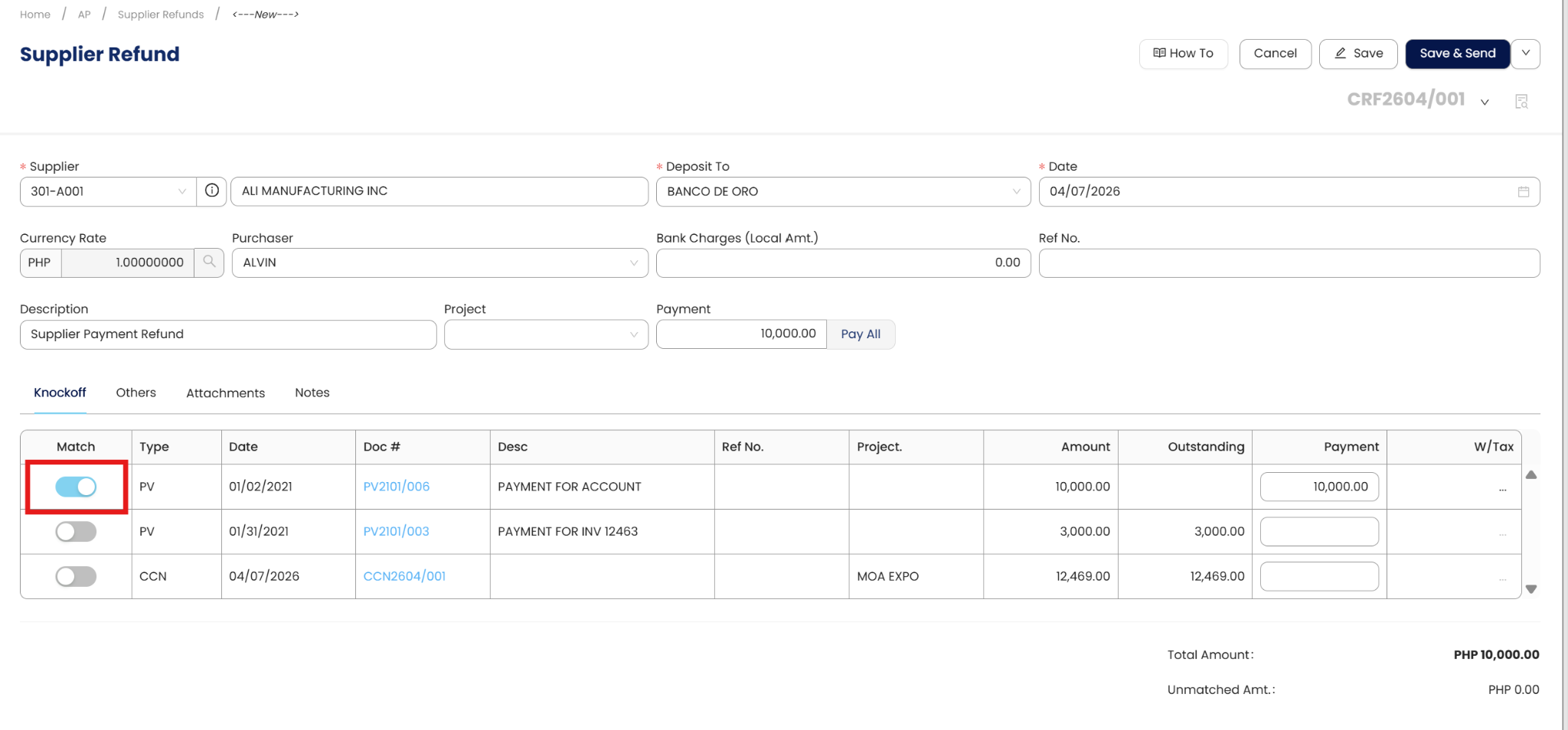
Tick/Knock Off the Pay Bills:
Identify and select the previously paid bill that is being refunded.
Ensure that the correct transaction is marked to avoid discrepancies.
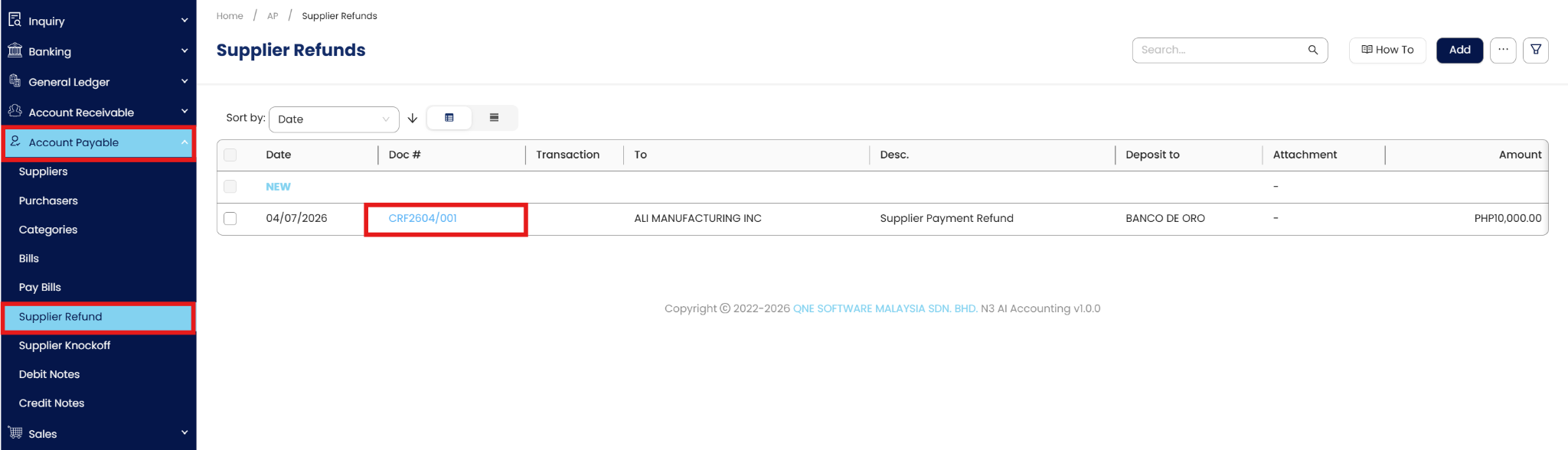
Submit and Process Refund:
Once verified, Save the refund request for processing.
The refund transaction will be recorded in the system, and adjustments will be reflected in the accounts.

Procedure:
Editing a Supplier Refund
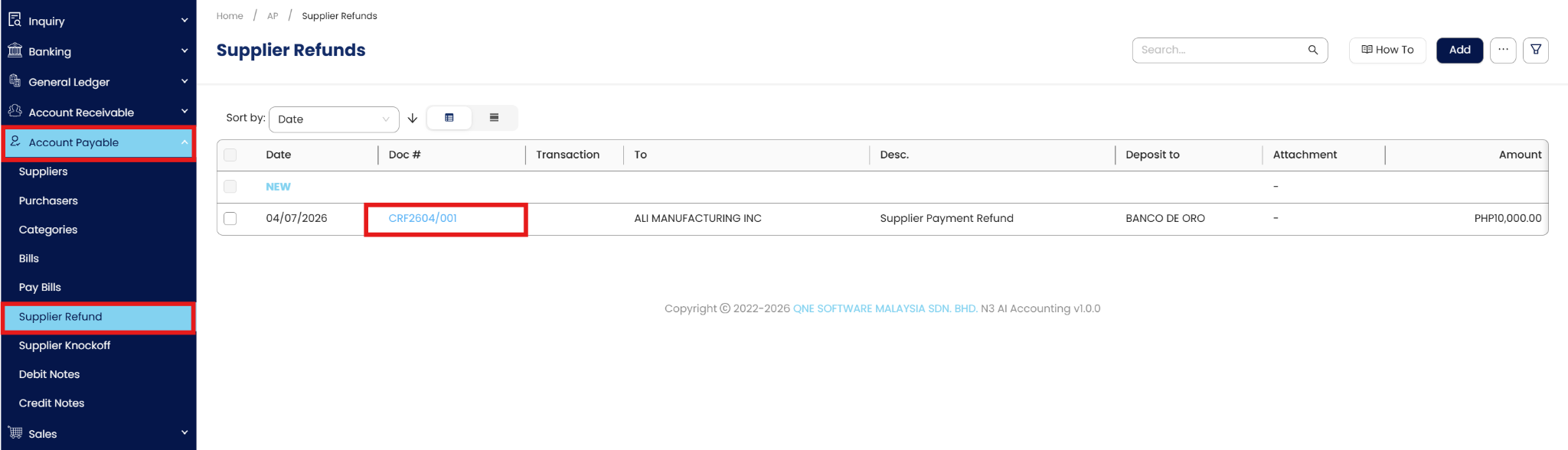
Navigate to Accounts Payable > Supplier Refund.
Find the refund record in the list and click the blue highlight to open it.
Click the Edit icon. You can modify the amount, the bank account, or the specific bills it is "knocked off" against.

Click Save to update the record.

Deleting a Supplier Refund
Locate the refund in the Supplier Refund list.
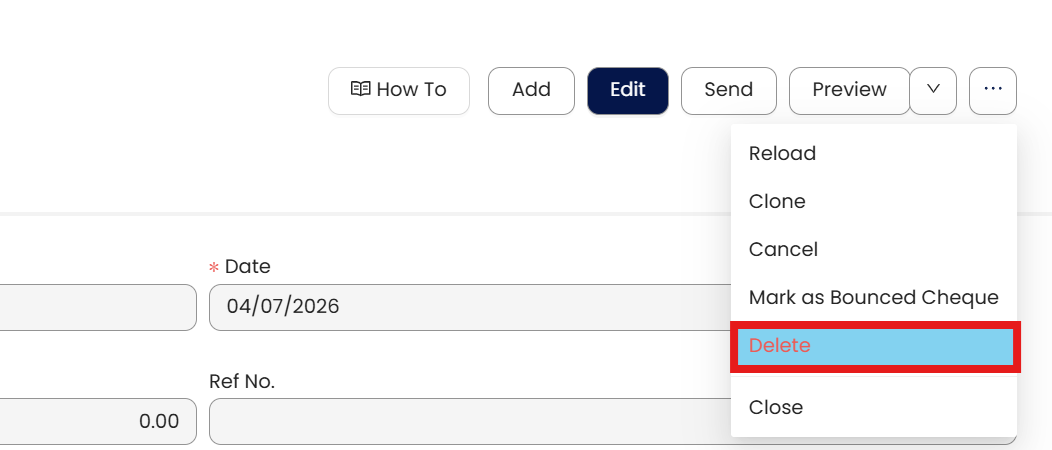
Open the transaction and select the Delete icon from the dropdown menu.
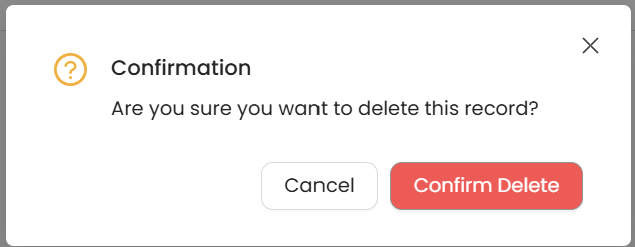
A confirmation prompt will appear; click to confirm.
Note: Deleting a refund will remove the cash inflow from your books and will make the original advance payment/bill appear as "Un-refunded" (Outstanding) again.
Application:
This process applies to all supplier refunds related to advance payments. It ensures accurate financial records and compliance with company policies for supplier transactions.
Important Note:
Editing and Deleting Transactions: According to regulatory guidelines, modifications or deletions of recorded transactions in the system may be strictly prohibited once Computerized Accounting System (CAS) approved. It's vital to adhere to your company's internal policy regarding these functionalities. It is generally advisable to disable or limit the ability to edit/delete to maintain compliance with regulations.
System Scope: QNE AI Cloud Accounting / N3 AI Accounting
Was this article helpful?
That’s Great!
Thank you for your feedback
Sorry! We couldn't be helpful
Thank you for your feedback
Feedback sent
We appreciate your effort and will try to fix the article