Overview:
Stock Adjustments in N3 AI Accounting allow users to manually update inventory levels due to various reasons such as stock count discrepancies, damaged goods, promotional giveaways, or internal use. This feature ensures that your inventory records remain accurate and up to date, helping you maintain reliable stock valuations and reporting.
Scenario:
You’ve just completed a monthly physical stock count and discovered that some items are missing, damaged, or incorrectly recorded in the system. To reconcile the actual stock on hand with the system quantities, you need to perform a stock adjustment.
Procedure:
Create a Stock Adjustment Entry
Go to Stock > Stock Adjustments and click Add to create a new stock adjustment entry.
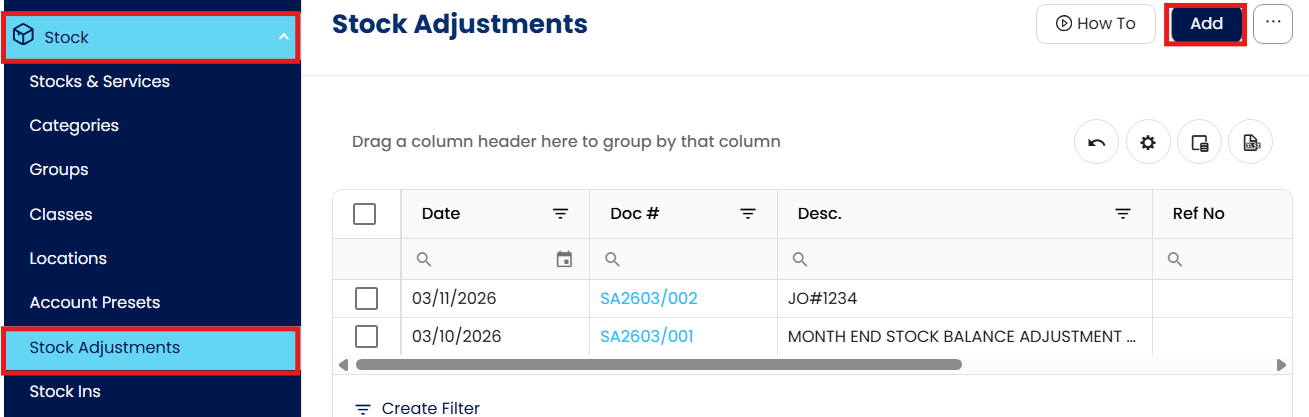
Enter Header Information
Description - Clearly state the reason for the adjustment (e.g., inventory discrepancy, damaged goods, expired stock, or stock take correction).

Date - Select the date when the stock adjustment takes effect.
Project and Stock Location – If applicable, select the associated Project and Stock Location to accurately allocate the adjustment.
Reference No - Depending on your company’s practices, the reference number may come from, for instance, incident or damage reports, reference the corresponding report or internal memo. (e.g. for damaged goods (DAMG) + Day-Month)

Add Items for Adjustment
In the Details Tab, select the stock item(s) that require adjustment.
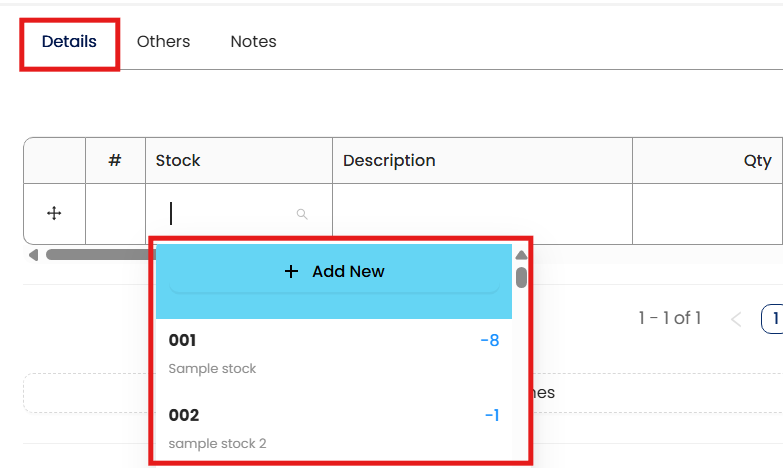
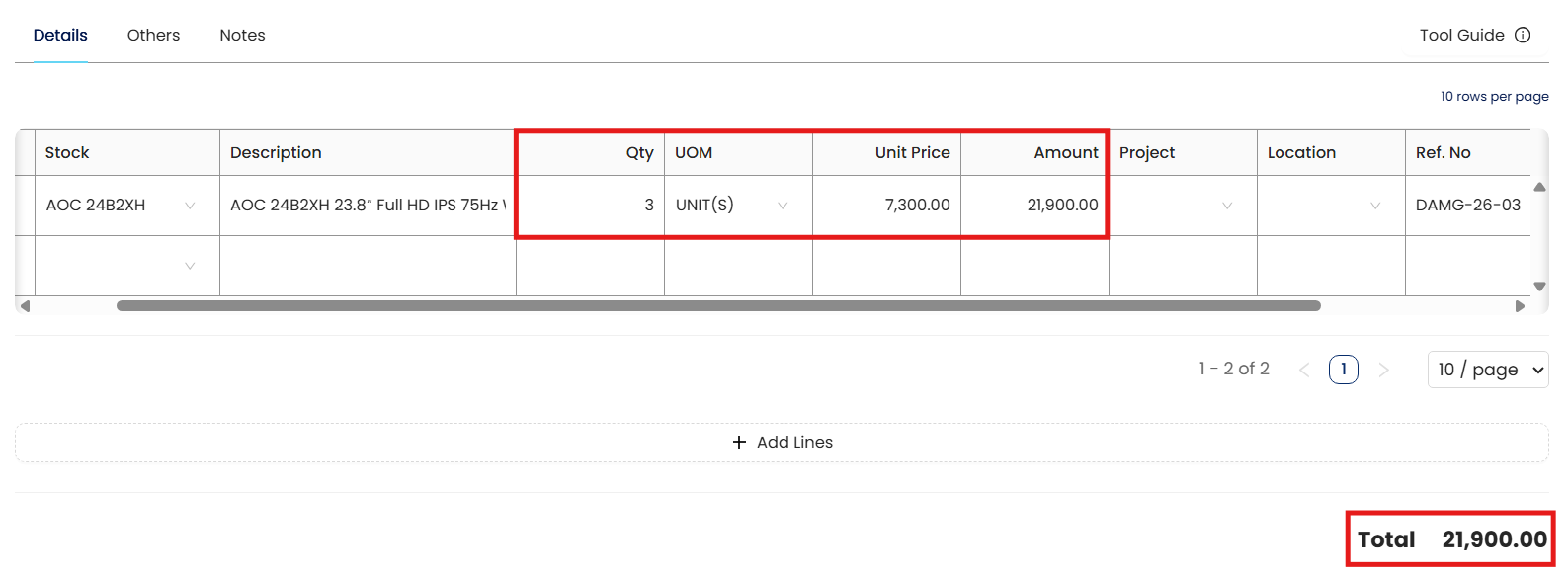
For each item, enter the adjustment quantity:
Use positive values to increase stock (e.g., found additional items).
Use negative values to decrease stock (e.g., damaged or missing items).
The system will automatically compute the total value based on the cost and quantity.
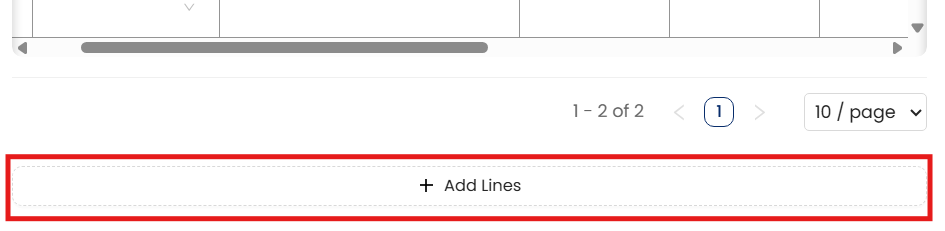
To include more items, click Add Lines and repeat the process.
Once all items are updated, choose a saving option (e.g., Save, Save and New) to record the transaction.

Procedures:
Editing Stock Adjustments
Find the specific stock adjustment record you wish to edit within the Stock Adjustment list.
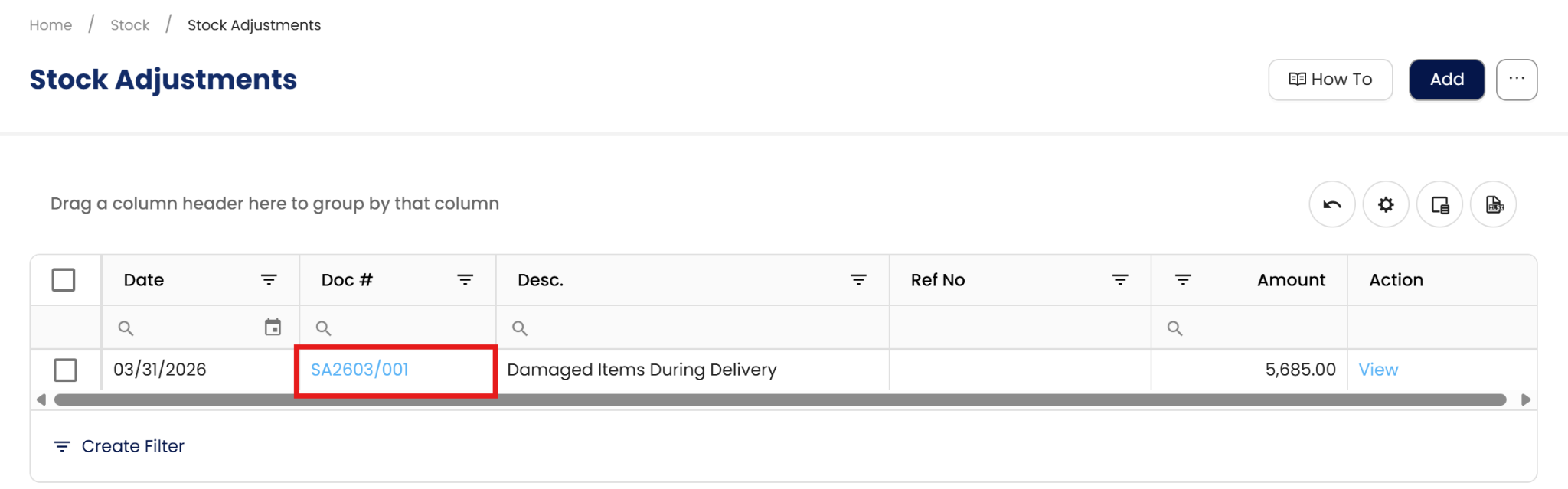
Open the record and make the necessary changes to quantities, descriptions, or project allocations.

Audit Requirement: Changes to stock levels directly affect inventory valuation. Ensure you document the reason for the edit in the system's remarks for audit transparency.
Click Save to update the record.
Deleting Stock Adjustments
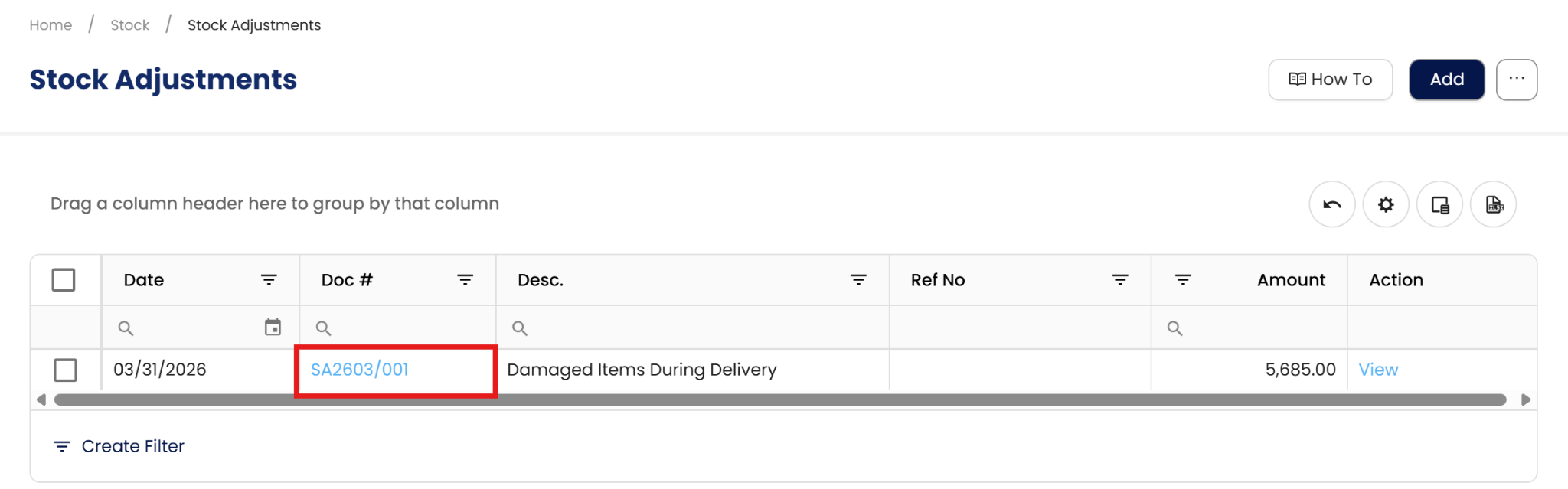
Search for the stock adjustment entry you intend to remove.
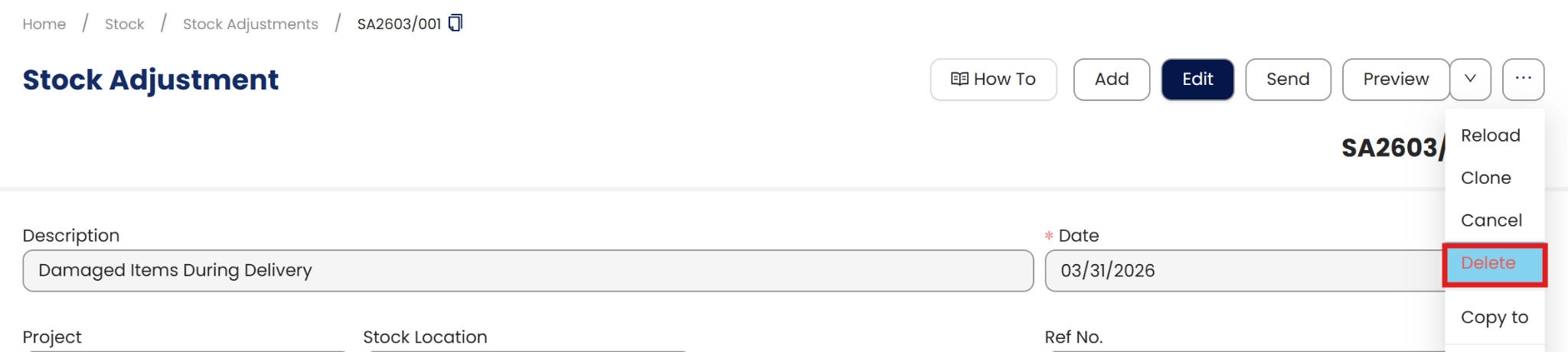
Deletion of recorded adjustments may not comply with BIR rules regarding the preservation of transaction history.
Execution: If your company policy permits, select the Delete option and confirm.
Application:
Let’s say your warehouse team discovers during a monthly audit that:
3 units of Product A are missing,
5 units of Product B are damaged and need to be written off,
and 10 units of Product C were used internally for a marketing display.
With N3 AI Accounting, you can:
Create one stock adjustment entry for all these items,
Record the appropriate descriptions and quantities,
Keep your inventory records accurate and aligned with physical stock.
This accuracy not only helps your finance and audit teams but also supports more informed decision-making in purchasing, sales, and inventory planning.
Important Note:
Editing and Deleting Transactions: According to regulatory guidelines, modifications or deletions of recorded transactions in the system may be strictly prohibited once Computerized Accounting System (CAS) approved. It's vital to adhere to your company's internal policy regarding these functionalities. It is generally advisable to disable or limit the ability to edit/delete to maintain compliance with regulations.
System Scope: QNE AI Cloud Accounting / N3 AI Accounting
Was this article helpful?
That’s Great!
Thank you for your feedback
Sorry! We couldn't be helpful
Thank you for your feedback
Feedback sent
We appreciate your effort and will try to fix the article