Overview:
In N3 AI Accounting (formerly QNE AI Cloud Accounting), the Stock In and Stock Out modules are designed to record inventory movements that occur outside the standard purchasing and sales cycle.
Stock In is used to record inventory received without a Purchase Invoice, such as internal transfers or promotional goods.
Stock Out is used to record inventory issued without a Sales Invoice, such as internal usage or inter-location transfers.
By accurately documenting these transactions, you ensure that your inventory records stay up-to-date and reflect actual stock movements across your organization.
Scenario:
Your company manages inventory across multiple warehouses or departments. There are instances when items need to be transferred internally or received into inventory not through a purchase, or issued out not through a sale. These scenarios are best managed using the Stock In and Stock Out modules.
Example:
Stock In: Receiving stock from another branch or department as part of an internal transfer
Stock Out: Issuing stock to another warehouse or department for internal operations
Note: For adjustments due to damage, loss, or physical count discrepancies, use the Stock Adjustment module, which follows standard accounting practices for quantity and value corrections.
Procedure:
A. Recording a Stock In Transaction
Open the Stock In Module
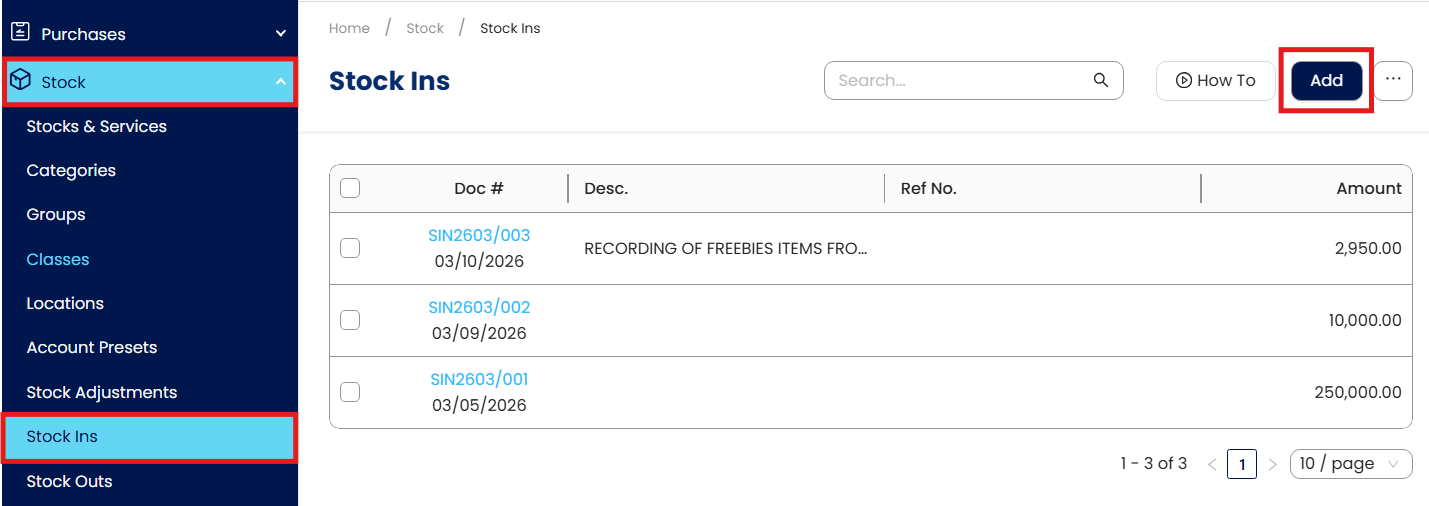
Navigate to Stock > Stock Ins, then click Add to create a new transaction.
Enter Header Information
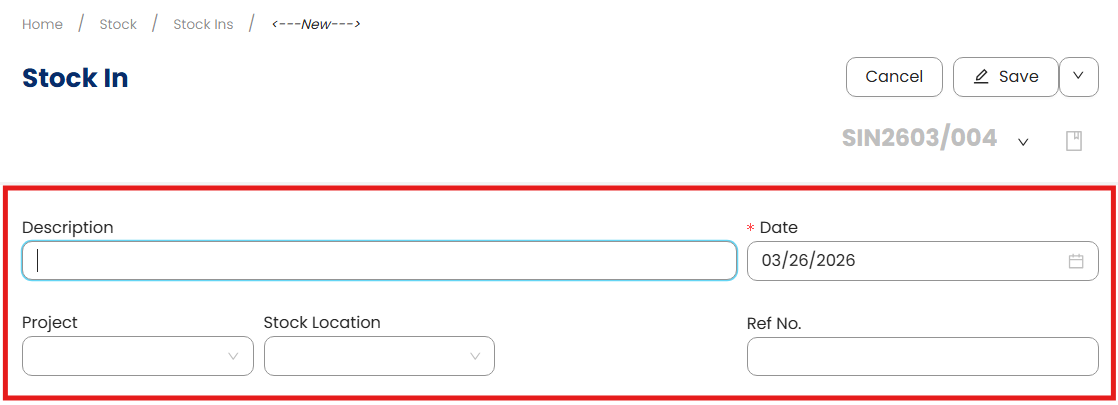
Description – Enter a short, descriptive reason for the stock entry (e.g., "Transfer from Branch A", "Received display items")
Date – Indicate the date the stock was received
Project (optional) – Tag the relevant project, if applicable
Stock Location – Select the warehouse or location where the stock is being received
Reference No. (optional) – Follow internal referencing formats (e.g., TRF-20Jun for transfers)
Add Inventory Items
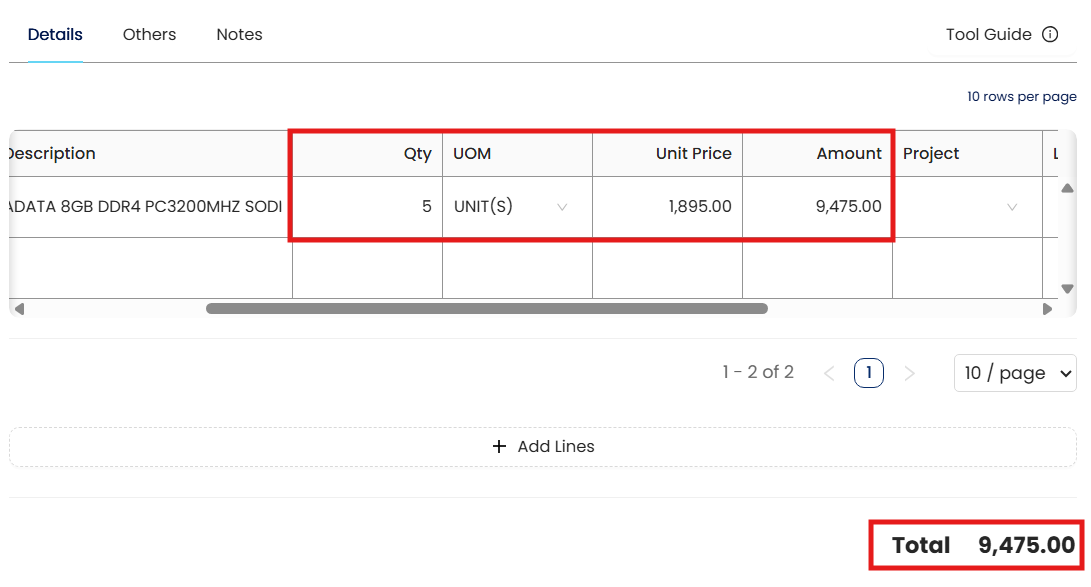
Under the Details tab, select the inventory item(s). If the item is not yet listed, click Add New to create it.

Enter the quantity received. The system will compute the total based on the unit cost.
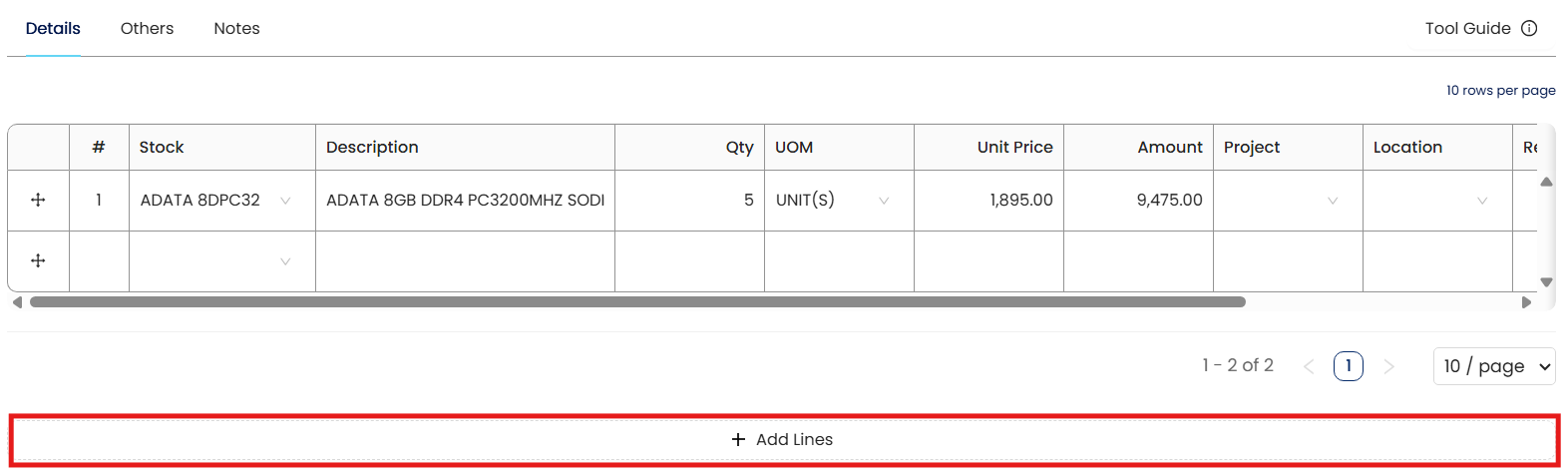
To include more items, click Add Lines and repeat the process.
Once all items are updated, choose a saving option (e.g., Save, Save and Close) to record the transaction.

B. Recording a Stock Out Transaction
The steps for recording a Stock Out transaction mirror those of Stock In, with the key
difference being that the items are leaving the warehouse.
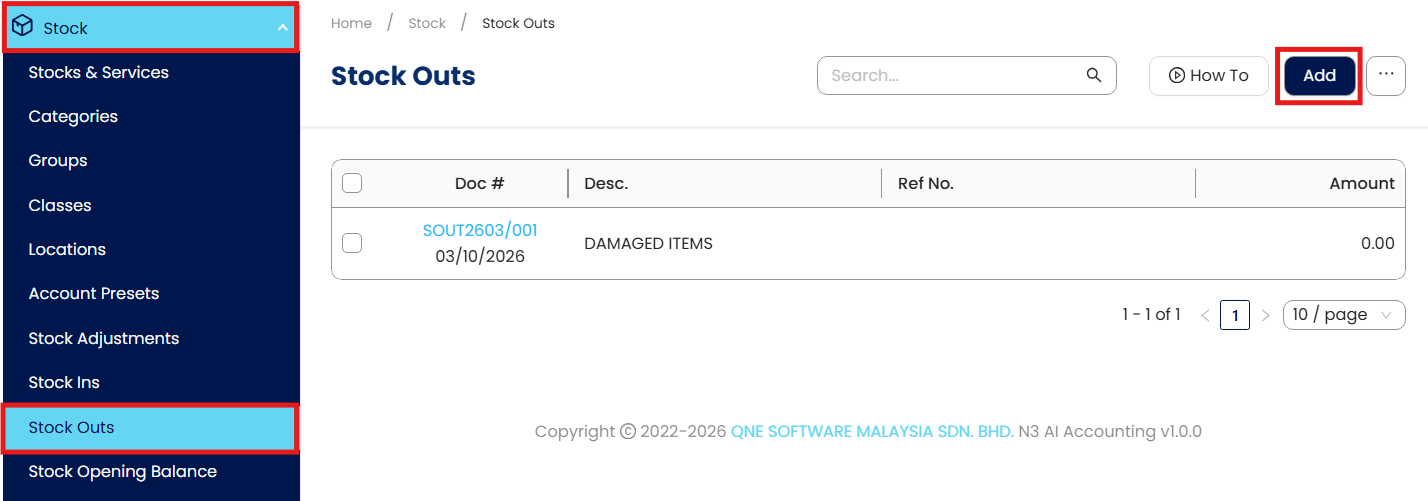
Go to Stock > Stock Outs, then click Add
Enter Header Information
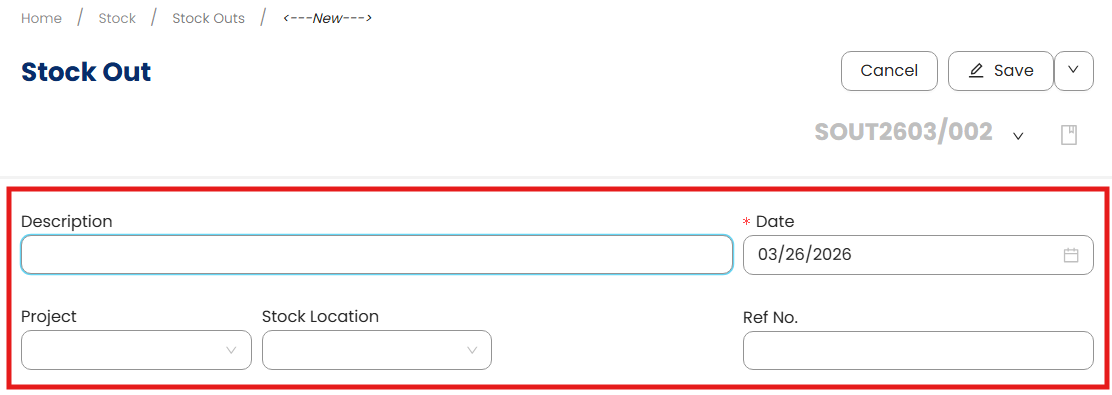
Description – e.g., "Transfer to Branch B", "Issued to Admin Department"
Date – Date the stock was issued
Stock Location – The location from which stock is being removed
Reference No. (optional) – e.g., TRFOUT-20Jun
Add Inventory Items
Select item(s) being issued
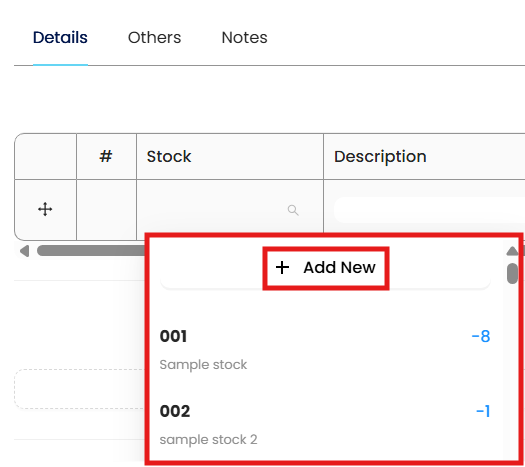
Enter quantity. The system will compute the total based on the unit cost.
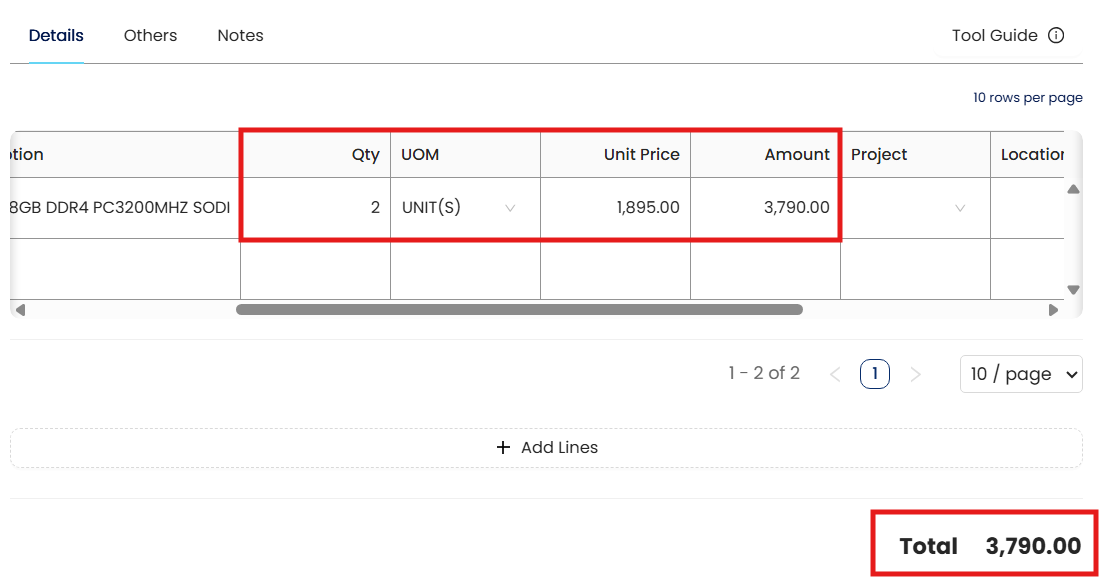
Once all items are updated, choose a saving option (e.g., Save, Save and Close) to record the transaction.

Application:
Use Stock In for:
Receiving stock from another branch (as part of internal stock transfers)
Receiving promotional or sample stock for marketing use
Receiving stock from production units or consignment returns
Use Stock Out for:
Transferring inventory to another branch or warehouse
Issuing stock to departments for operational purposes (non-sales)
Sending inventory to consignment locations
System Scope: QNE AI Cloud Accounting / N3 AI Accounting
Was this article helpful?
That’s Great!
Thank you for your feedback
Sorry! We couldn't be helpful
Thank you for your feedback
Feedback sent
We appreciate your effort and will try to fix the article