Overview:
The Sales Invoice – View permission under Report Permissions allows users to preview individual Sales Invoice printouts and access the Sales Invoice report under Batch Reports.
This article explains how an Administrator can enable this permission under a User Defined Role.
Scenario:
An organization wants to allow users assigned to a particular User Defined Role to preview individual Sales Invoice printouts and access the Sales Invoice report for batch preview.
To provide this access, the Administrator must enable the Sales Invoice View permission under Report Permissions in the assigned role.
Procedure:
Configuring Sales Invoice Permissions
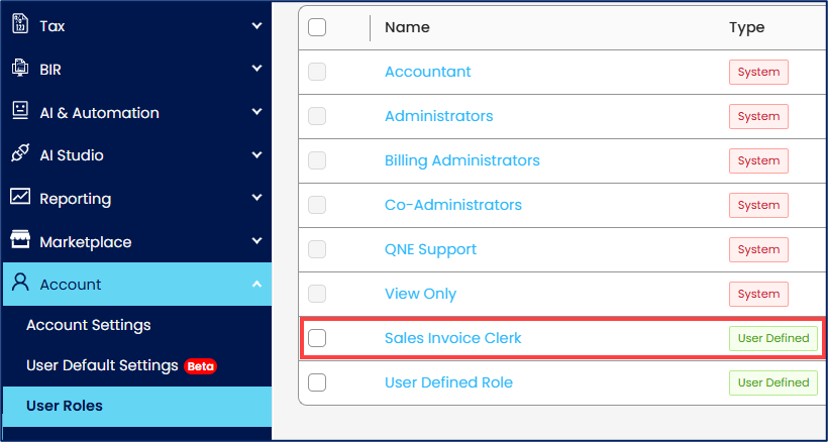
From the navigation panel, go to Account > User Roles and select the User Defined Role assigned to the users who need Sales Invoice preview access (e.g., Sales Invoice Clerk).
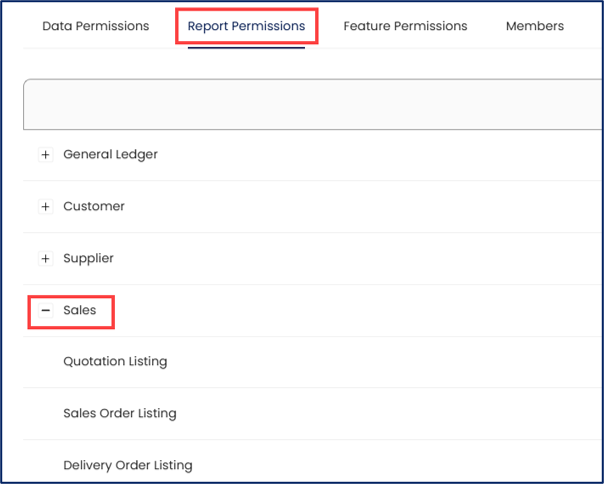
Under the role settings, select Report Permissions tab and expand the Sales section.
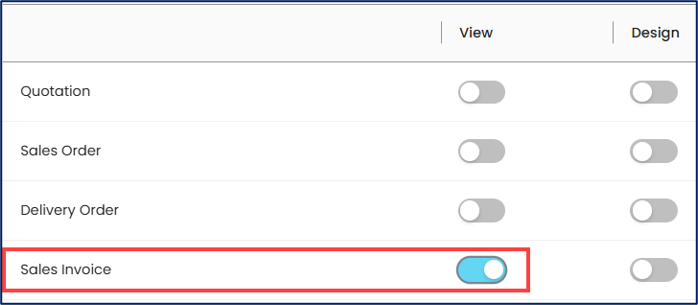
Locate Sales Invoice and enable its View permission toggle switch.
Click Save to save the role permission settings.

Verifying Individual Sales Invoice Preview Access
From the navigation panel, go to Sales > Sales Invoices.
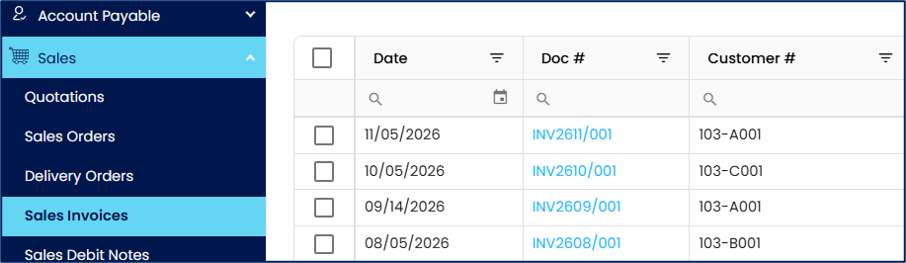
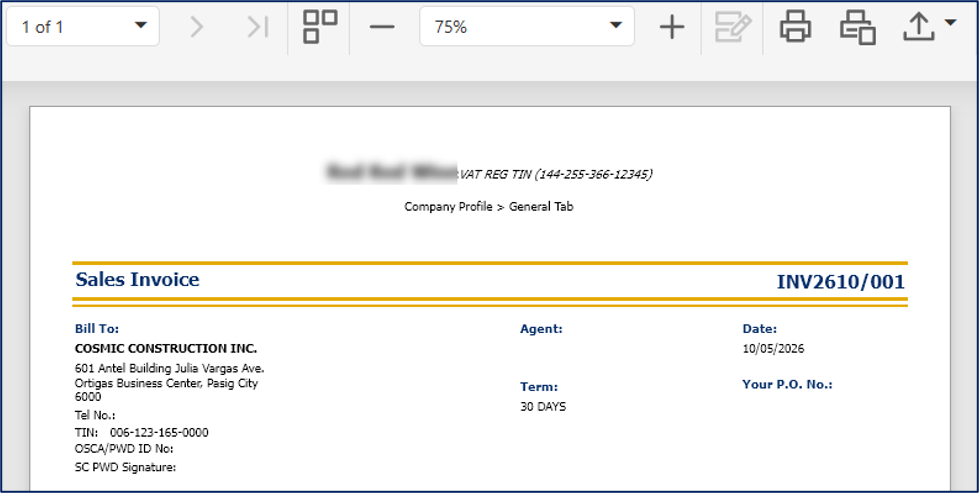
Open an individual Sales Invoice and verify that the Preview button is enabled.

Click Preview and verify that the Sales Invoice printout is displayed.
Verifying Batch Sales Invoice Preview Access
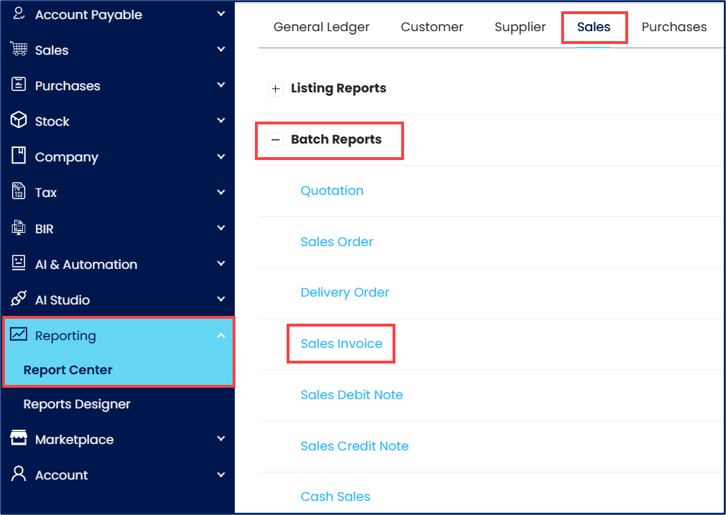
From the navigation panel, go to Reporting > Report Center > Sales tab > Batch Reports and select Sales Invoice.
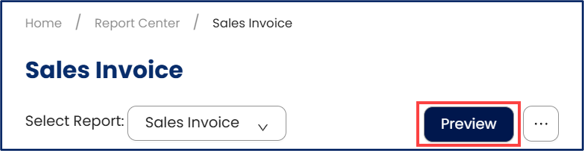
On the report page, select the desired report format and specify the necessary report parameters, then click Preview to generate the report.
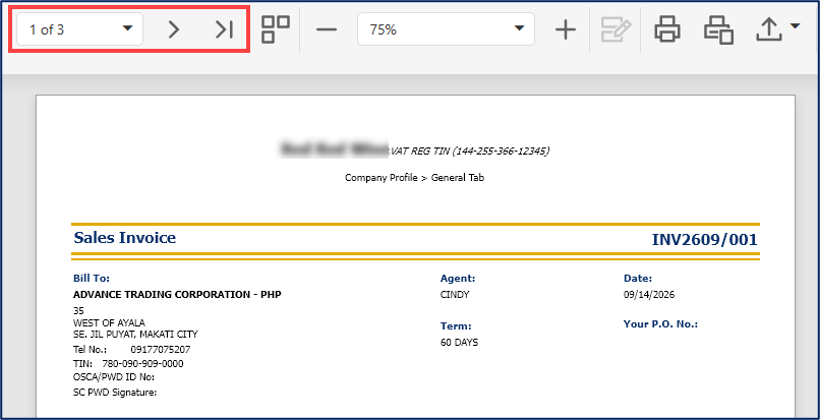
Review the generated report to verify that the expected Sales Invoice information is displayed.
Application:
Individual Invoice Preview – Allows users to preview individual Sales Invoice printouts before printing or distributing them.
Batch Invoice Preview – Allows users to access the Sales Invoice report and preview multiple invoices through Batch Reports.
Role-Based Access Control – Enables Administrators to grant Sales Invoice preview access according to users' assigned responsibilities.
System Scope: QNE AI Cloud Accounting / N3 AI Accounting
Was this article helpful?
That’s Great!
Thank you for your feedback
Sorry! We couldn't be helpful
Thank you for your feedback
Feedback sent
We appreciate your effort and will try to fix the article