Overview:
The Report Designer allows accounting users to add an e-signature image to the Sales Invoice printout. The e-signature is placed in the signature area of the layout, so it appears in the invoice preview and on printed or exported copies. This is useful for authorized signatories, billing staff, and finance teams who issue invoices to customers. The e-signature is added to a cloned copy of the Sales Invoice layout, keeping the original layout unchanged. The customized layout can then be set as the default to maintain a consistent invoice presentation.
Scenario:
An accounting user prepares Sales Invoice documents for customers and wants each invoice printout to display the e-signature of the authorized signatory above the AUTHORIZED SIGNATURE line. To avoid manually signing every printed invoice, the user clones the existing Sales Invoice layout, adds the authorized signatory's signature image to the cloned layout, saves the changes, and sets the customized layout as the default. The user then previews a Sales Invoice using the customized layout to verify that the e-signature appears in the correct position.
Procedure:
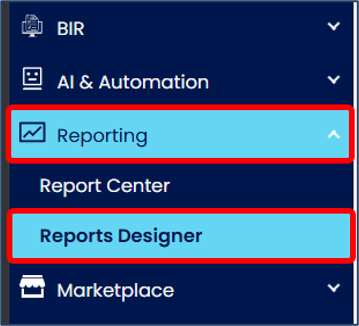
From the navigation panel, go to Reporting > Reports Designer.
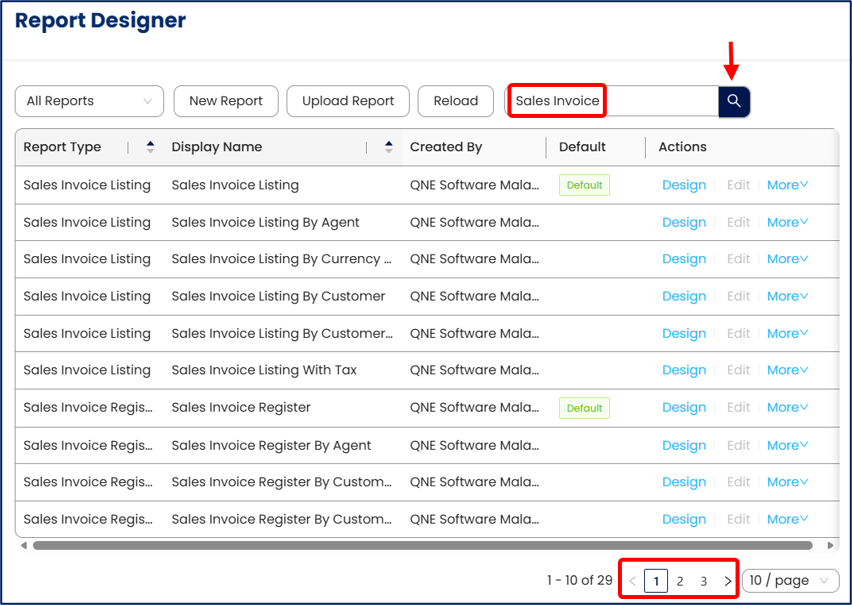
Enter Sales Invoice in the search box and click the search icon. If you already have a customized Sales Invoice layout that you want to amend, search for that instead and proceed directly to Step 5. Otherwise, proceed to Step 3 to clone the standard Sales Invoice layout.
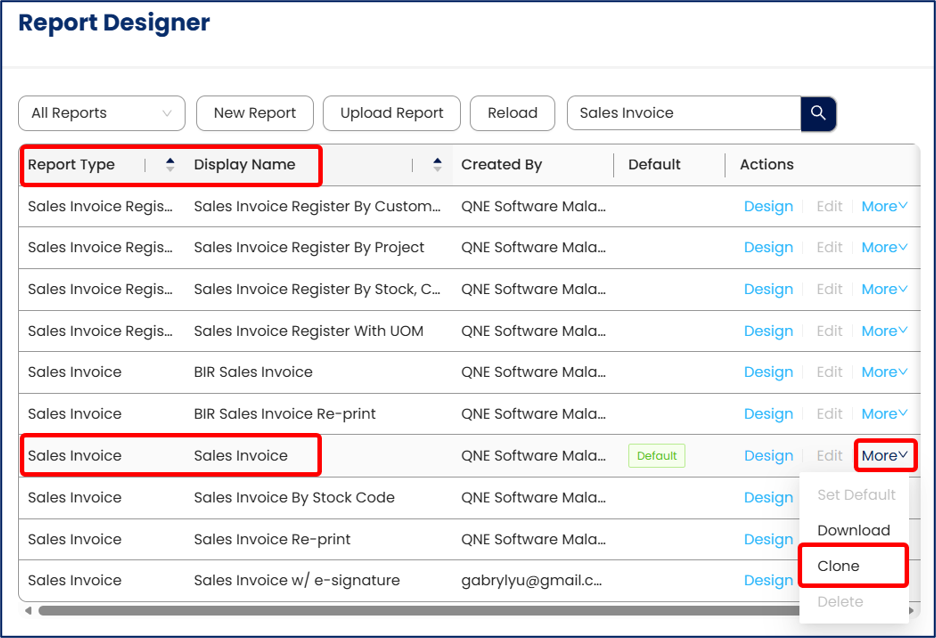
Locate the row where Report Type and Display Name are both Sales Invoice, then select More > Clone.
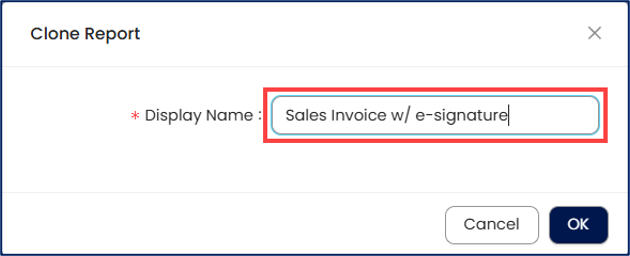
In the Clone Report window, enter a name in Display Name, for example, Sales Invoice w/ e-signature, and click OK.
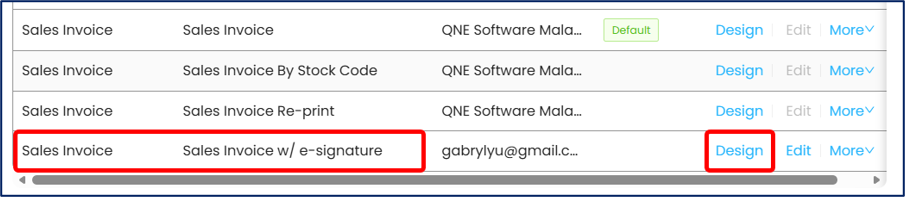
Locate the created report then click Design on the same row to open the report designer.
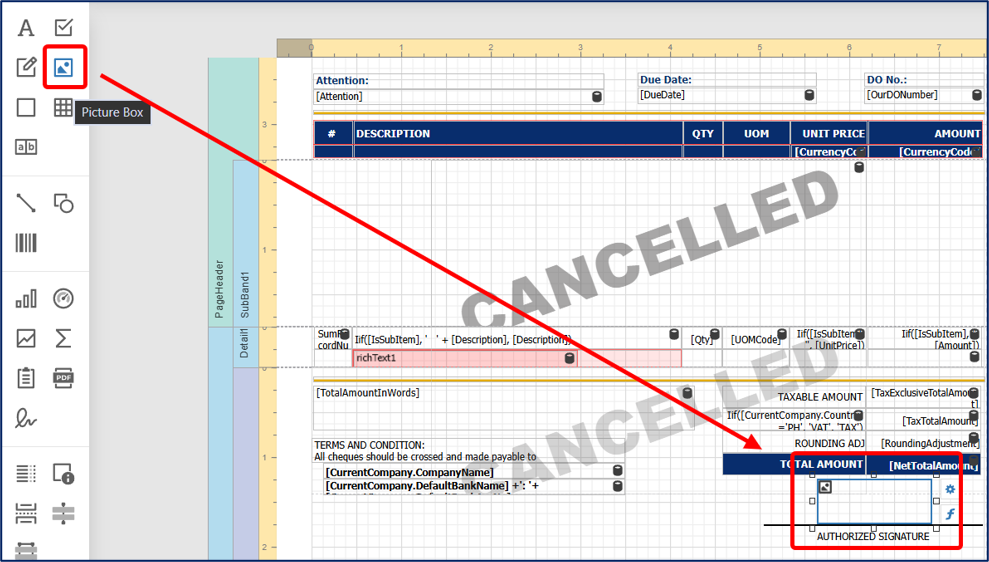
From the toolbox panel, drag Picture Box into the signature area above the AUTHORIZED SIGNATURE line.
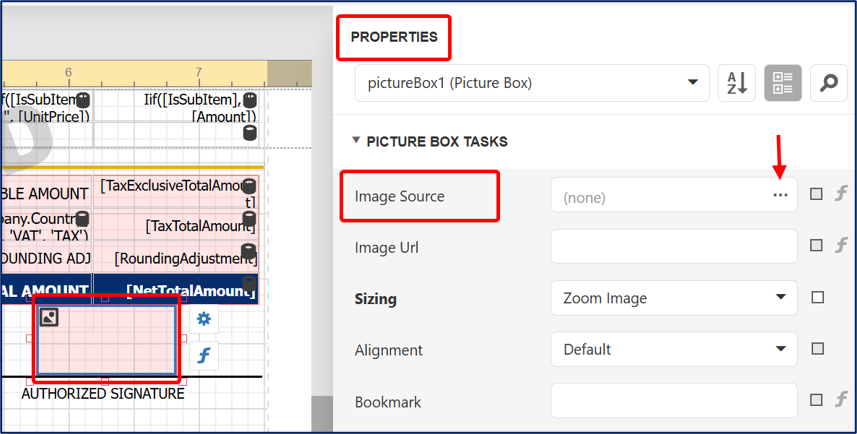
In the Properties panel, click the three-dot “...” button beside Image Source. Then, browse and upload your signature image from your files.
Select the picture box, then adjust its size and position so it fits neatly within the signature area.
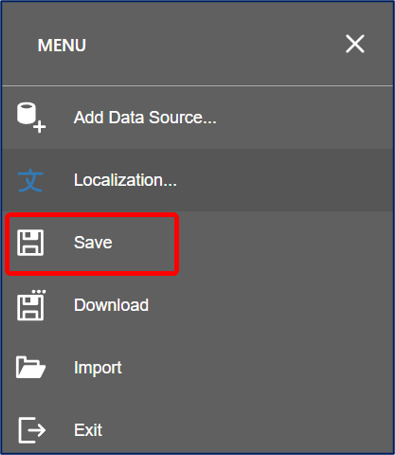
Click the three-line Menu button in the upper-left corner of the designer.
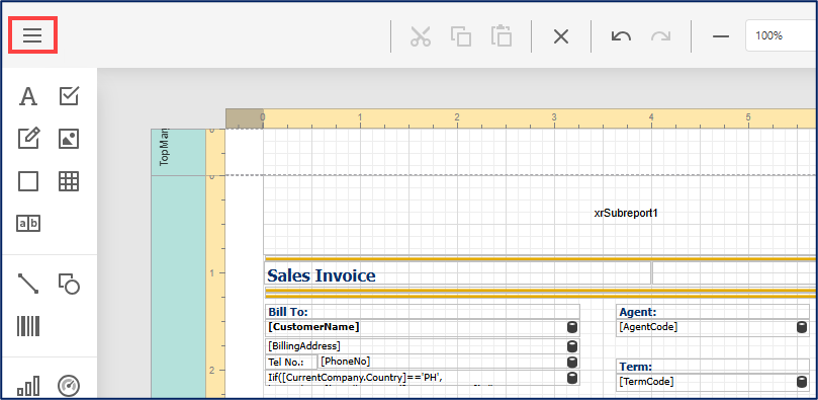
Select Save. Confirm that the message “The report has been successfully saved.” appears.
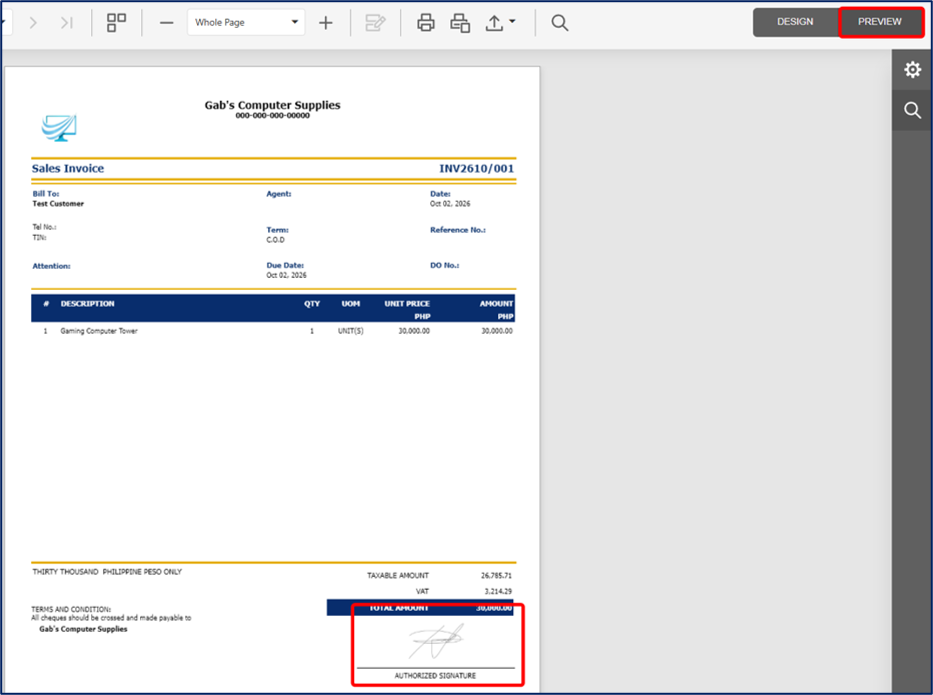
On the top-right corner, click PREVIEW to check how the signature image looks on the report.
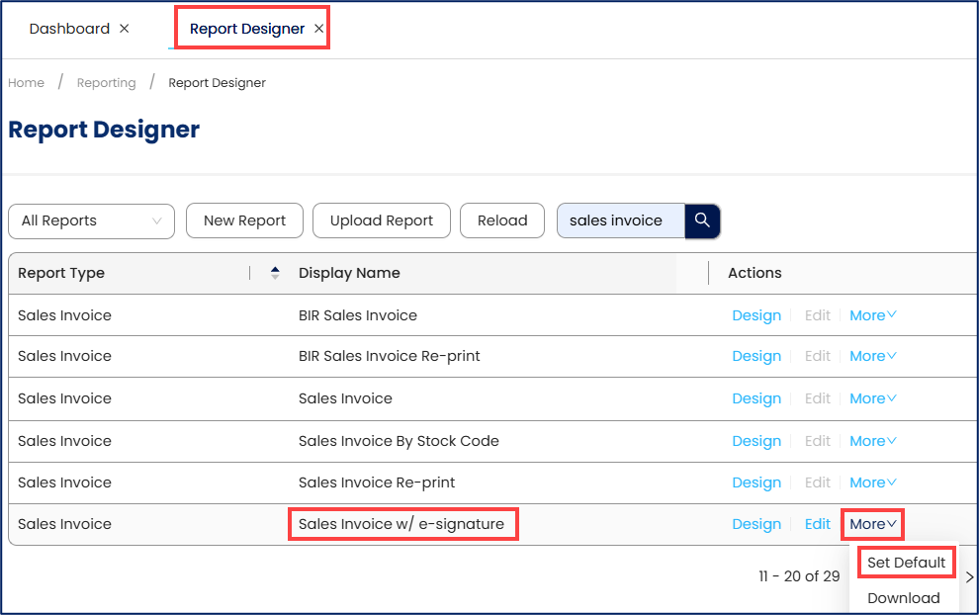
Return to the Report Designer tab and select More > Set Default on the corresponding report row. Confirm that the message “Report file is set as default successfully” appears.
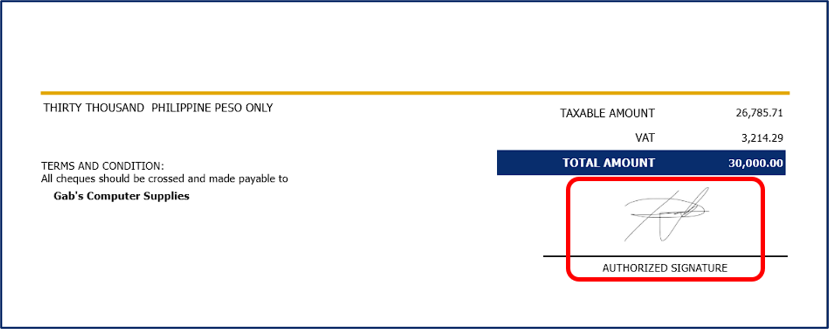
Open any existing Sales Invoice and click Preview.

Confirm that the signature image appears above the AUTHORIZED SIGNATURE line on the Sales Invoice printout.
Application:
Display authorized signatory information — Show the authorized signatory's signature image on Sales Invoice printouts without manually signing each printed copy.
Support paperless billing — Include the signature image in invoices shared electronically or as exported files, reducing the need to print invoices solely for manual signing.
Maintain consistent presentation — Keep the signature in the same position across invoices printed using the customized layout.
Reduce manual handling — Reduce the time spent printing, signing, and scanning invoices before sending them to customers.
System Scope: QNE AI Cloud Accounting / N3 AI Accounting
Was this article helpful?
That’s Great!
Thank you for your feedback
Sorry! We couldn't be helpful
Thank you for your feedback
Feedback sent
We appreciate your effort and will try to fix the article