Overview:
Supplier Credit Notes are used to record deductions against a supplier’s outstanding payable. This commonly applies in cases such as purchase returns, pricing adjustments, or billing corrections, where the amount owed to the supplier needs to be reduced.
Scenario:
A supplier issues a credit note to deduct an amount from an existing payable, usually when the related purchase invoice has not yet been fully settled.
Solution:
Navigate to Supplier Credit Notes:
Navigate to Accounts Payable, then click on Supplier Credit Notes. This is where all supplier credit note transactions are managed.
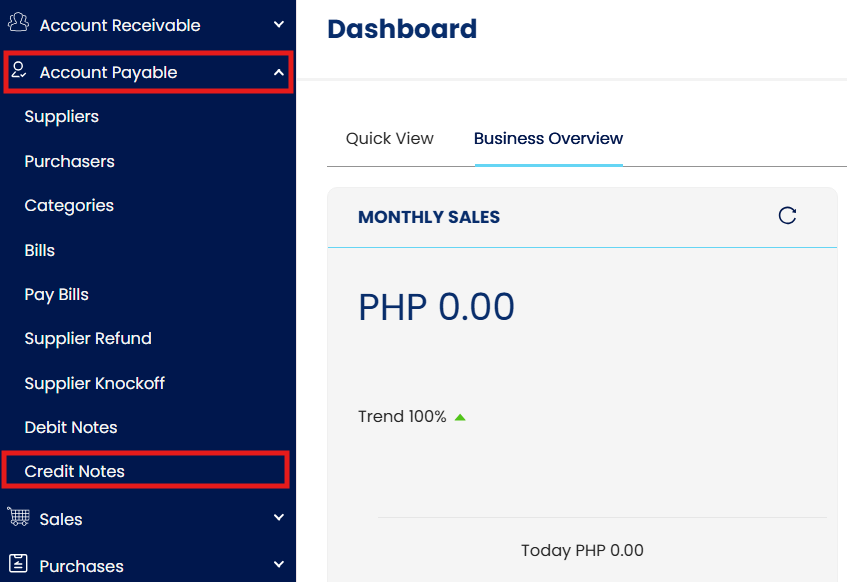
Open the Supplier Credit Notes Module:
Once inside the Supplier Credit Notes module, you will see a list of all previously recorded Supplier Credit Notes. Click the Add button to begin creating a new Supplier Credit Note.
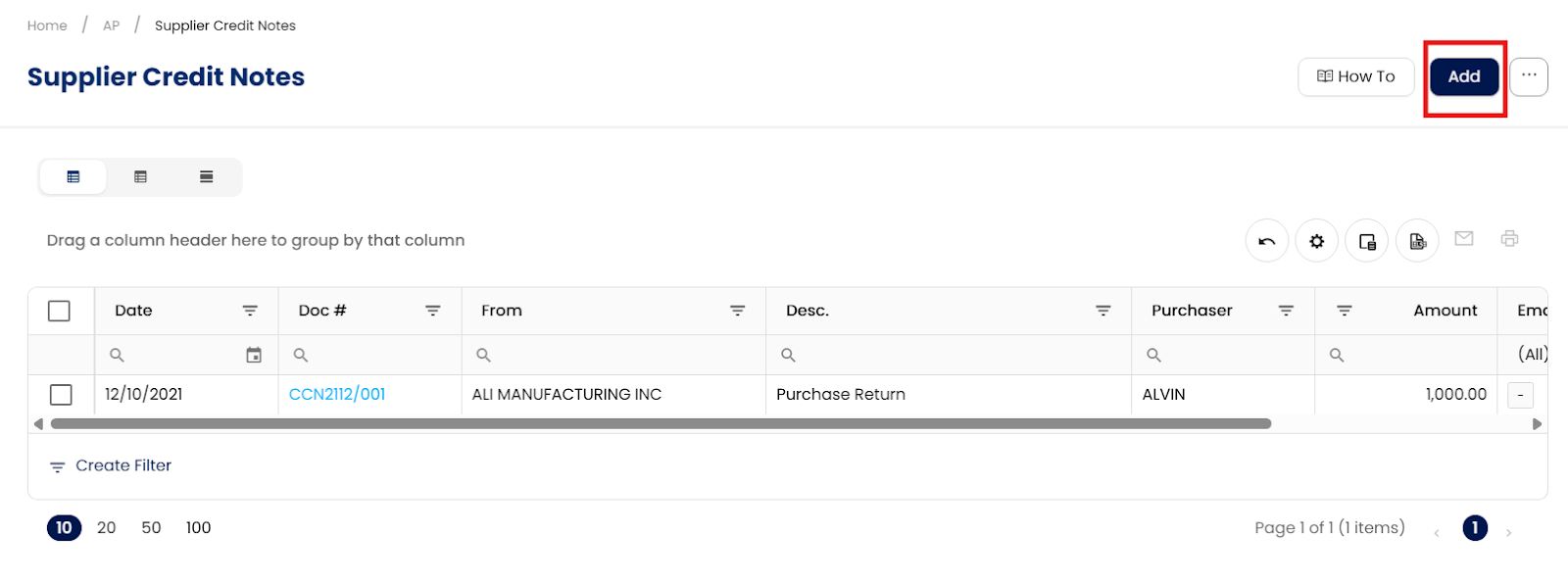
Create a Supplier Credit Notes:
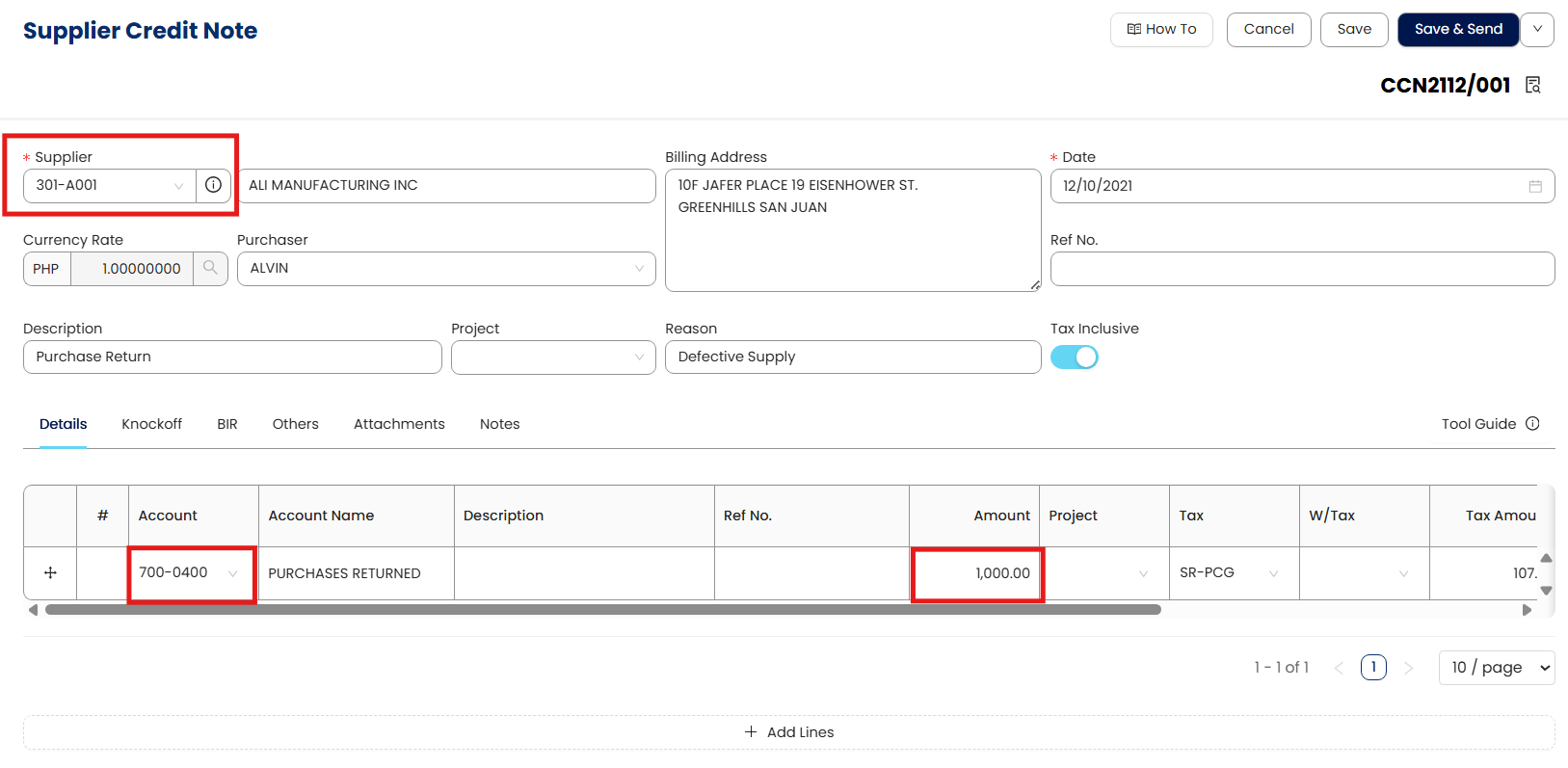
Select the supplier and input all relevant details.
Under the Details tab, choose the appropriate GL account(s) to be debited for the reversal. Input the amount to be deducted.
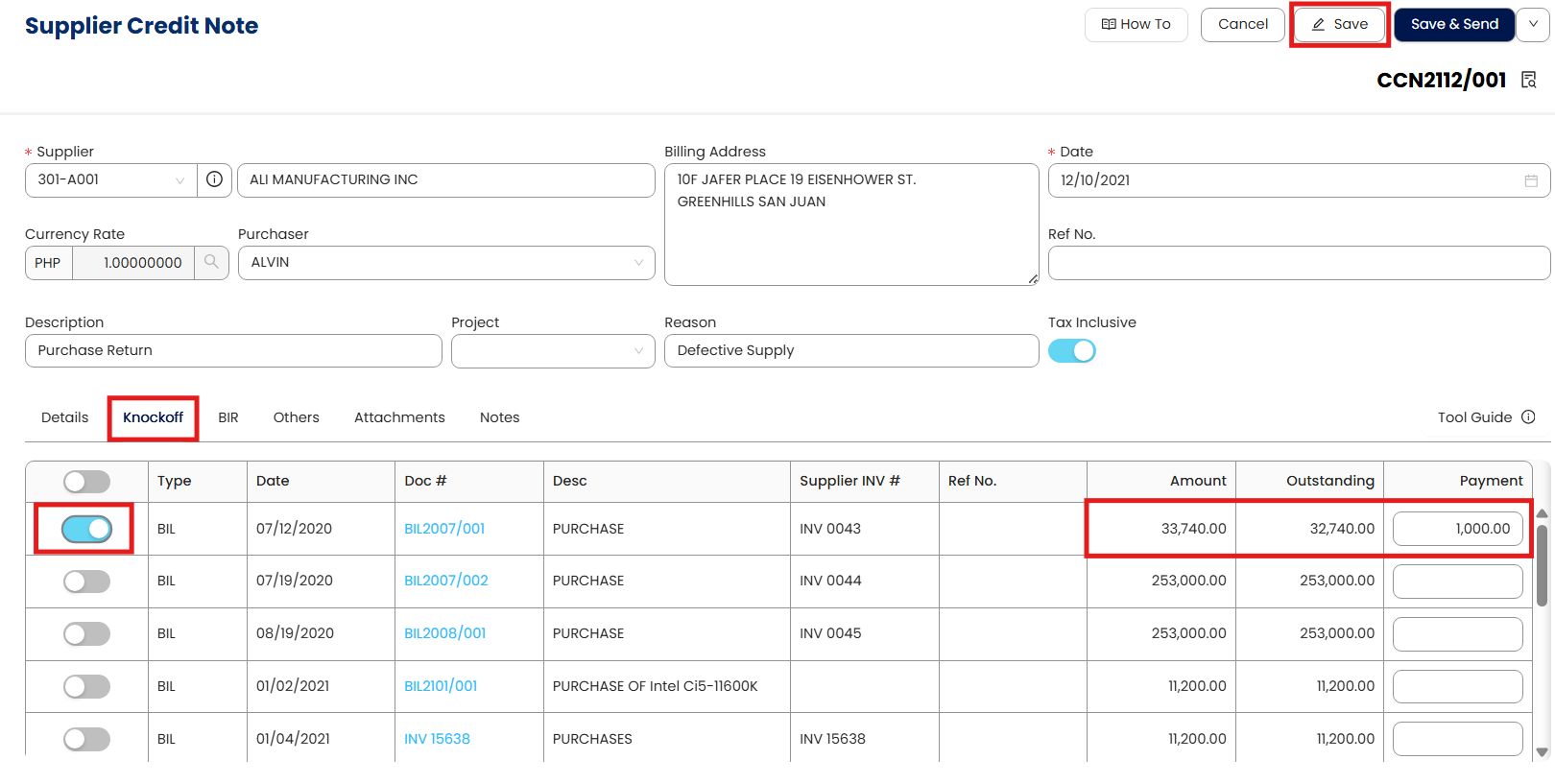
Apply the Credit Note to Outstanding Payables:
Go to the Knockoff tab to view all outstanding payables for the selected supplier. Tick the transaction(s) where the credit note will be applied to deduct the payable, then click Save.
Review the Supplier Credit Note:
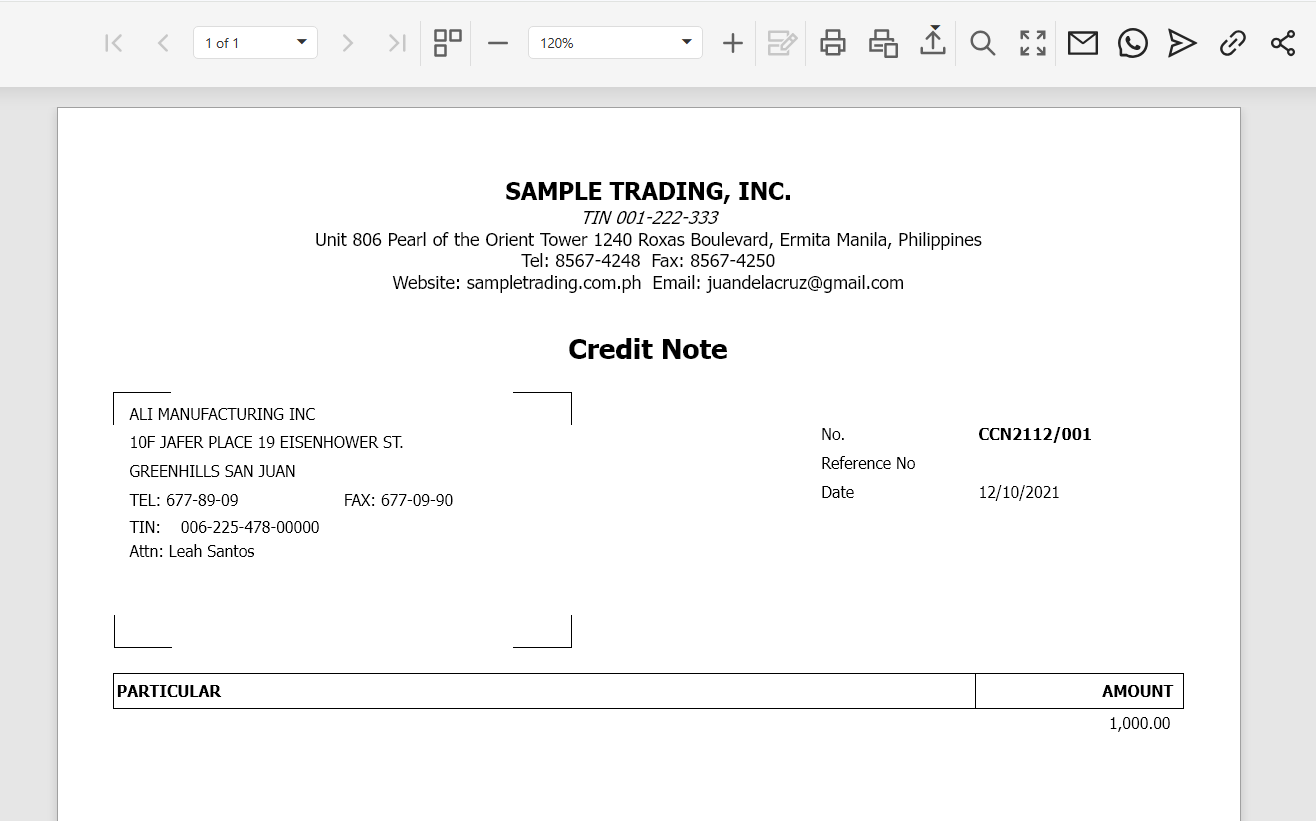
Click Preview to review the default Supplier Credit Note form and ensure all information is correct.
Procedure 2: Editing a Supplier Credit Notes
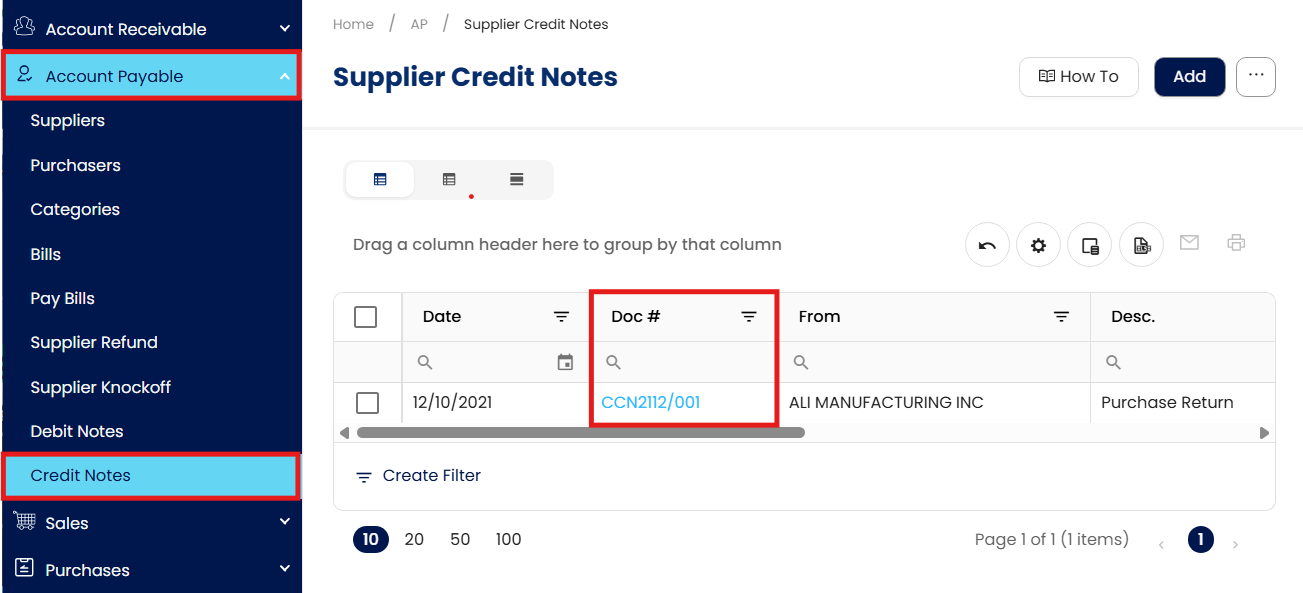
Go to Accounts Payable > Credit Notes, then select the Doc # of the Credit Notes that you want to update.
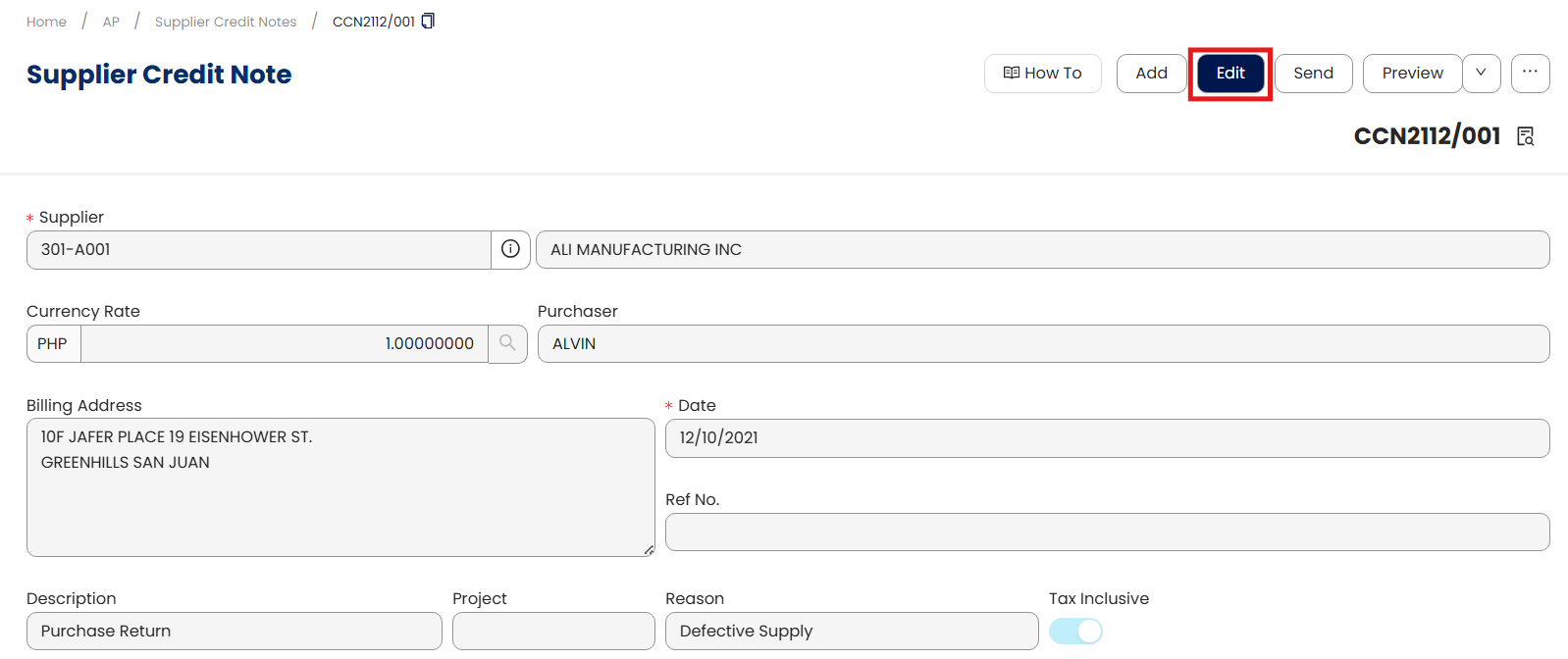
Click Edit and apply necessary changes.
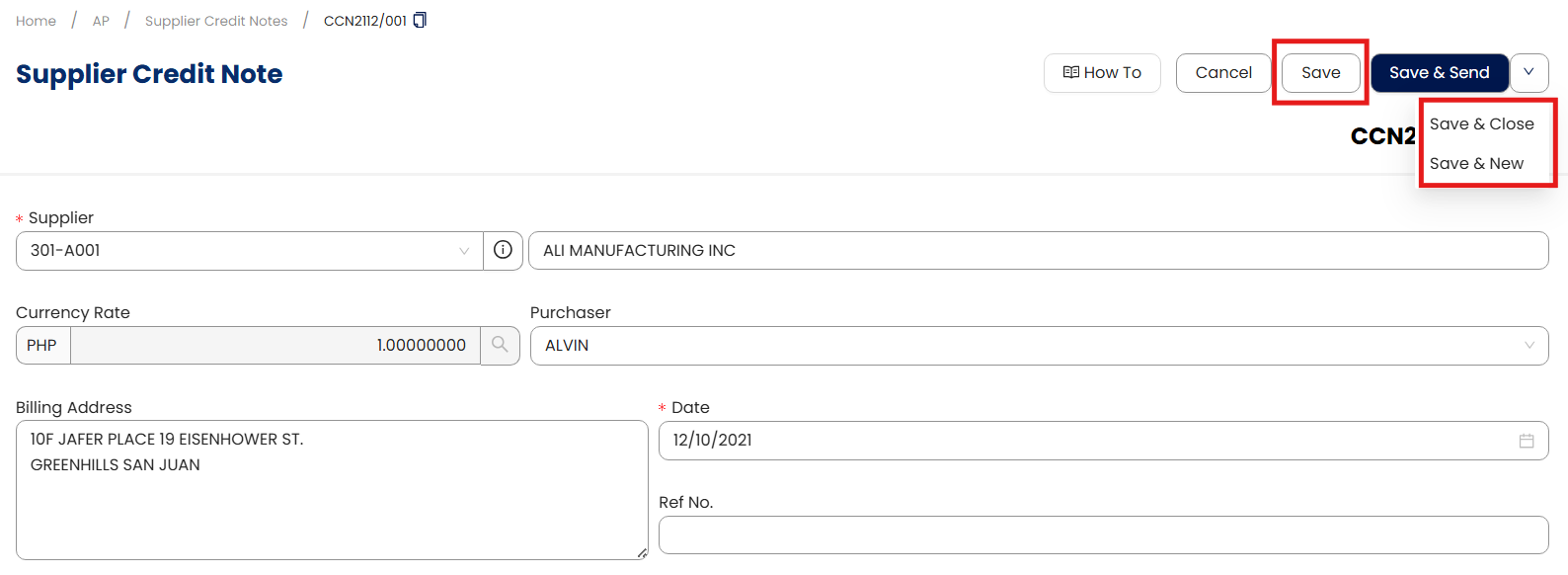
Once done, click Save, Save & New, or Save & Close to update the item.
Procedure 3: Deleting a Supplier Credit Notes
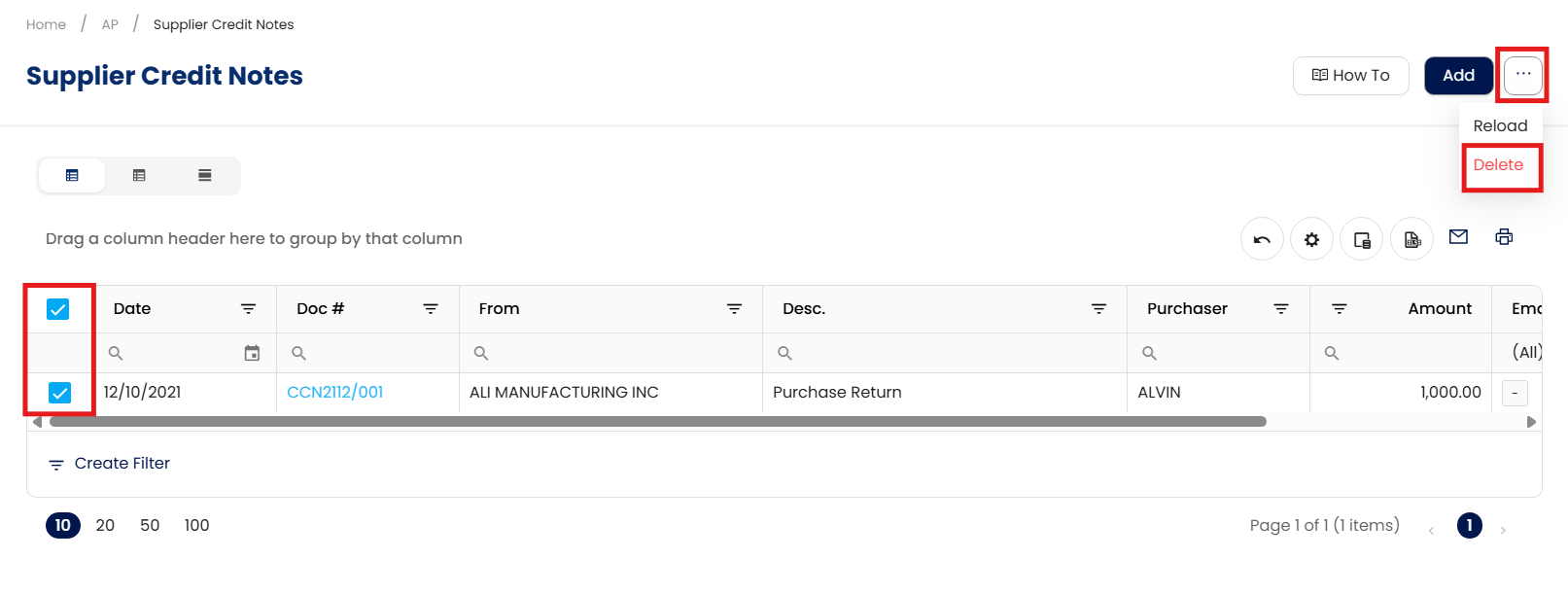
In the Supplier Credit Notes List View, tick the checkbox beside the item you wish to delete. Hover your cursor over the three dots beside "Add," then click Delete.
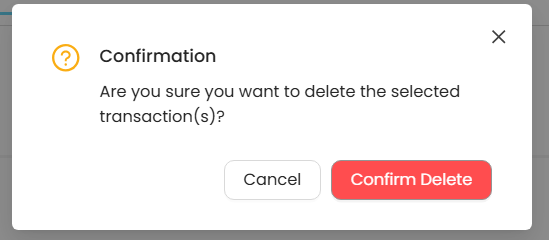
When the confirmation message appears, click Confirm Delete.
Application:
This process ensures accurate deduction of supplier payables, proper reversal of expenses or inventory, and correct posting to the general ledger, helping maintain accurate and reliable records in N3 AI Accounting.
Important Note:
Editing and Deleting Transactions: According to regulatory guidelines, modifications or deletions of recorded transactions in the system may be strictly prohibited once Computerized Accounting System (CAS) approved. It's vital to adhere to your company's internal policy regarding these functionalities. It is generally advisable to disable or limit the ability to edit/delete to maintain compliance with regulations.
System Scope: QNE AI Cloud Accounting / N3 AI Accounting
Was this article helpful?
That’s Great!
Thank you for your feedback
Sorry! We couldn't be helpful
Thank you for your feedback
Feedback sent
We appreciate your effort and will try to fix the article