Overview:
Recording customer invoices accurately in N3 AI Accounting is essential for managing your revenue, tracking receivables, and ensuring your financial reports reflect real-time business performance. This guide provides a detailed walk-through of how to enter a customer invoice in N3, highlighting important fields, tips, and examples to help streamline your billing process.
Scenario:
You’ve recently completed a service for a client or delivered goods and are now ready to bill them. You need to issue a customer invoice that includes the correct customer details, invoice date, due terms, itemized charges, taxes, and remarks. This invoice will then be recorded in N3 AI for tracking and follow-up.
Procedure:
Step 1: Open the Invoice Entry Screen
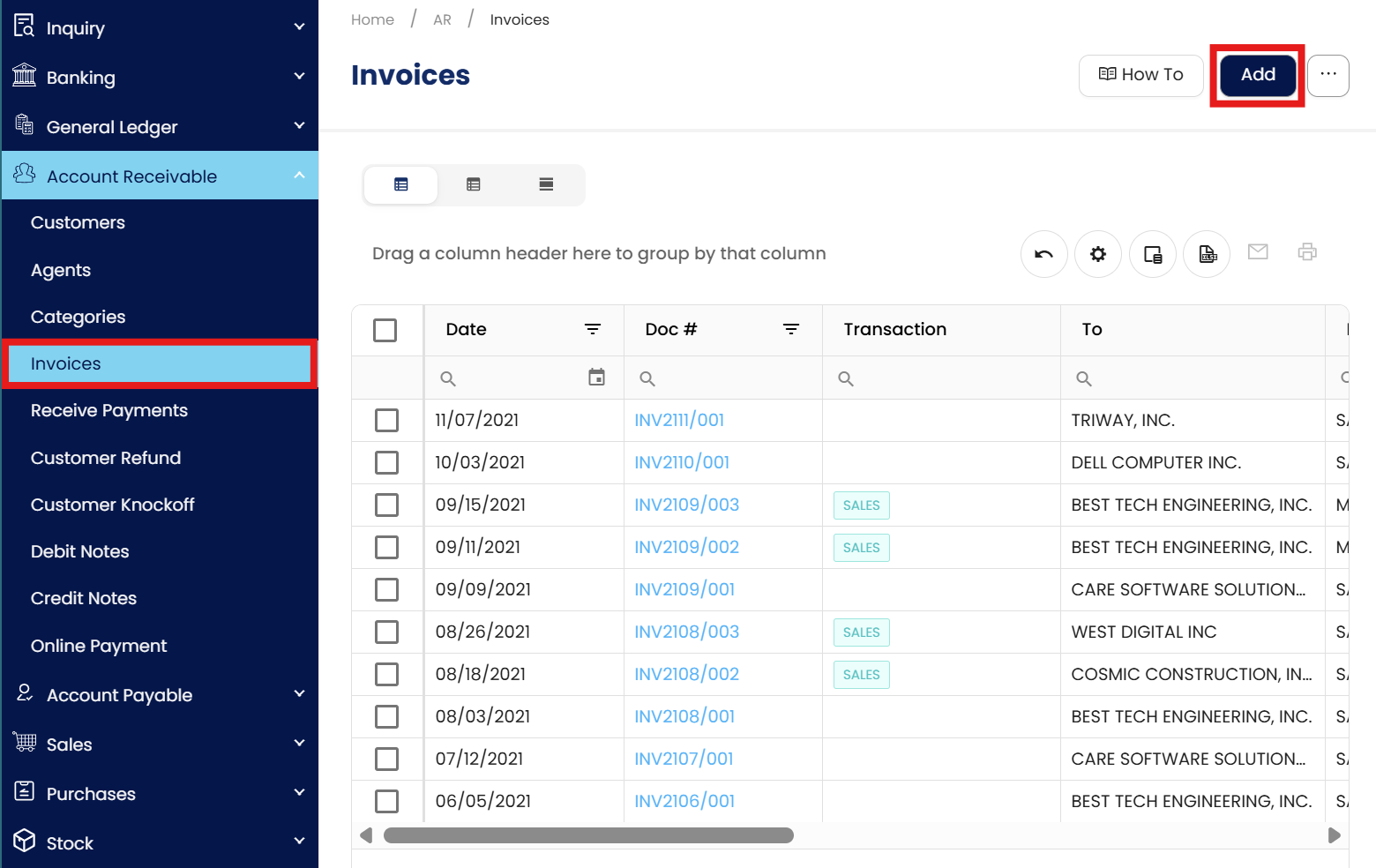
Navigate to Accounts Receivable > Invoices.
Click Add to begin creating a new invoice.
Step 2: Fill in Invoice Header Details
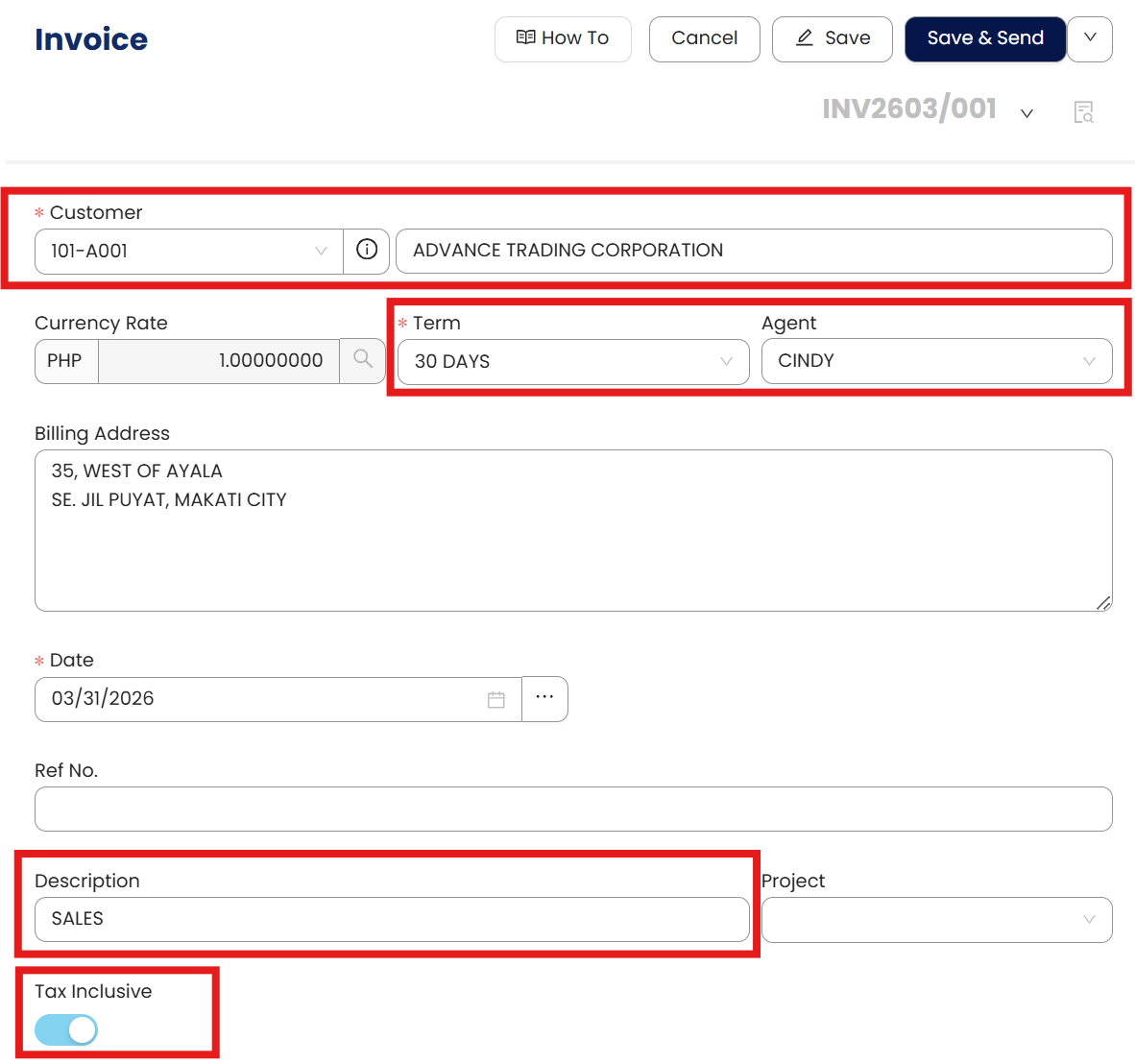
Complete the following fields at the top section of the invoice:
Customer Code – Select the appropriate customer from the dropdown list.
Date – Defaults to today; adjust if needed.
Tax Date – Usually matches the transaction date, but can be modified for VAT reporting purposes.
Term – Auto-fills based on the customer record but can be manually changed.
Agent – Also auto-fills from the customer profile; if blank, select manually.
Global Description - A general label for the invoice.
Tax Inclusive - Tick this box only if your price already includes VAT. Leave it unticked if not.
Step 3: Enter Invoice Line Details
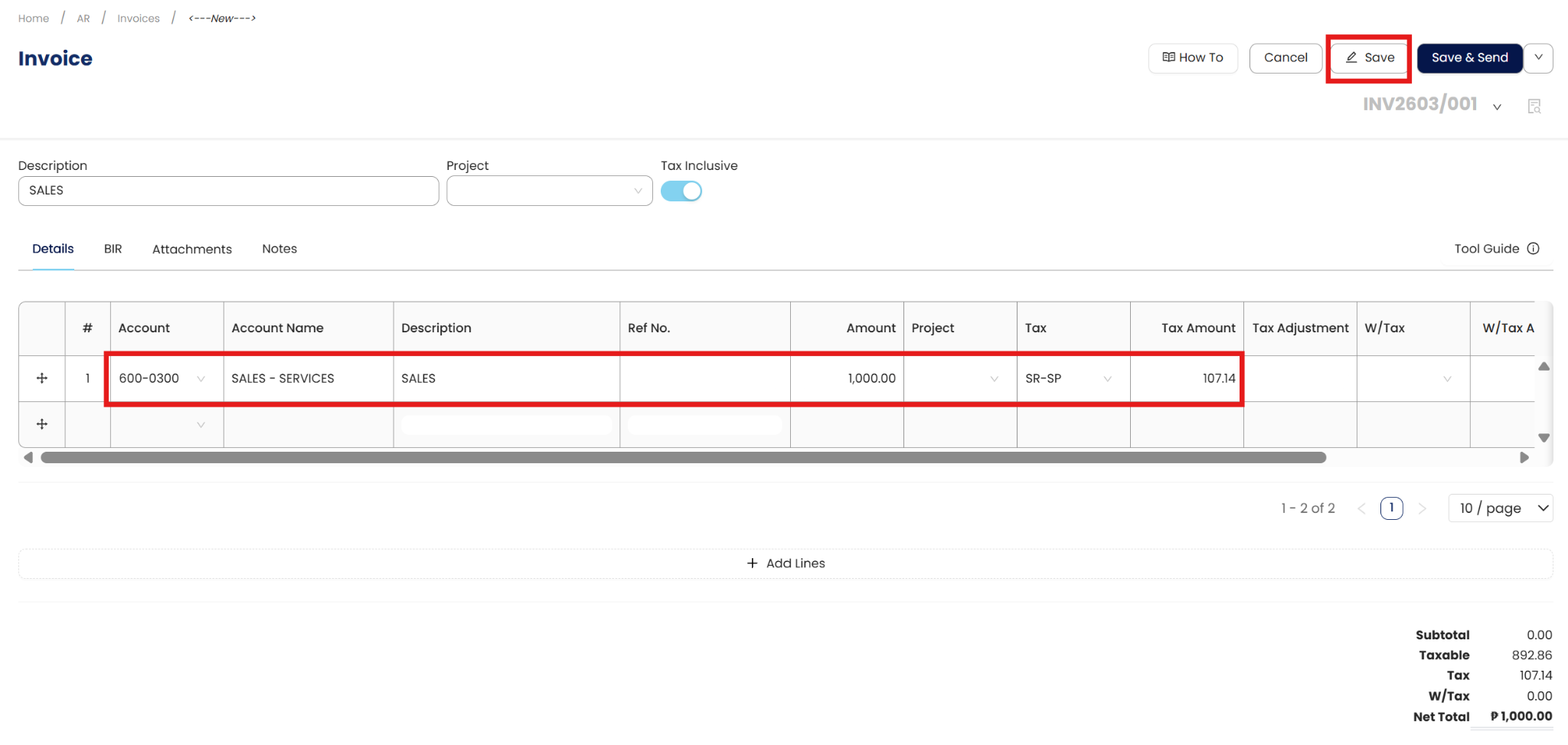
For each column:
Account – Select the proper revenue account code (e.g., Service Income).
Account Name – Auto-fills based on the account code.
Description – Defaults to the global description but can be edited per line item.
Amount – Input the transaction value.
Tax – Choose a tax code (e.g., Vatable 12%) if applicable.
WTax – Select a withholding tax rate if necessary (optional).
Once all line items are entered, click Save.
Step 4: Confirm Invoice Creation
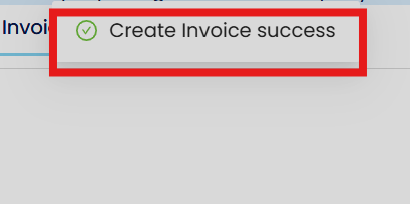
A confirmation message (“Create Invoice Success”) will appear.
Procedures:
Editing Customer Invoices
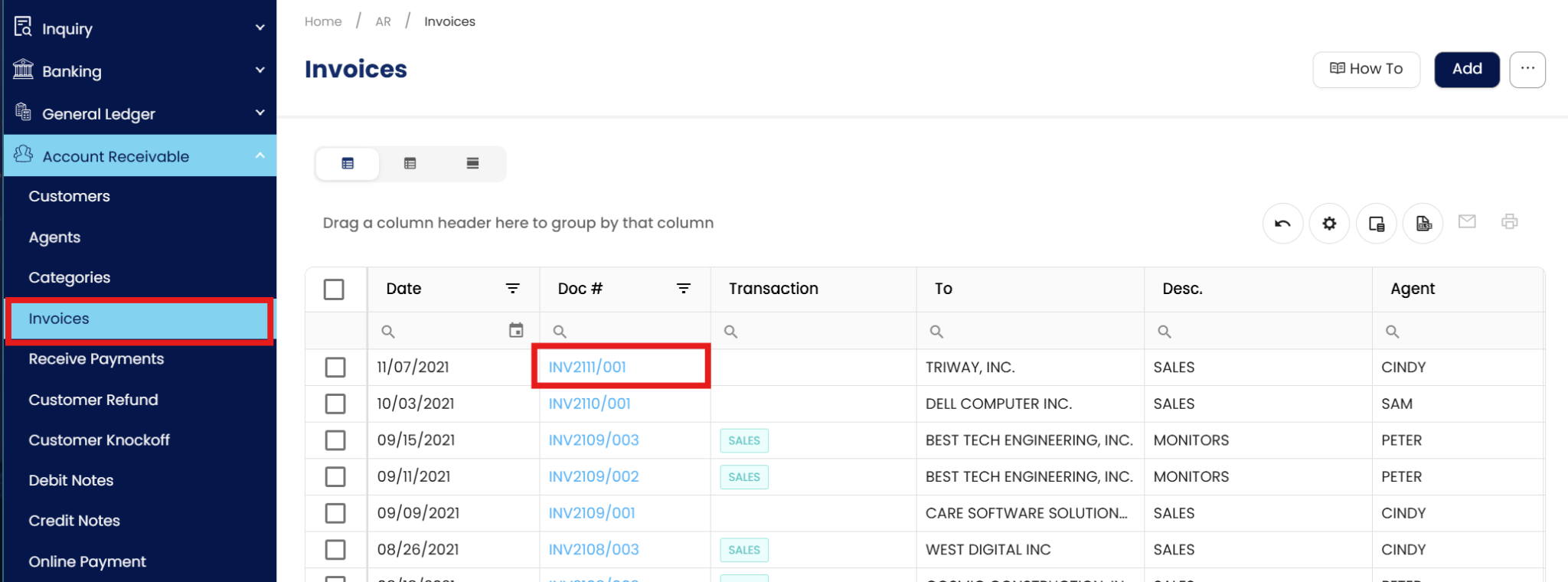
Navigate to Accounts Receivable > Invoices. Click to Open Specific Invoice.
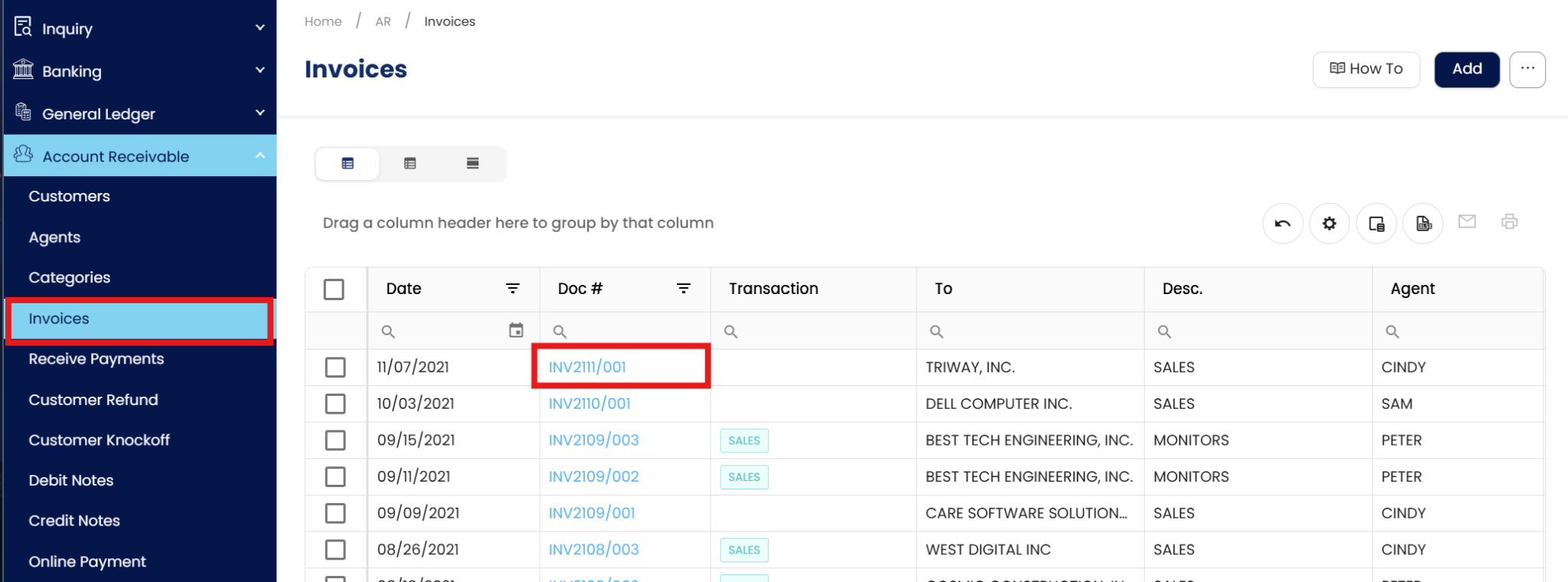
Click the Edit icon to update the necessary fields.

Be mindful that changes to invoices affect financial reporting and tax declarations. System users must document the specific reason for the change in the Internal Remarks section to provide justification for future audits.
Click Save.

Deleting Customer Invoices
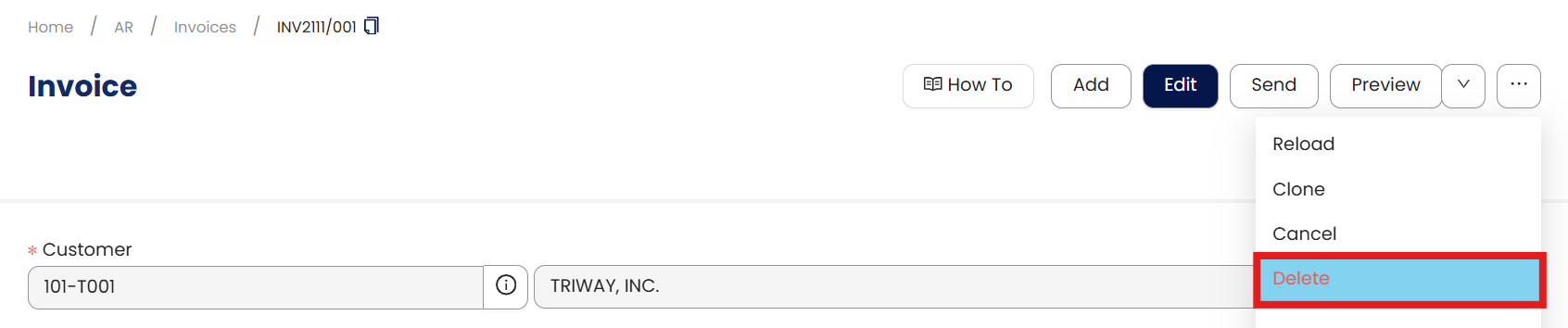
Identify the Record: Search for the specific invoice you wish to remove from the Invoice list.
Outright deletion of invoices can create gaps in document numbering, which is a major concern for BIR compliance.
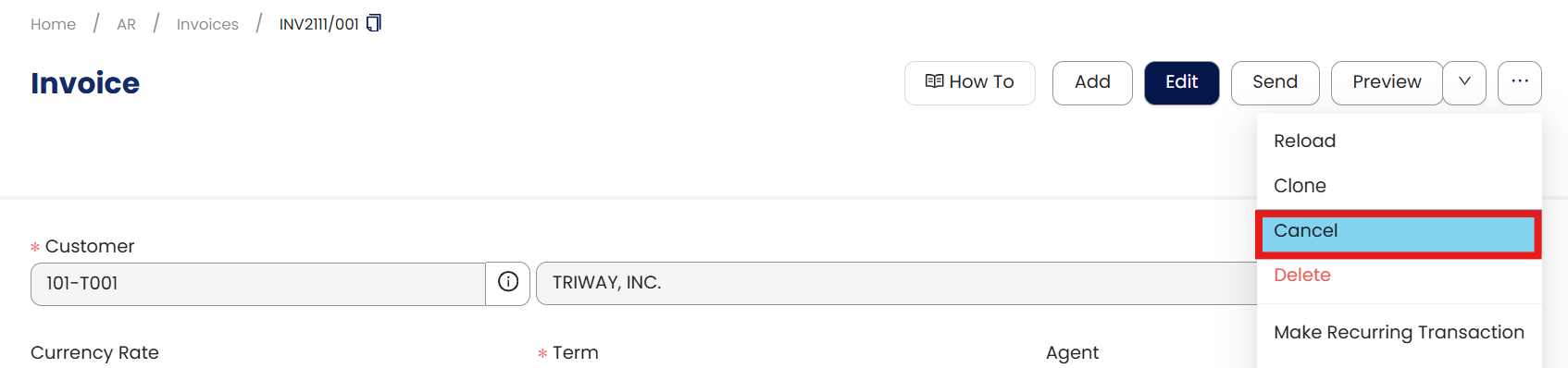
Instead of deleting, it is highly recommended to Cancel the invoice or issue a Credit Note. This maintains a continuous audit trail while nullifying the receivable.
Application:
You're a consulting firm and just completed a project for “BlueTech Innovations.” The service fee is PHP 75,000, with 12% VAT, and payment terms are Net 30.
Customer: BlueTech Innovations
Invoice Date: July 1, 2025
Term: Net 30 (Due Date = July 31, 2025)
Line Item:
Description: Consulting Fee
Account: Service Revenue
Amount: PHP 75,000
Tax: Vatable (12%)
Once saved, this invoice becomes part of your accounts receivable and can be used for follow-ups, collections, and reporting.
Important Note:
Editing and Deleting Transactions: According to regulatory guidelines, modifications or deletions of recorded transactions in the system may be strictly prohibited once Computerized Accounting System (CAS) approved. It's vital to adhere to your company's internal policy regarding these functionalities. It is generally advisable to disable or limit the ability to edit/delete to maintain compliance with regulations.
System Scope: QNE AI Cloud Accounting / N3 AI Accounting
Was this article helpful?
That’s Great!
Thank you for your feedback
Sorry! We couldn't be helpful
Thank you for your feedback
Feedback sent
We appreciate your effort and will try to fix the article