Overview:
Stock items are the core components of your company’s inventory in N3 AI Accounting . These include both tangible products like electronics, furniture, and clothing, as well as intangible items such as digital downloads or services. Every quantity purchased or sold is automatically tracked, making it crucial to properly set up and manage your stock items for accurate reporting and transaction processing.
Scenario:
You’ve recently launched a business selling electronic gadgets and home appliances. As part of your inventory setup, you need to register all items you plan to sell—such as mobile phones, laptops, and air conditioners—in N3 AI Accounting. You also want the flexibility to edit item details like pricing and deactivate or remove discontinued products from the system as needed. This guide will help you do all of that efficiently.
Procedure:
I. How to Add a Stock Item
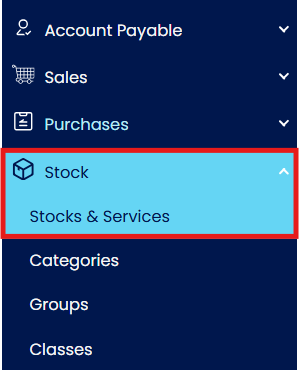
On the navigation pane, select Stock, then click Stocks & Services.
Click the Add button and enter the required information in the following fields:

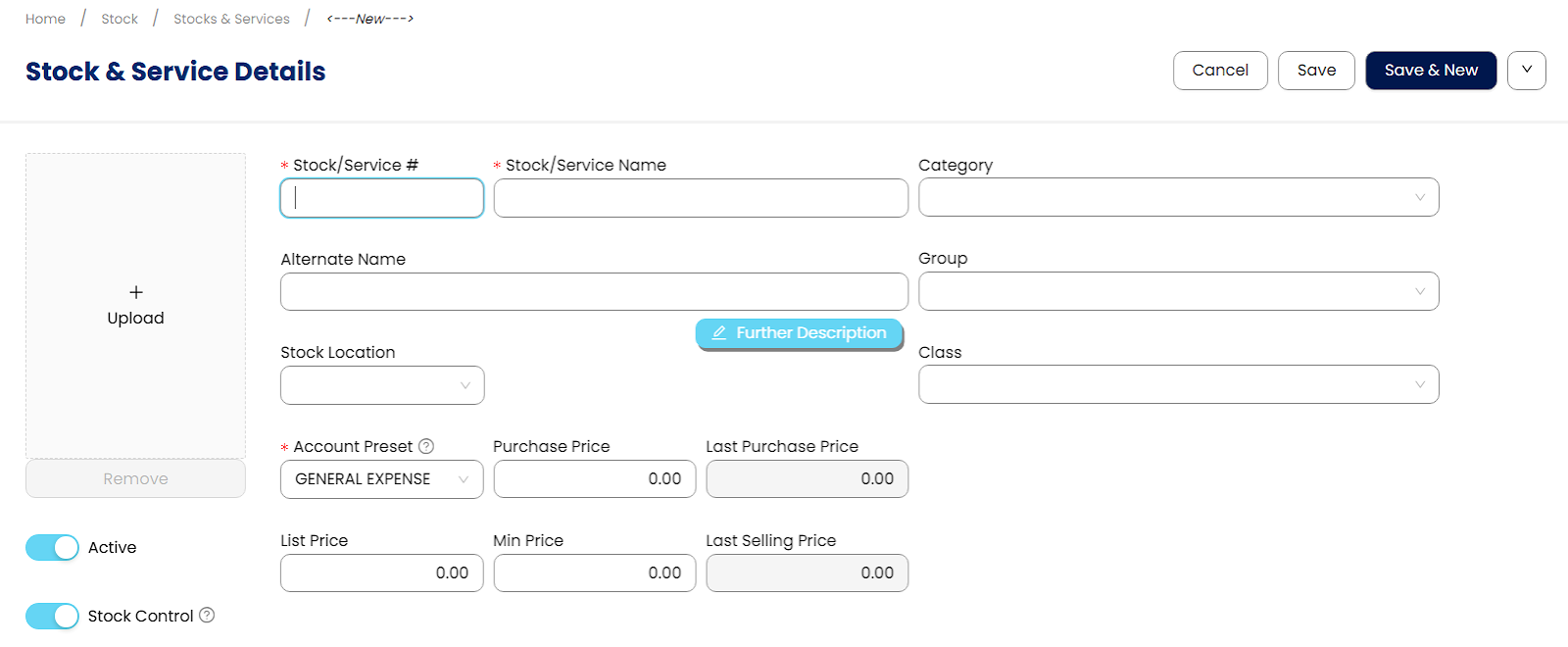
Stock/Service # - A required field with a maximum length of 20 alphanumeric characters. This serves as the unique identifier of the stock or service item within the system.
Stock/Service Name - A required field where you specify the official or primary description of the stock or service item. This name is typically used in accounting records, transactions, and reports.
Alternate Name - An optional field used to define an alternative or commonly used name for the stock or service item. This may be used for easier searching, customer-preferred terminology, shortened descriptions, or internal references without affecting the official item name.
Category - Used to classify the stock or service item into a category for better organization, filtering, and reporting.
Group - Used to further organize items within a category based on similar characteristics or business classifications.
Class - Used as an additional classification level to allow more detailed grouping of stock or service items.
Stock Control - Indicates whether the item is inventoriable. When enabled, the system tracks stock quantities and inventory movements for the item.
Account Preset - A required field used to define the default account postings assigned to the stock or service item for accounting transactions.
Purchase Price - Specifies the default purchase cost of the stock item. This value may be used as a reference during purchasing transactions.
List Price - Specifies the standard selling price of the stock item before any discounts or price adjustments
Min. Price - Specifies the minimum allowable selling price of the stock item to help control pricing during sales transactions.
Note: When configuring the Unit of Measurement (UOM) for an inventory item, navigate to UOM tab to set up the following columns:
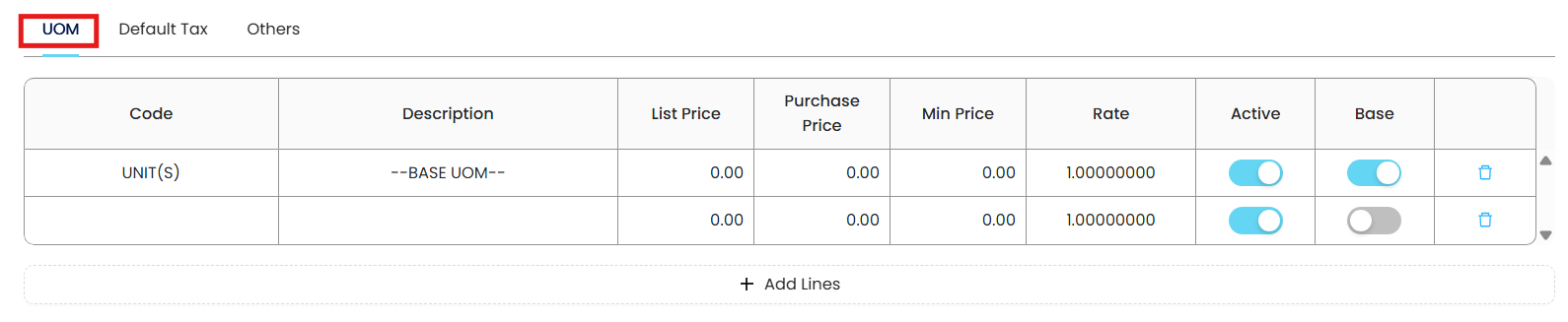
Code - Enter the name or label of the unit, such as UNIT(S), BOX, or DOZEN.
Description - Add any additional information to clarify the purpose or context of the UOM, such as "--BASE UOM--".
Rate - Specify the conversion rate relative to the base unit. The base UOM must always have a rate of 1.00000000, while additional units should reflect their actual conversion (e.g., 1 BOX = 12 UNITS)
Active - Use this toggle to activate or deactivate the UOM. Only active UOMs will be available in transactions.
Base - Mark this field for the primary unit used for inventory tracking. Only one UOM can be designated as the base.
Note: To assign the Default Tax Code for an inventory item or service item, navigate to Default Tax tab, use the dropdown button select the Input and Output Tax:
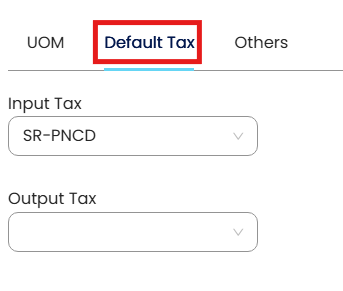
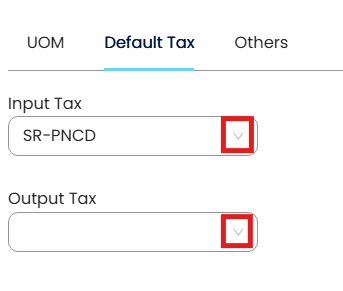
Purchase Tax Code (Input Tax) - Choose the tax code (e.g., SR-PNCD) for when the item is bought.
Sales Tax Code (Output Tax) - Choose the tax code (e.g.,) that applies when the item is sold.
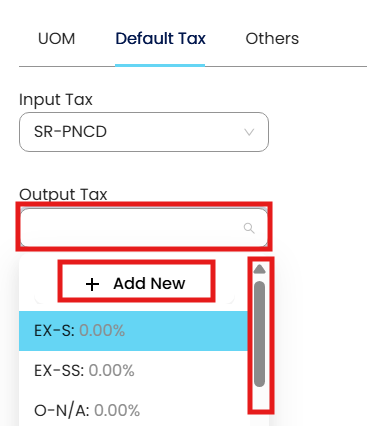
Use the scroll bar to view and select the correct Input and Output tax code.
If the required tax code is not listed, click the Add New button to create a new Input or Output Tax Code.
You can quickly filter the input or output tax code by typing in the search bar.
These codes will auto-apply in transactions using this item but can be adjusted manually if needed.
Once done, click Save, Save & New, or Save & Close.

II. How to Edit Stock Item
From the Stock & Services List View, click the item’s Code to open it.
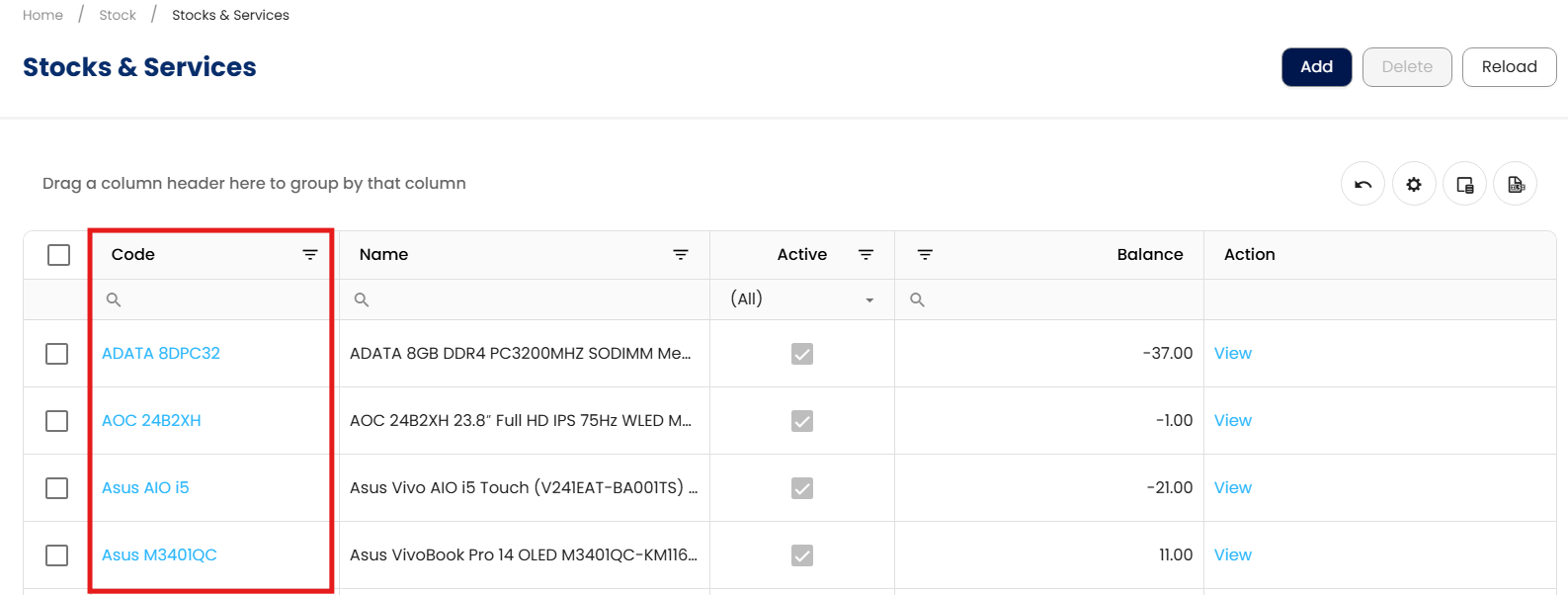
The search bar, sorting, and filter options are available to help you quickly locate or view specific stock items.
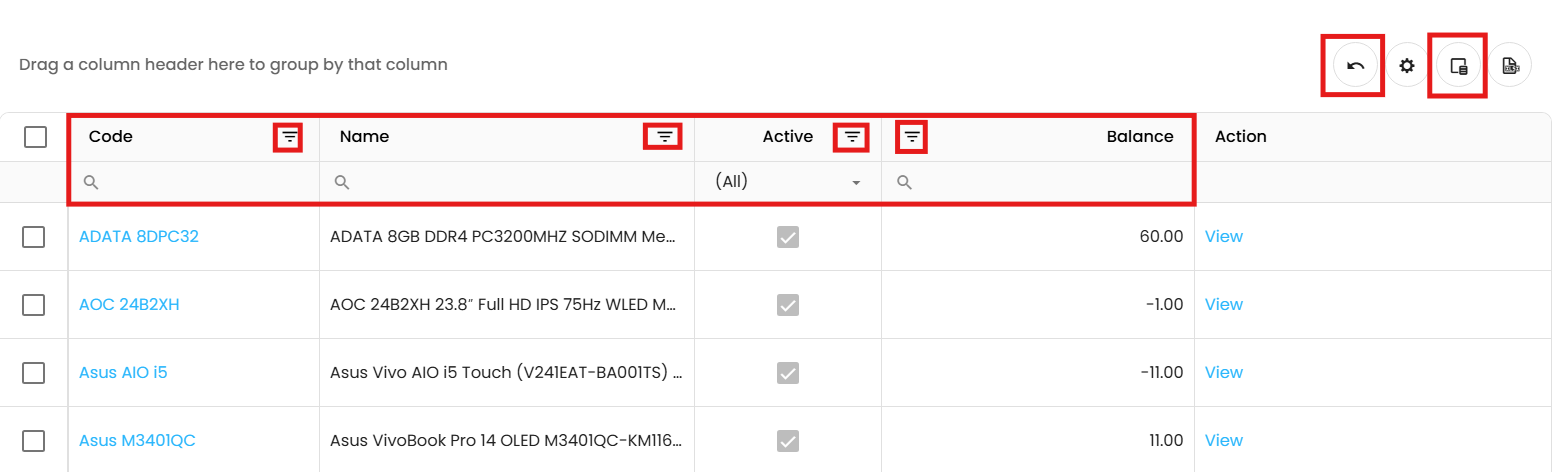
Sorting: Click any Column Title (e.g., Code, Name, or Balance) to sort the list in ascending or descending order.
Filtering: Click the Filter icon next to a column title to set specific criteria for that column.
Search Bar: Use the magnifying glass input directly under each column header to search for specific text or values.
Note: Clicking the magnifying glass opens a search logic menu. Use these options to refine how the system matches your text:
Contains: Finds items that include your text anywhere in the name (most common).
Does not contain: Hides all items that include your text.
Starts with: Only shows items where the name begins with your text.
Ends with: Only shows items where the name ends with your text.
Equals: Shows only the exact match (useful for specific Codes).
Does not equal: Shows everything except the exact match.
Reset : Clears the search text and returns to the default search behavior.
Active Status: Use the Active Dropdown to filter the list by Active (true) or Inactive (false) status.
Column Chooser: Click this icon to open a panel where you can check/uncheck which columns you want to see on your screen.
Reset to Default (↩): Click this icon to clear all active filters and return the list to its original state.
Click Edit and apply any necessary changes.
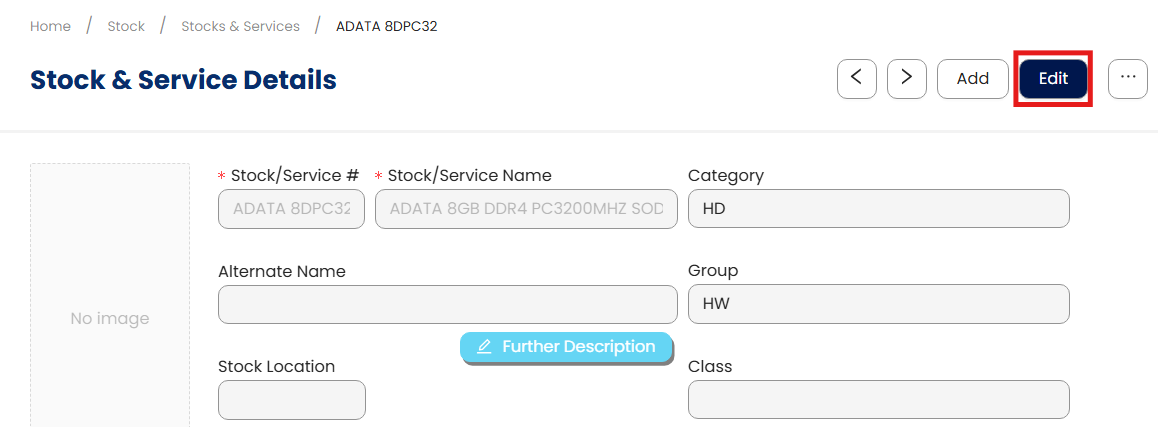
Once done, click Save, Save & New, or Save & Close to update the item.

III. How to Delete a Stock Item
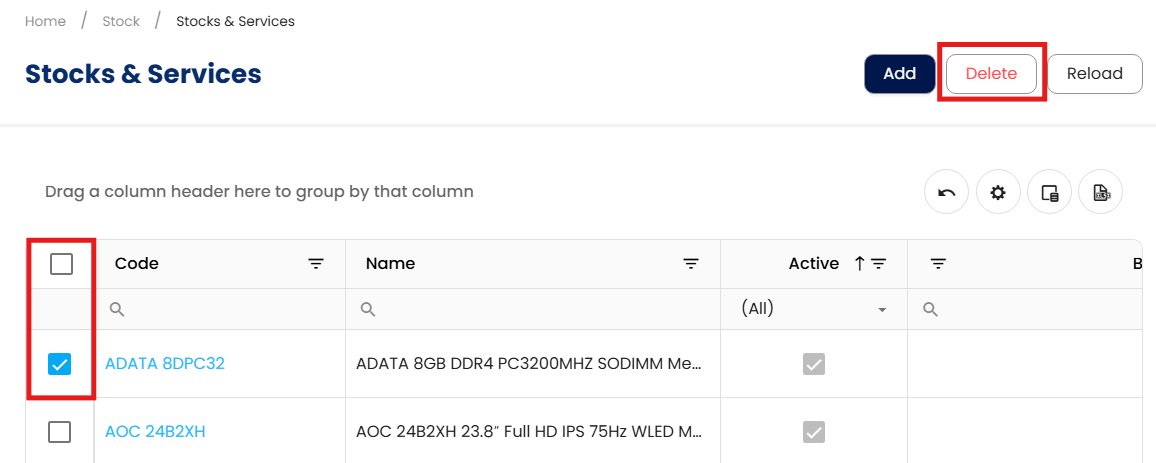
In the Stock & Services List View, tick the checkbox beside the item you wish to delete. Then, Click Delete.
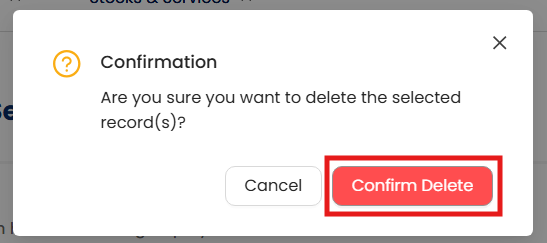
When the confirmation message appears, click Confirm Delete.
Note:
If deletion is restricted, consider marking the item as Inactive instead.
Stock Control settings and deletion of stock items are only permitted if the item has no existing transactions. This restriction ensures data integrity and prevents inconsistencies in inventory records by safeguarding historical transaction data.
Example:
You create a new stock item called Printer Ink and enable the Stock Control setting to track its quantity. Later, you use this item in a sales invoice. After the transaction is posted; the system will no longer allow you to change the Stock Control setting for Printer Ink, as it has already been used in a transaction. This prevents discrepancies between stock levels and historical records.
Application:
Once a Stock Item is successfully created, it becomes available for use in Sales and Purchase transaction forms. Keeping your list accurate ensures smooth processing and reliable inventory tracking.
System Scope: QNE AI Cloud Accounting / N3 AI Accounting
Was this article helpful?
That’s Great!
Thank you for your feedback
Sorry! We couldn't be helpful
Thank you for your feedback
Feedback sent
We appreciate your effort and will try to fix the article