Overview:
Area is a system function that allows the user to group its suppliers and customers by area. This function can be used to generate various reports by filtering them by area.
Procedure:
How to Create Area
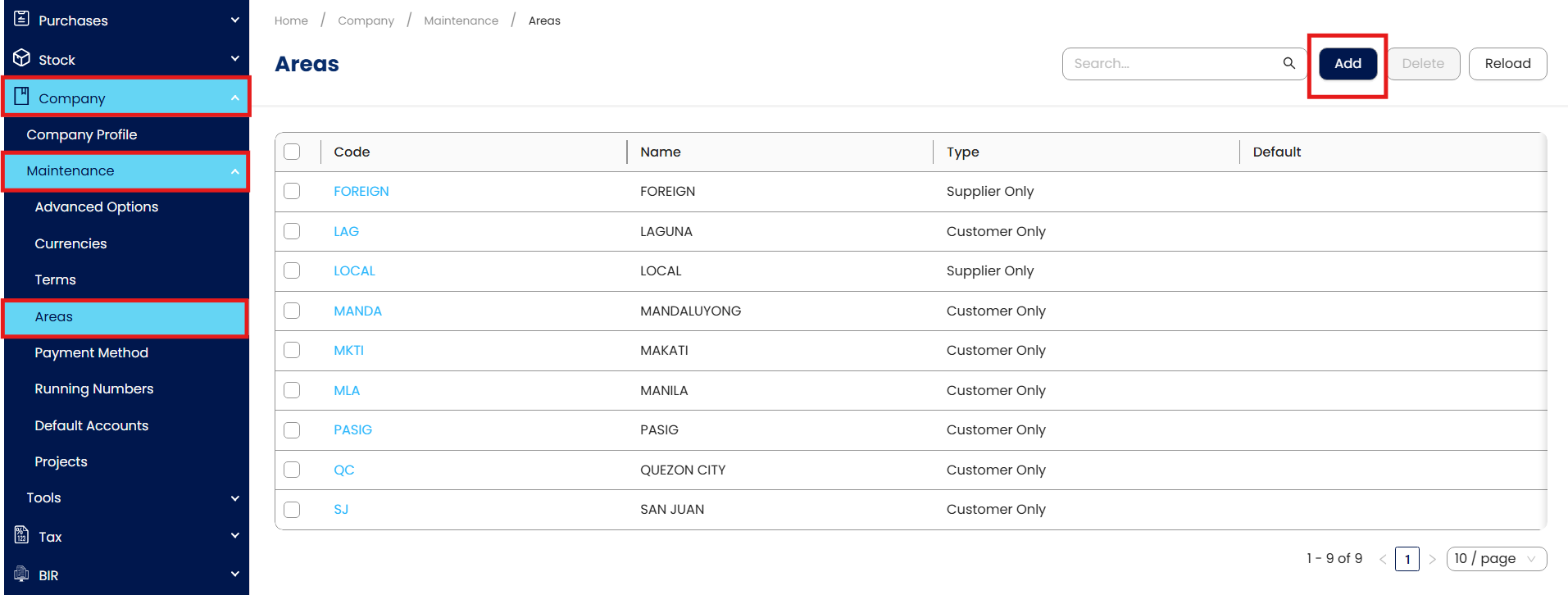
In Navigation pane, go to Company > Maintenance > Areas, then click Add
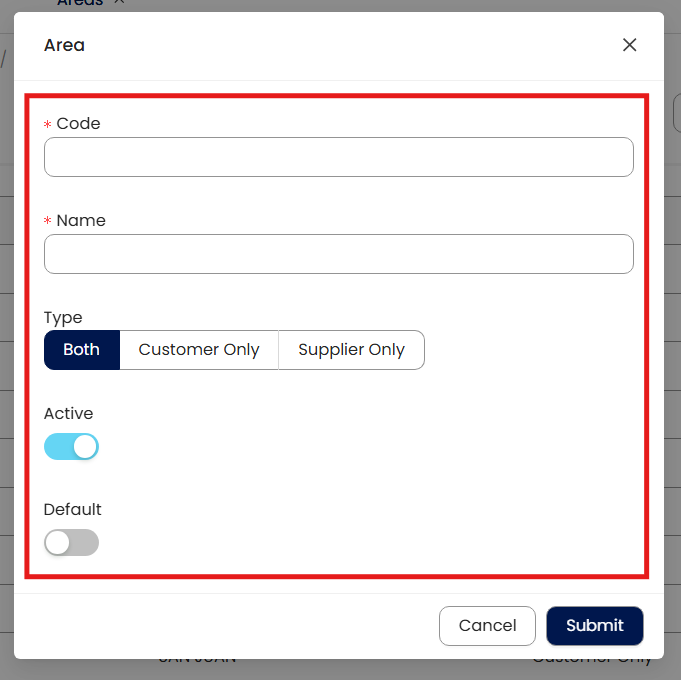
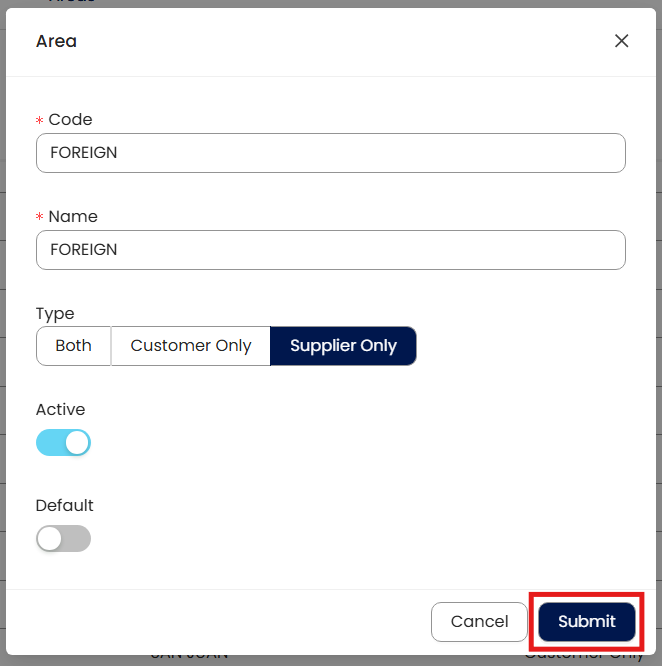
Supply the fields with data:
Code: This is a compulsory field with a maximum length of 20 alphanumeric characters.
Name: This is a compulsory field in which you need to indicate the name of the area.
Type: This is to determine where the area can be used.
Both
Customer Only
Supplier Only
Active: This is a function to set if an area is still used. If an area will not be used anymore, disable the toggle to make it inactive.
Default: This is a function that allows you to set the area as default in supplier and customer maintenance based on the type.
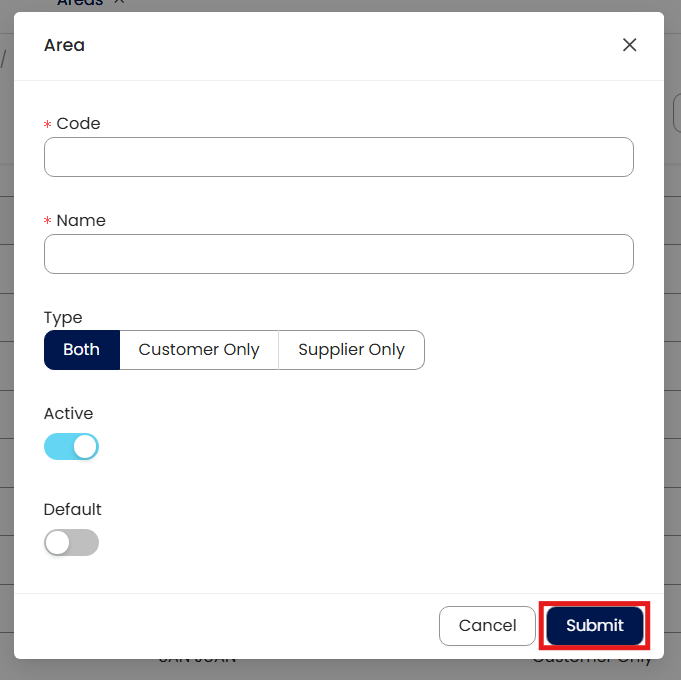
Once done, click Submit
How to Edit Area
In Area List View, click the area code to open.
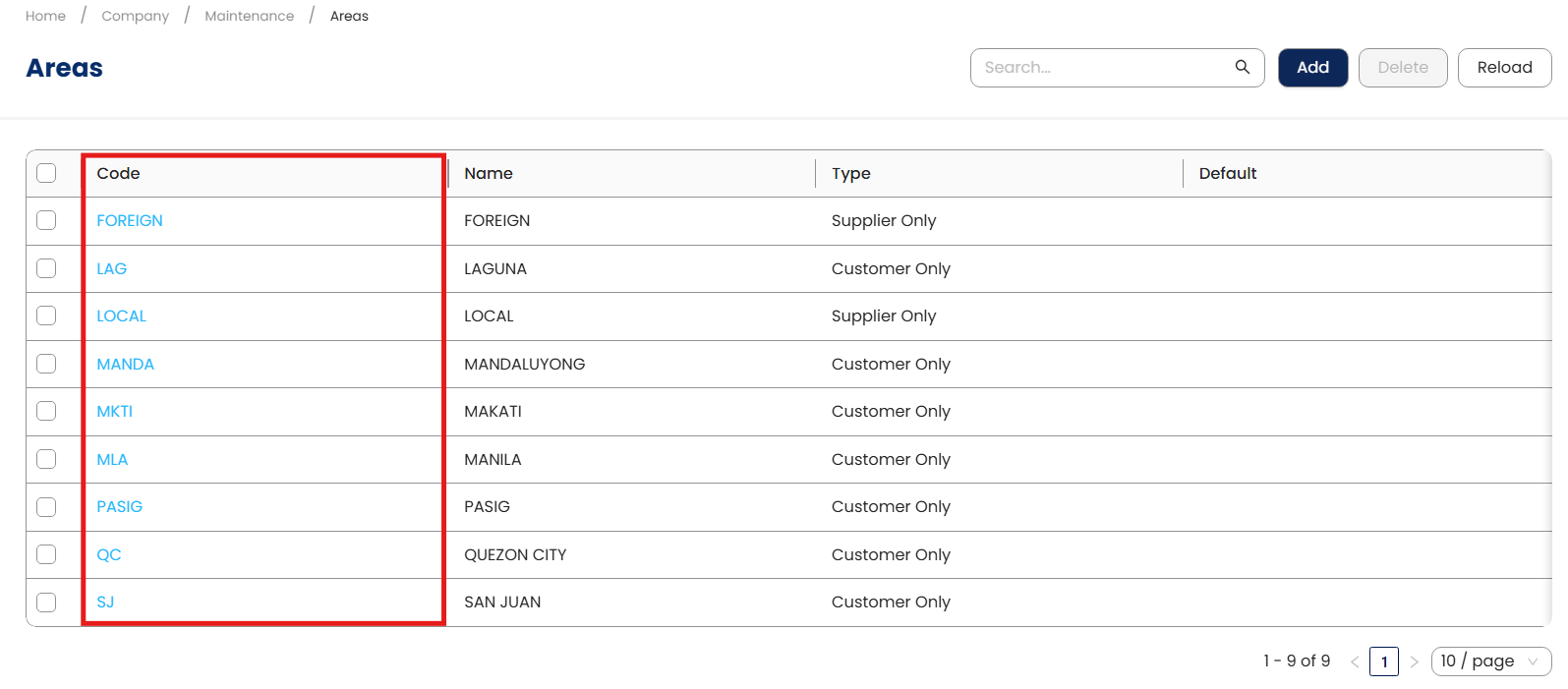
Then supply the fields that need to be edited. Once done, click Submit
How to Delete Area
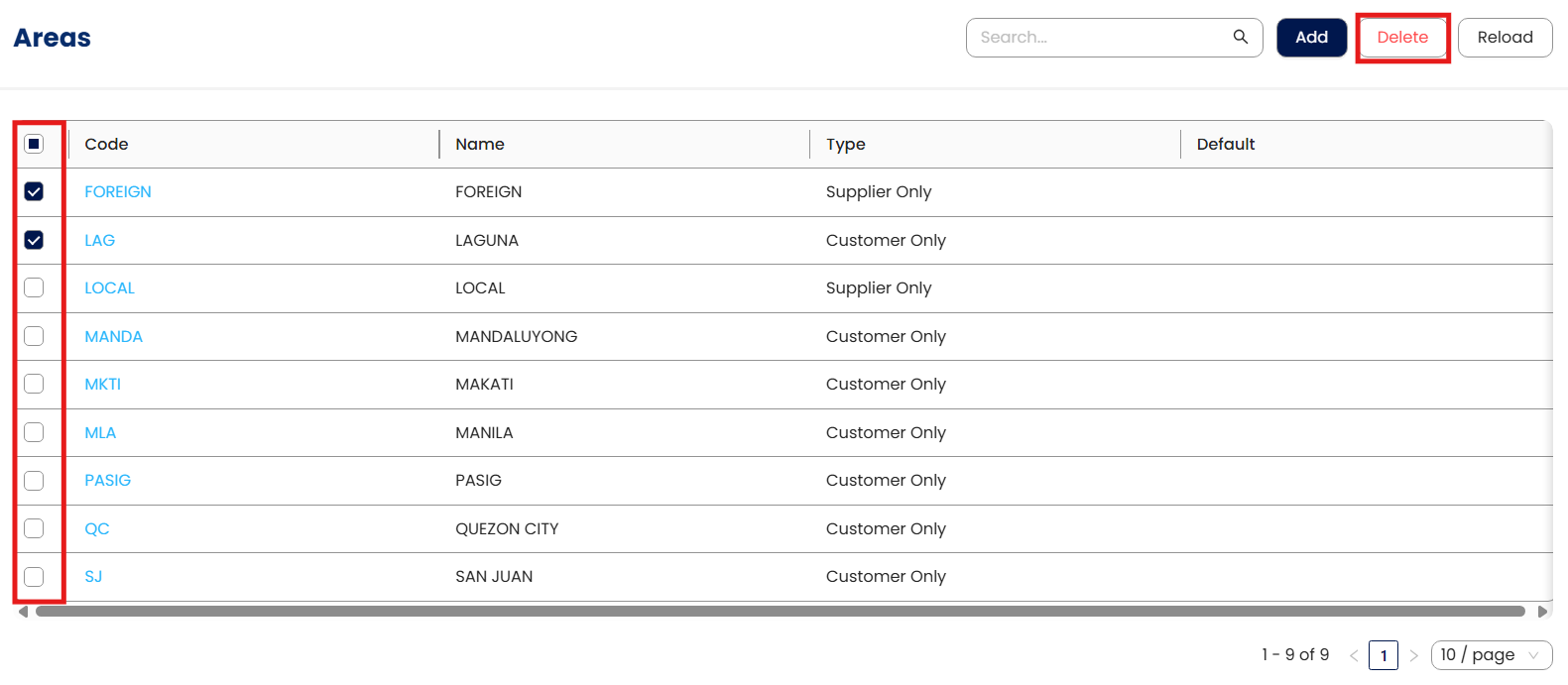
In Area List View, tick the checkbox beside the item you wish to delete, then click Delete.
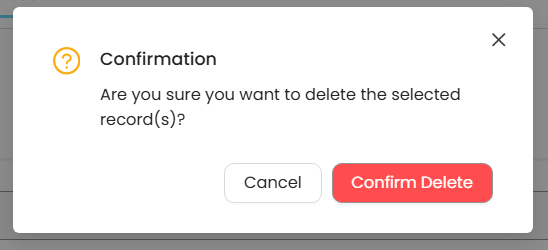
When the confirmation message is prompted, click Confirm Delete.
Note: An area can only be deleted if the area has not been tagged in a customer and supplier with transactions.
Application:
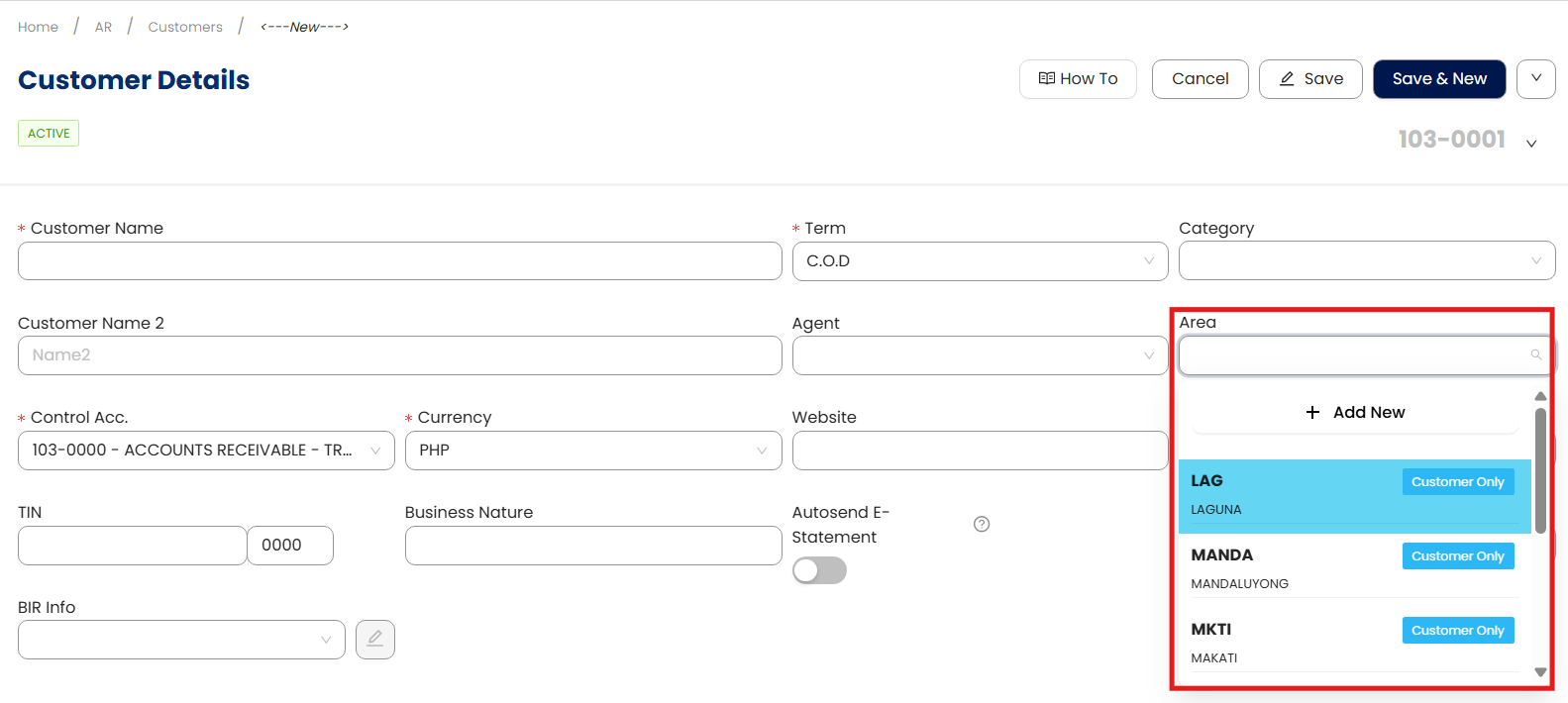
Area can now be used in customer and supplier maintenance.
System Scope: QNE AI Cloud Accounting / N3 AI Accounting
Was this article helpful?
That’s Great!
Thank you for your feedback
Sorry! We couldn't be helpful
Thank you for your feedback
Feedback sent
We appreciate your effort and will try to fix the article