Overview:
The Outstanding Invoices report in N3 AI Accounting allows users to review outstanding invoice information as of a specified date. Users can select a report format, apply the available filters, choose the document types to include, and arrange the results using the available sorting options.
This article explains how to access the Outstanding Invoices report, configure the reporting parameters, and preview the results.
Scenario:
A user needs to review outstanding invoice information as of a specific date. The user wants to narrow the results using available filters and organize the report according to the required reporting criteria.
By generating the Outstanding Invoices report, the user can review the information relevant to the selected reporting criteria.
Procedure:
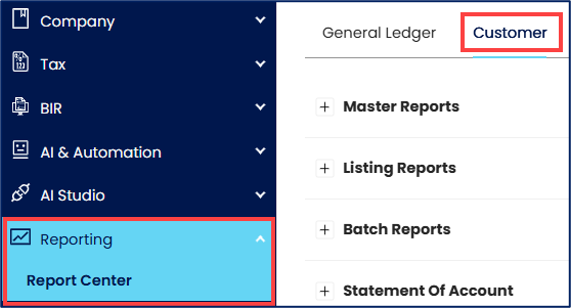
From the navigation panel, go to Reporting > Report Center > Customer tab.
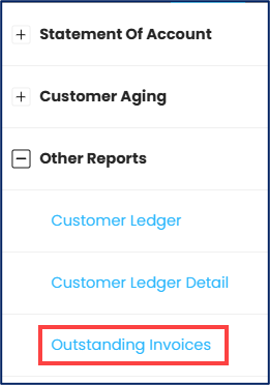
Expand Other Reports and select Outstanding Invoices.
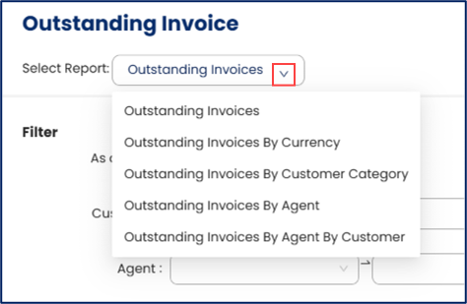
In Select Report, select the applicable report format for your document:
Outstanding Invoices
Outstanding Invoices By Currency
Outstanding Invoices By Customer Category
Outstanding Invoices By Agent
Outstanding Invoices By Agent By Customer
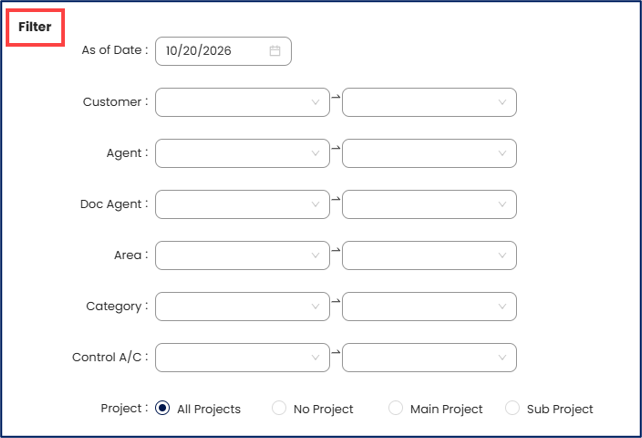
Under Filter, specify the applicable report filters:
Under Doc Types, review the selected document types. Remove any document types that you do not want to include in the report.

Under Sort By, select the applicable sorting option:

Click Preview to generate the Outstanding Invoices report based on the selected parameters.

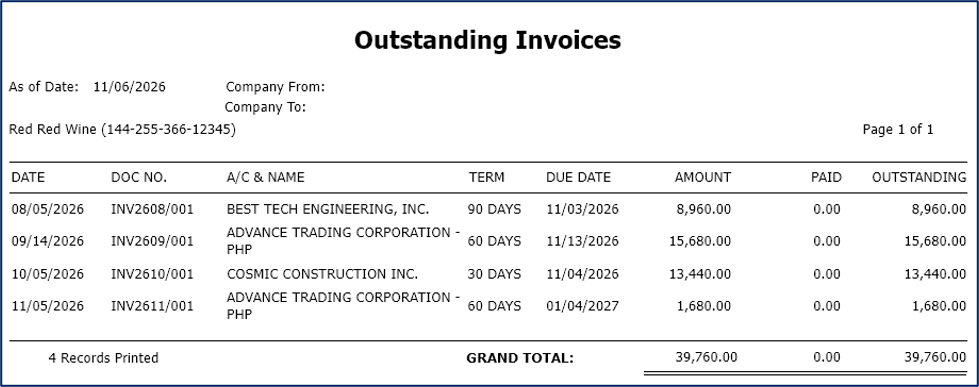
Review the generated Outstanding Invoices report.
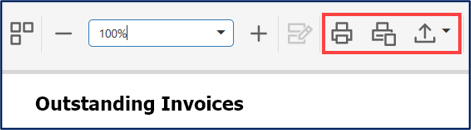
Export or print the report. Use the available options to export the generated report in a supported format, such as PDF or Excel, or print it directly.
Application:
Review outstanding invoices as of a specific date — Identify outstanding invoice information relevant to the selected reporting date.
Focus on selected customers — Apply the available customer filters to narrow the information for review.
Review outstanding invoices by agent — Select the appropriate report format to organize outstanding invoice information by agent.
Review outstanding invoices by currency — Use the Outstanding Invoices By Currency report format to present the information using that layout.
Organize report results — Select the applicable sorting option to arrange the report according to document date, document code, company name, or company code.
System Scope: QNE AI Cloud Accounting / N3 AI Accounting
Was this article helpful?
That’s Great!
Thank you for your feedback
Sorry! We couldn't be helpful
Thank you for your feedback
Feedback sent
We appreciate your effort and will try to fix the article