Overview:
The BIR Classifications feature allows accounting users to import taxpayer BIR information using a CSV file. This enables users to prepare and import information for multiple customers and suppliers in a single operation.
The import file contains taxpayer and classification information, including taxpayer type, withholding category, classification, taxpayer name, and other identifying details. Users can download the sample CSV file as a reference when preparing the import data.
After importing the information, users must manually link each BIR Info record to its corresponding Customer or Supplier record through Customer Maintenance or Supplier Maintenance.
Scenario:
An accounting user needs to add BIR information for multiple customers and suppliers. Instead of entering each BIR information record individually, the user prepares the data using the CSV format provided by the system and imports the completed file through BIR Classifications. After the import, the user manually links each BIR Info record to its corresponding Customer or Supplier record.
Procedure:
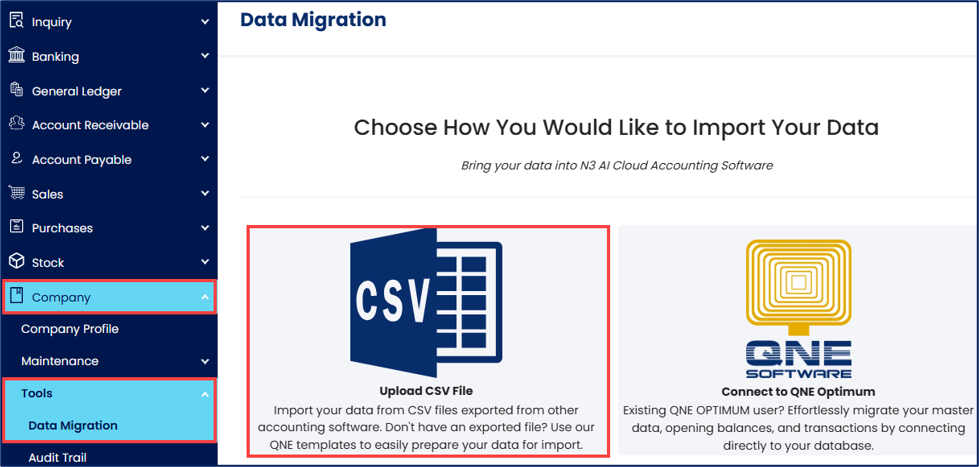
From the navigation panel, go to Company > Tools > Data Migration and select Upload CSV File.
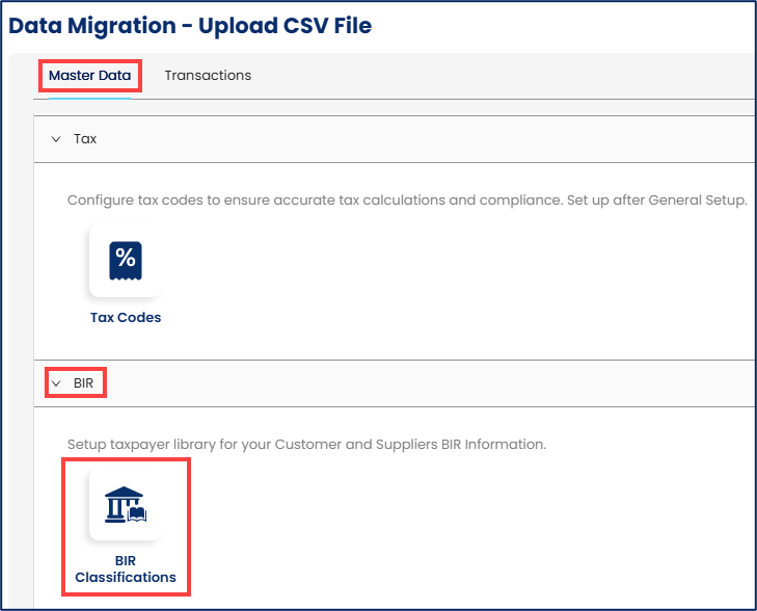
Under Master Data, locate the BIR section and select BIR Classifications.
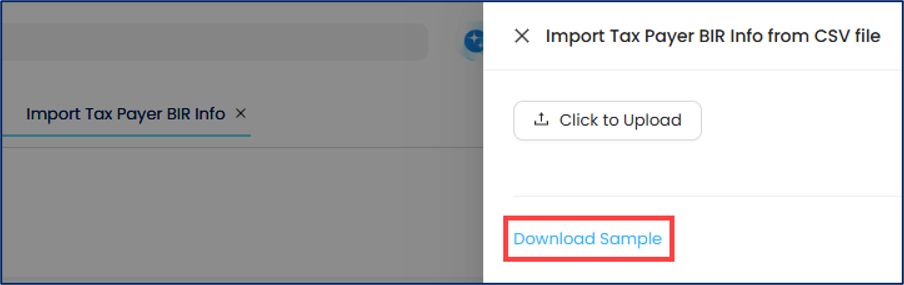
On the Import Tax Payer BIR Info from CSV file panel, click Download Sample to obtain the sample CSV file.
Prepare the CSV file using the format provided in the downloaded sample. Enter the taxpayer information in the corresponding columns, using the following guidelines:
Column | Input | Description |
Code | User-defined | User-defined BIR Info Code used to link the BIR information to the corresponding Customer or Supplier record. For easier identification, it is recommended that the code correspond to the Customer or Supplier it will be linked to. For example, use ADVANCE-TRADING for the Customer ADVANCE TRADING CORPORATION. |
Type | AR or AP | AR – Customer; AP – Supplier. |
TaxpayerType | 1 or 2 | 1 – VAT Registered; 2 – Non-VAT Registered. |
WACategory | 1 or 2 | 1 – Private; 2 – Government. |
Classification | 1 or 2 | 1 – Non-Individual; 2 – Individual. |
CompanyName | Taxpayer's registered name. | For Non-Individual classification, enter the taxpayer's registered name. |
FirstName | Taxpayer's registered first name | For Individual classification, enter the taxpayer's registered first name. |
Middlename | Taxpayer's registered middle name | For Individual classification, enter the taxpayer's registered middle name. |
LastName | Taxpayer's registered last name | For Individual classification, enter the taxpayer's registered last name. |
TINNumber | Taxpayer's TIN | Enter the taxpayer's TIN. |
TINBranchCode | Taxpayer's TIN branch code | Enter the taxpayer's TIN branch code. |
Address | Taxpayer's address | Enter the taxpayer's address. |
District | Taxpayer's district | Enter the taxpayer's district. |
ZipCode | Taxpayer's ZIP code | Enter the taxpayer's ZIP code. |
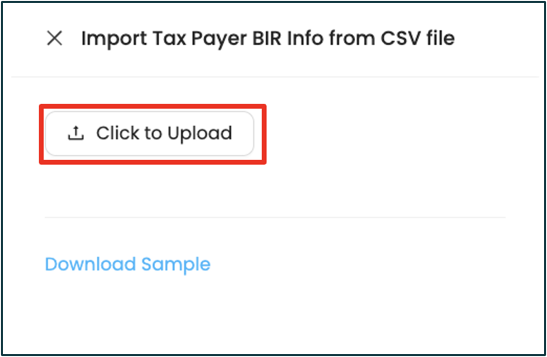
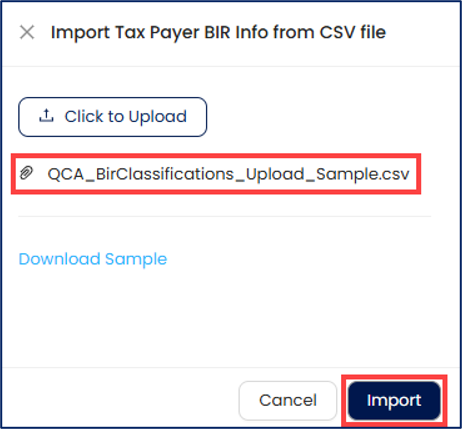
Select Click to Upload and select your completed CSV file.
Click Import to import the CSV information.
Click Save Items to save the imported information.
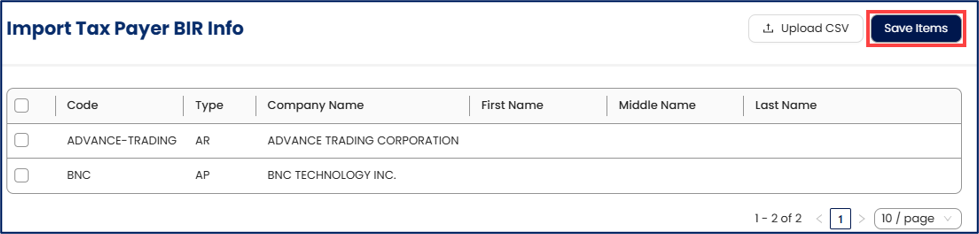
After clicking Save Items, verify that the confirmation prompt appears at the top of the screen displaying: “Import bir classification success. Total import [number] records.”

Note: Importing the BIR information does not automatically link it to the corresponding Customer or Supplier record. To link the imported BIR information, manually update the BIR Info field in the corresponding Customer Maintenance or Supplier Maintenance record.
Application:
Import customer and supplier BIR information — Import taxpayer BIR information for multiple customers and suppliers using a CSV file.
Support data migration — Transfer existing taxpayer BIR information into the system using the provided CSV format.
Reduce manual data entry — Prepare information for multiple taxpayers in a single CSV file instead of entering each record individually.
Standardize taxpayer information — Use the defined values for taxpayer type, withholding category, and classification to maintain consistent import data.
System Scope: QNE AI Cloud Accounting / N3 AI Accounting
Was this article helpful?
That’s Great!
Thank you for your feedback
Sorry! We couldn't be helpful
Thank you for your feedback
Feedback sent
We appreciate your effort and will try to fix the article