Overview:
The Statement of Account report provides a summary of a customer's account activity and outstanding balance for a specified period. Users can define the reporting parameters by selecting the applicable customers and other available filters before generating the report.
The report provides options for displaying outstanding balances, selecting the statement type, sorting customer information, and viewing the statement by month or day. These options allow users to generate a Statement of Account based on the applicable reporting parameters.
Scenario:
An accounts receivable staff member needs to provide a customer with a Statement of Account covering a specific reporting period. The staff member selects the applicable customer, defines the required reporting parameters, chooses the appropriate statement options, and reviews the generated statement before providing it to the customer.
Procedure:
From the navigation panel, go to Reporting > Report Center > Customer tab.
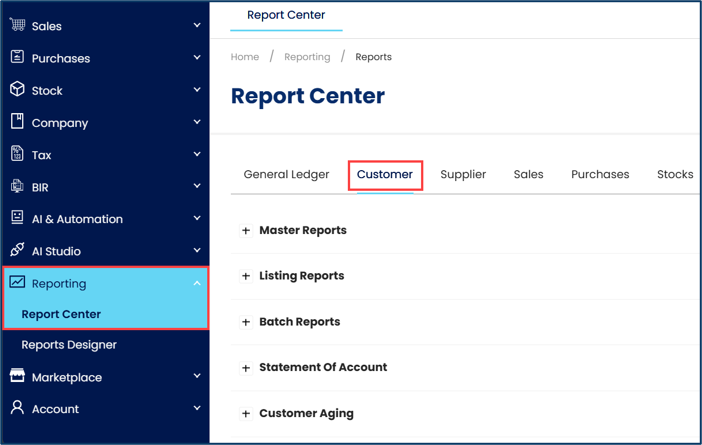
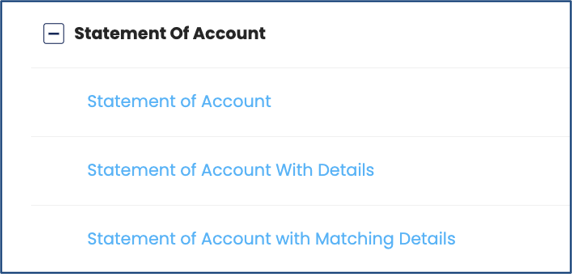
Expand Statement Of Account, and select the applicable report option:
Statement of Account
Statement of Account With Details
Statement of Account with Matching Details.
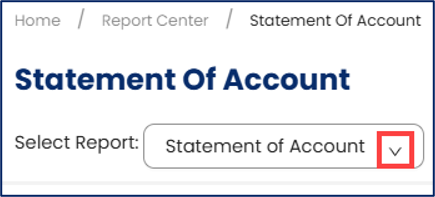
In Select Report, select the applicable printout format for your document.
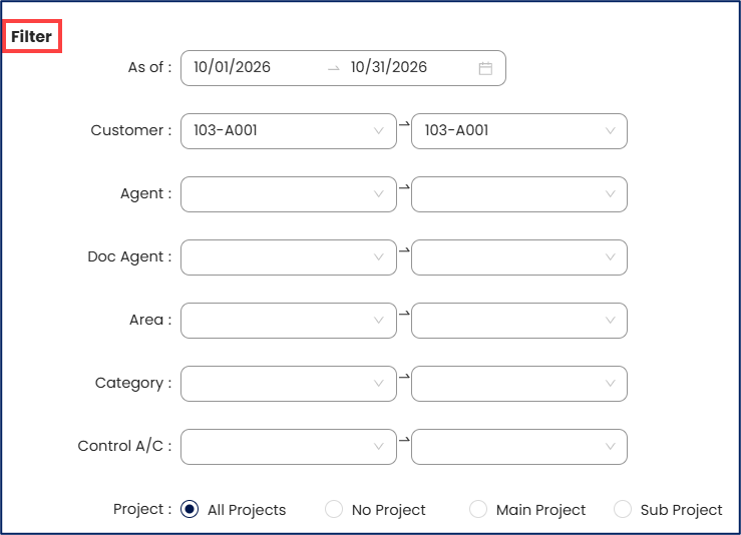
Under Filter, specify the applicable report filters:
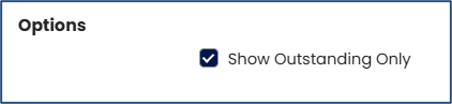
Under Options, enable Show Outstanding Only to display only customer balances that remain outstanding, or disable it to include the customer's complete account activity.
Under Exclude, select the applicable customer statuses to exclude from the report:

Under Statement Type, select either Open Item or Balance Forward, depending on how you want the customer's account activity to be presented:

Open Item – Displays individual transactions before and within the selected period.
Balance Forward – Carries the balance from prior transactions forward as a beginning balance, then displays transactions within the selected period.
Under Sort By, select either Customer # or Customer Name, as applicable.

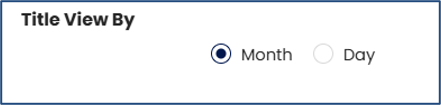
Under Title View By, select either Month or Day, as applicable.
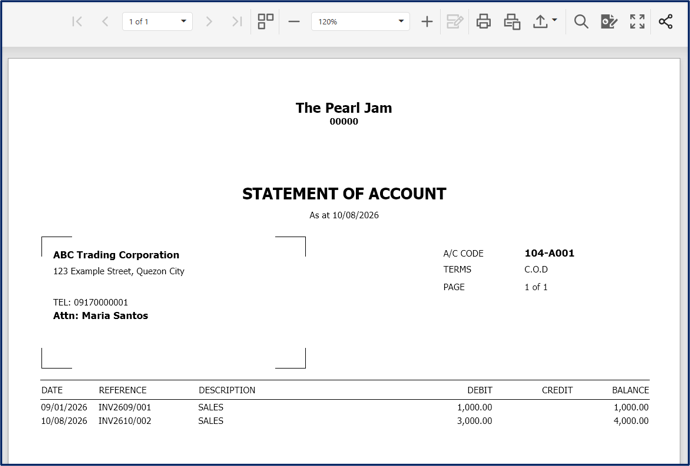
Click Preview to generate the Statement of Account based on the selected parameters.

Review the generated Statement of Account to verify that the reporting period, customer information, and report details are correct.
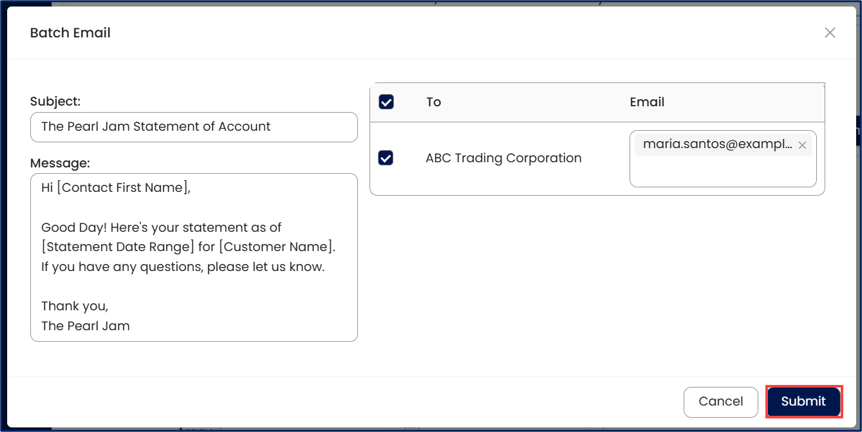
If you want to send the Statement of Account by email, click Batch Email.

In the Batch Email window, select the applicable customers. You can also enter additional recipients in the Email section for each customer. Click Submit.
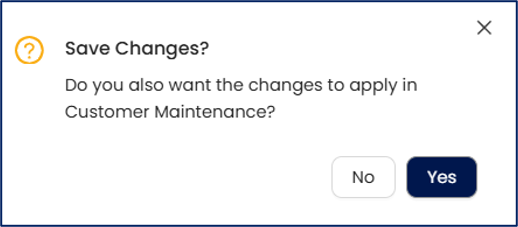
In the Save Changes prompt, click Yes to also save the email addresses to the selected customers. Otherwise, click No.
Application:
Improve customer communication – Provide customers with a clear summary of their account activity and outstanding balances.
Support accounts receivable monitoring – Review customer balances and identify amounts that remain outstanding.
Support account reconciliation – Compare customer account information with internal accounting records.
Facilitate collection follow-up – Provide account information that can be used when following up on outstanding customer balances.
Maintain financial records – Retain customer account statements as supporting documentation for account-related activities.
System Scope: QNE AI Cloud Accounting / N3 AI Accounting
Was this article helpful?
That’s Great!
Thank you for your feedback
Sorry! We couldn't be helpful
Thank you for your feedback
Feedback sent
We appreciate your effort and will try to fix the article